
How to Edit a Video Using Templates in Pikto AI Video
Pikto AI Video templates help you create polished videos quickly. Choose a pre-designed template, then customize its text, media, audio, graphics, timing, and format in the Video Editor.
Step 1: Open the Video Editor
- From the Dashboard, open an existing video project.
-
Create an AI video, then select Open in Editor after the video is generated.
Step 2: Choose a video template
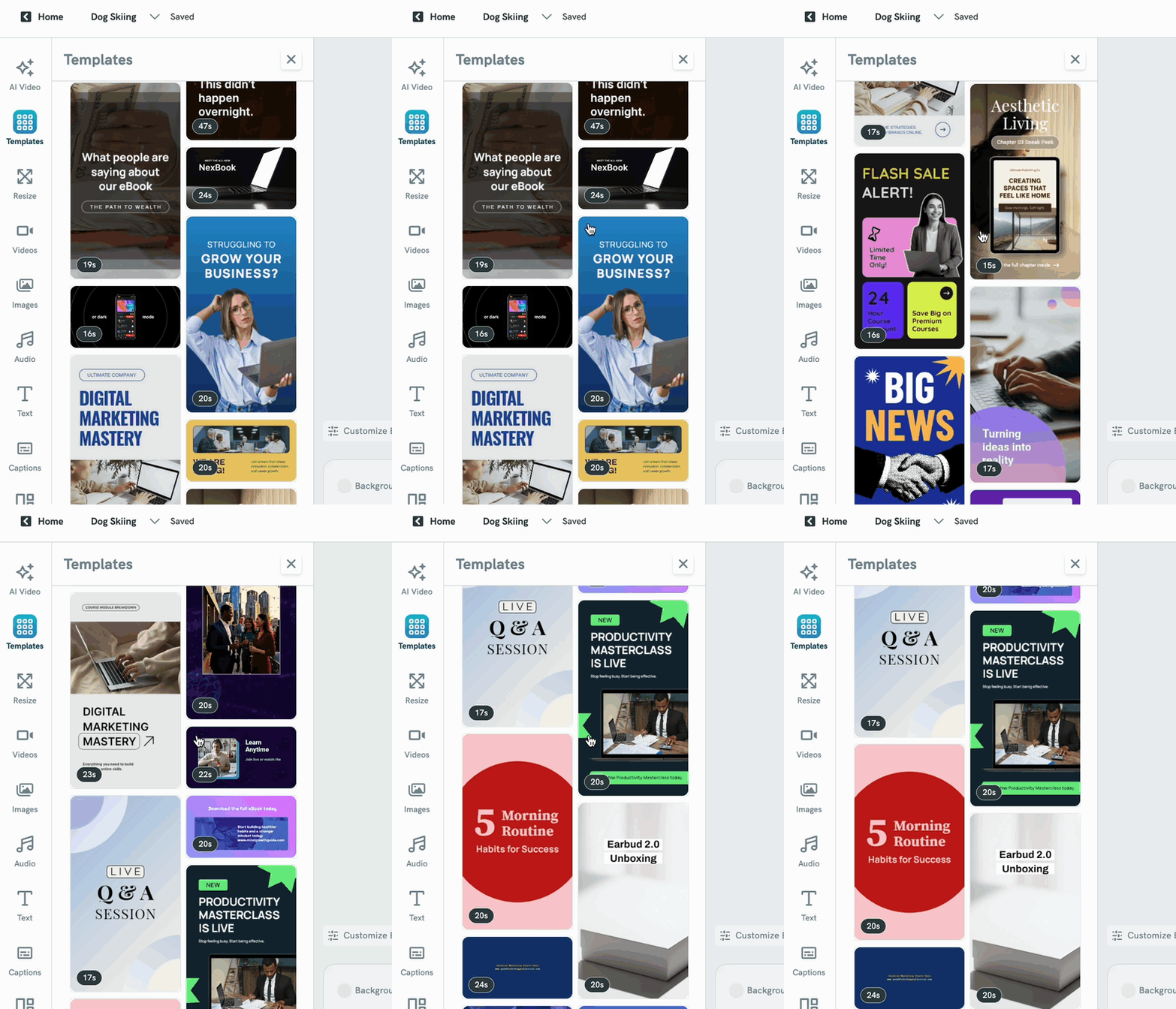
- In the Video Editor, click the Templates button from the left sidebar.
-
Browse the available templates or you can also use the filtering function based on Category and Orientation to help search your desired template. Or, you can also search based on keywords in the search bar.
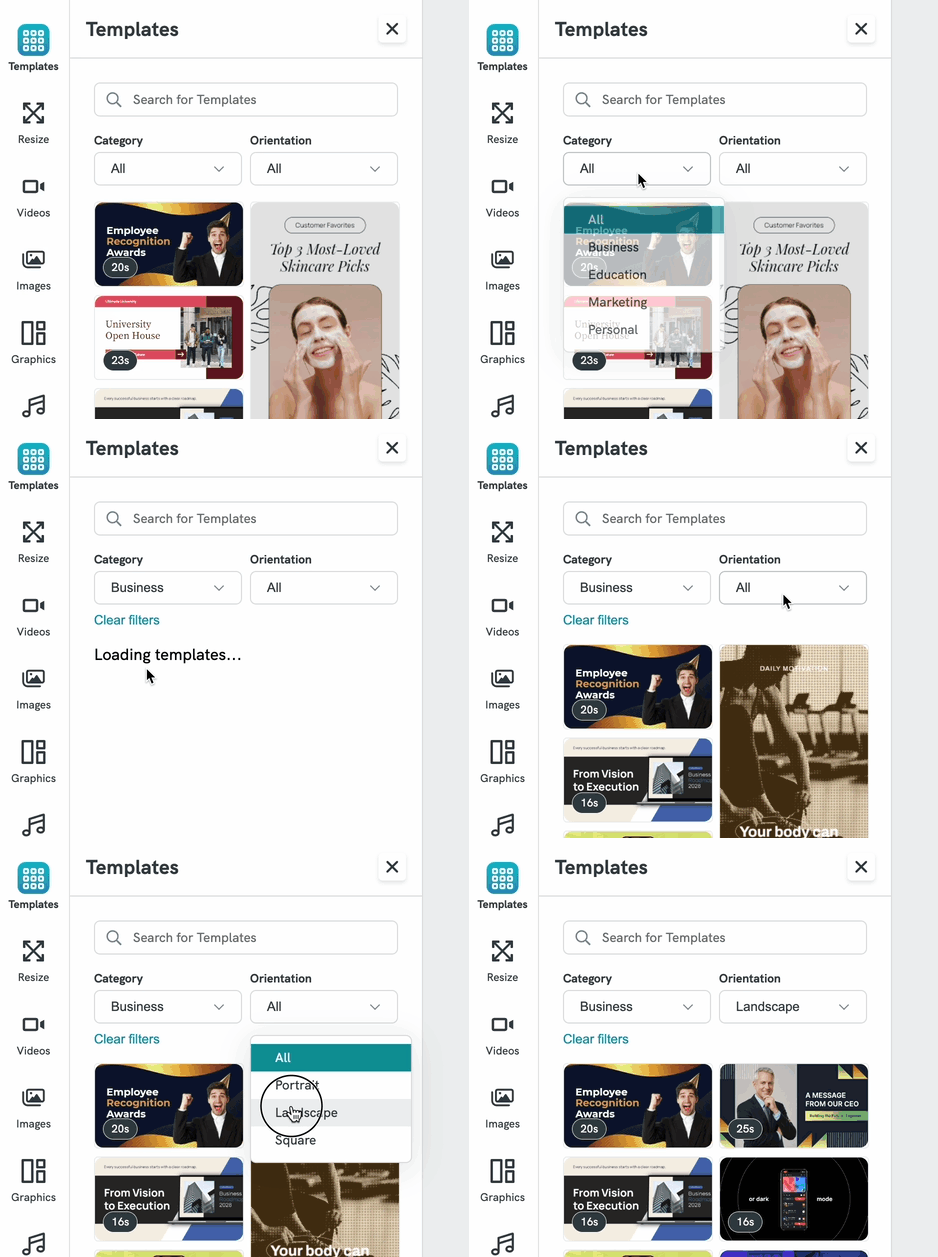
- Select a template to preview or apply it.
- Confirm that you want to apply the template.
Note: Applying a template replaces the current canvas content with the template’s clips, text, and transitions. If you have already started editing your video, save a copy or make sure you no longer need the existing canvas before applying a template.
Step 3: Customize the template
Edit text
- Select a text element on the canvas.
- Replace the existing text with your own content.
- Adjust the font, size, color, and alignment as needed.
- Use the timeline to adjust when the text appears and how long it stays visible.
You can also add new text by selecting Text in the left sidebar and choosing a predefined text style, such as a title, heading, paragraph, or caption.
Replace or add video clips
- Select Videos in the left sidebar.
- Browse your available assets, including uploaded videos, exported videos, AI-generated videos, or stock videos when available.
- Click or drag a video onto the canvas or timeline.
- Select the clip to move, resize, trim, or delete it.
Add images and graphics
Use the Images or Graphics panels to add visual elements to your video. You can add images, icons, illustrations, 3D elements, shapes, or stickers, then reposition and resize them on the canvas.
Add music or audio
- Select Audio from the left sidebar.
- Preview an audio file, if needed.
- Click the audio file to add it to the timeline.
- Trim the audio or adjust its volume using the timeline controls.
Step 4: Adjust the video timing
- Drag the edges of a clip to trim it.
- Drag clips to change their order.
- Select an element to adjust its position and duration.
- Press Play to preview the result.
Step 5: Save your changes
Your project saves automatically after changes. You can also select Save in the editor header to save manually. Once saved, the video project is available from your Dashboard.
Step 6: Export your video
- Select Export in the editor header.
- Choose whether to download the video to your device or save it to your Piktochart Asset Library.
Frequently Asked questions
Will applying a template delete my current video?
Applying a template replaces the current canvas content. Save or duplicate your project first if you want to keep the existing version.
Can I use my own videos in a template?
Yes. Use the Videos panel to access uploaded files and add them to the canvas or timeline. Supported video uploads include MP4, MOV, and WEBM files up to 500 MB per file.
Can I generate an AI video inside the editor?
Yes. Open the AI Video panel, enter a prompt, and generate a clip. After generation, the clip is available under Videos > My Assets > AI Videos for use in your project.