
How to Mute the Original Video Audio
When you add a video clip to the Pikto AI Video Editor, any audio embedded within that clip is included by default. If you want to replace it with background music, a voiceover, or simply create a silent video, you can quickly mute or reduce the volume of the original video audio
Step-by-Step Guide
1. Go to Your Dashboard
Open your Dashboard where all your projects are stored.
2. Open Your Project
Click on the project you want to edit.
3. Expand the Timeline
Make sure your timeline is expanded so you can clearly see your video frames and layout.
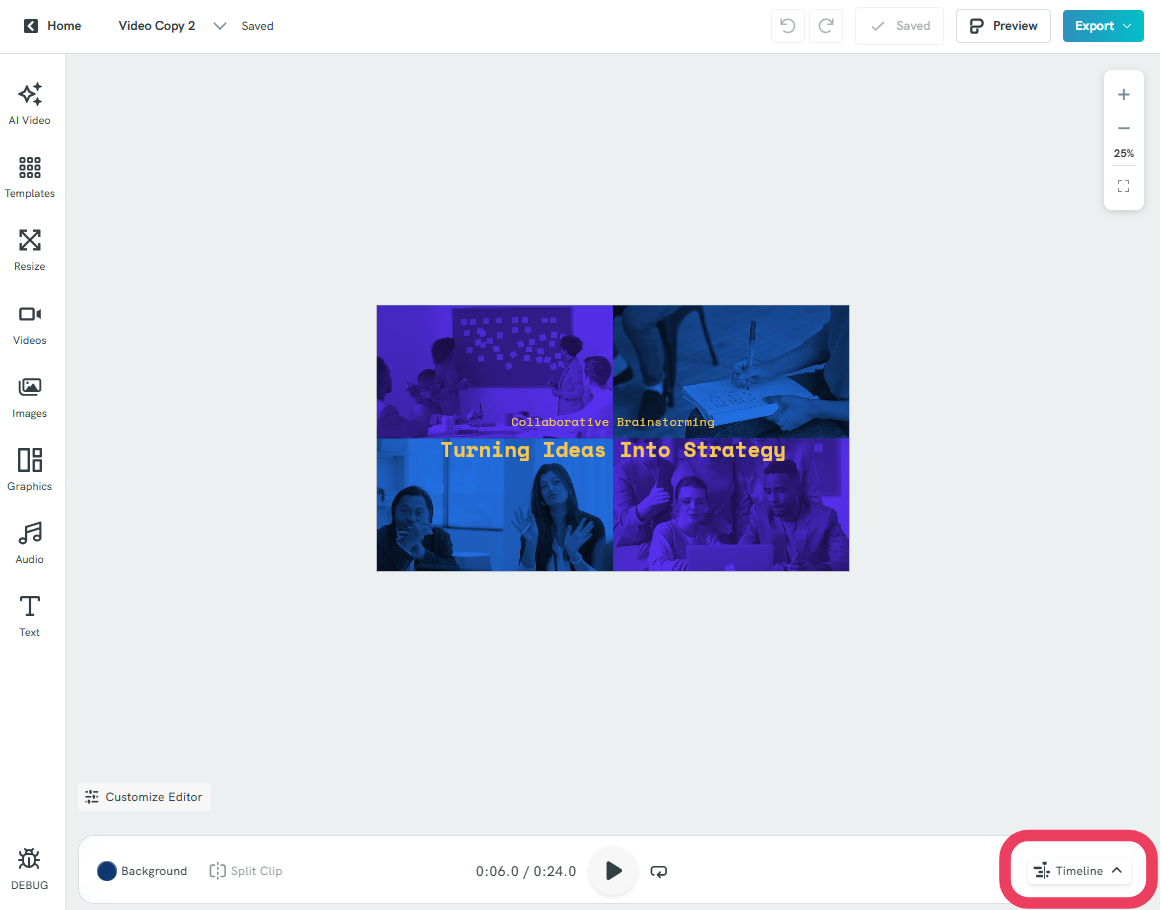
4. Select the Video Clip
Click on the video you want to mute.
The options panel will appear automatically.
5. Open Volume Controls
In the options panel, click on Volume to access the audio settings.
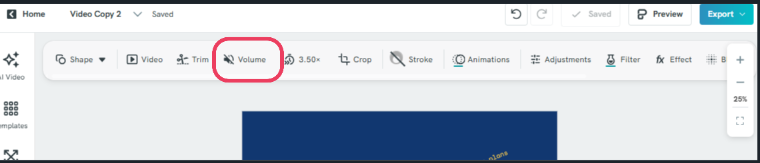
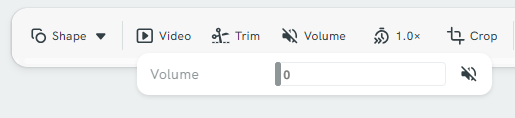
6. Mute the Audio
You can mute the original video audio in any of these ways:
- Drag the volume slider all the way to 0
- Manually enter 0 using the ✏️ (input field)
-
Toggle the Audio Mute option (if available)
7. Preview Your Changes
Play your video to confirm that the audio has been successfully muted
Common Questions
Will muting the audio delete it permanently?
No, muting only turns off the sound in your project. You can always restore it by increasing the volume again.
Can I mute only part of a video?
Yes, you can split the video into segments and mute only the specific section you want.
Why can I still hear sound after muting?
Make sure the volume is set to 0 or that the mute option is enabled. Also, check if there are other audio tracks playing in your project.
Can I add new audio after muting the original?
Yes, you can add music, voiceovers, or other audio tracks after muting the original video sound.
Does muting affect my original uploaded video file?
No, it only applies within your Piktochart project and does not change your original file.