
How to Use Color Schemes for Faster Visual Creation
Color Schemes allow you to apply a set of colors to your entire visual in one click.
Choose from a designer-made Suggested Color Scheme, or if you’re a Business user, create your own Brand Color Scheme(s) that are accessible to all members in your workspace.
You can access Color Schemes from within the editor itself, or from the Brand Assets section, like so:

Suggested Color Schemes
These are built-in designer color scheme suggestions built into most templates to help you create polished visuals effortlessly.
To access them:
- Click anywhere on the canvas within the Editor to start editing the template you selected.
- In the Editor, click the “Colors” tab located in the left-side toolbar.
- You will find a few color scheme selections carefully curated by our designers under the Suggested tab. Right beside it, you'll also see the Brand option.
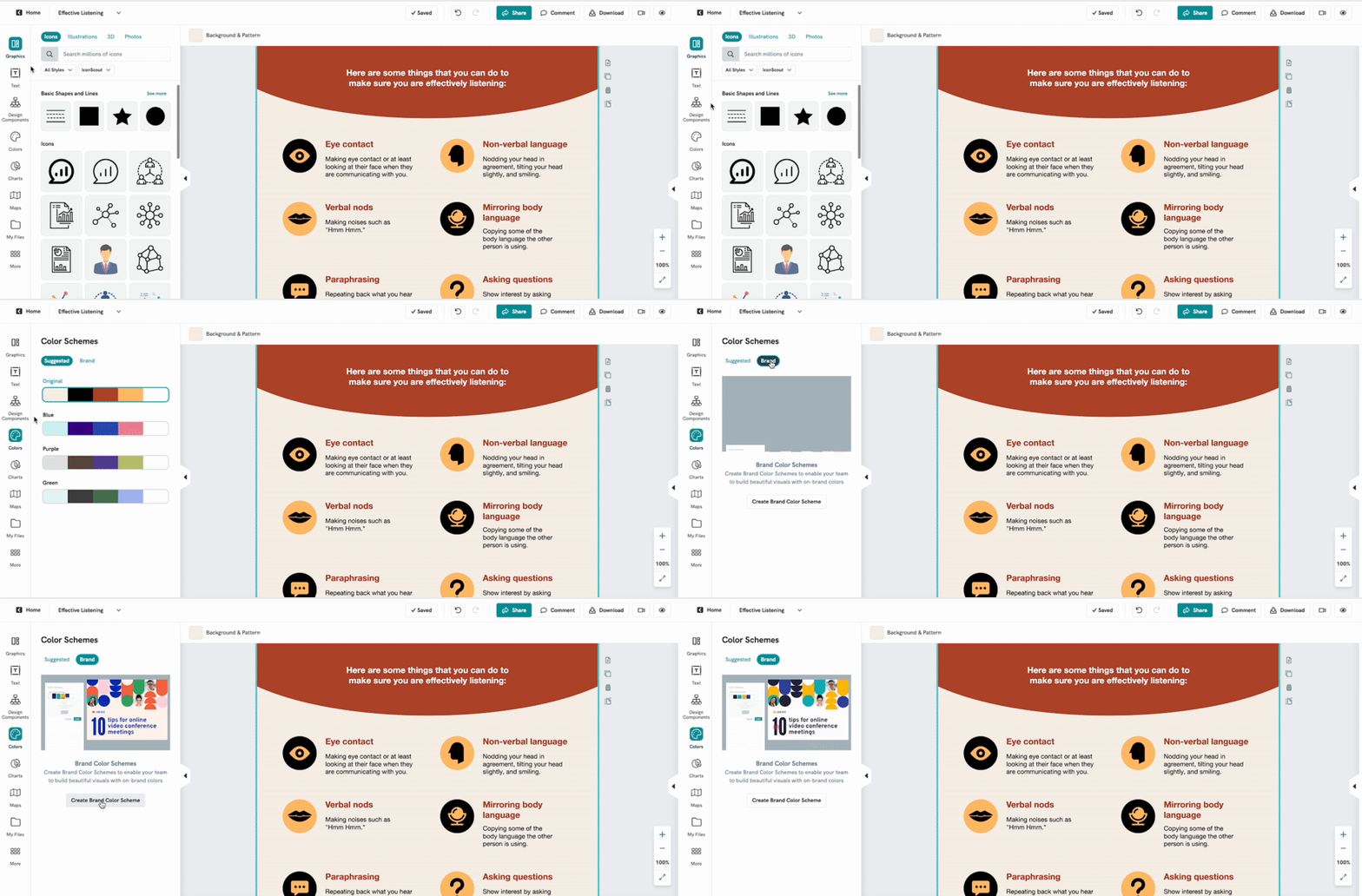
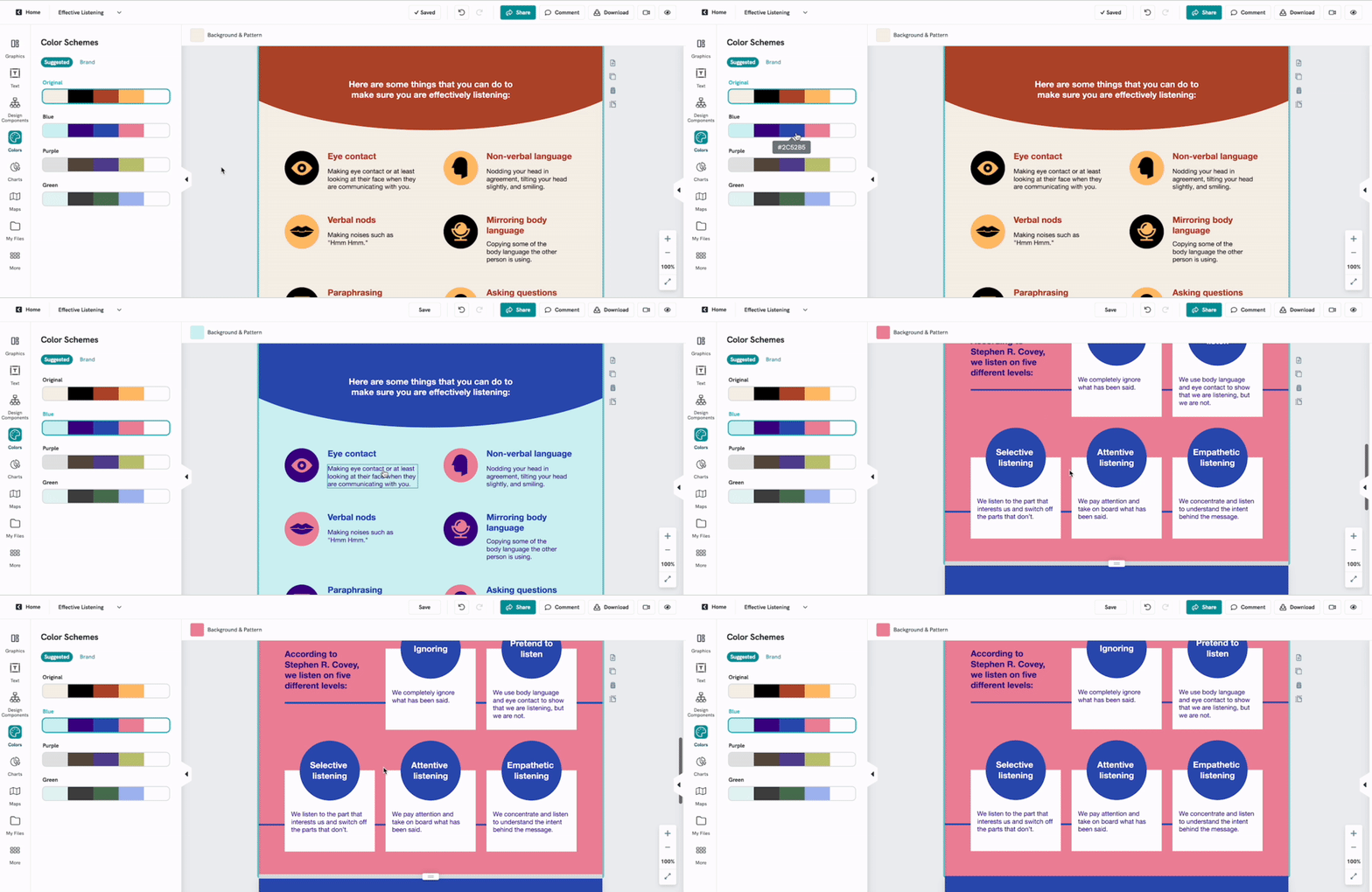
- Click on any of the color scheme palettes available under Suggested, and the colors will be instantly applied to your visual.
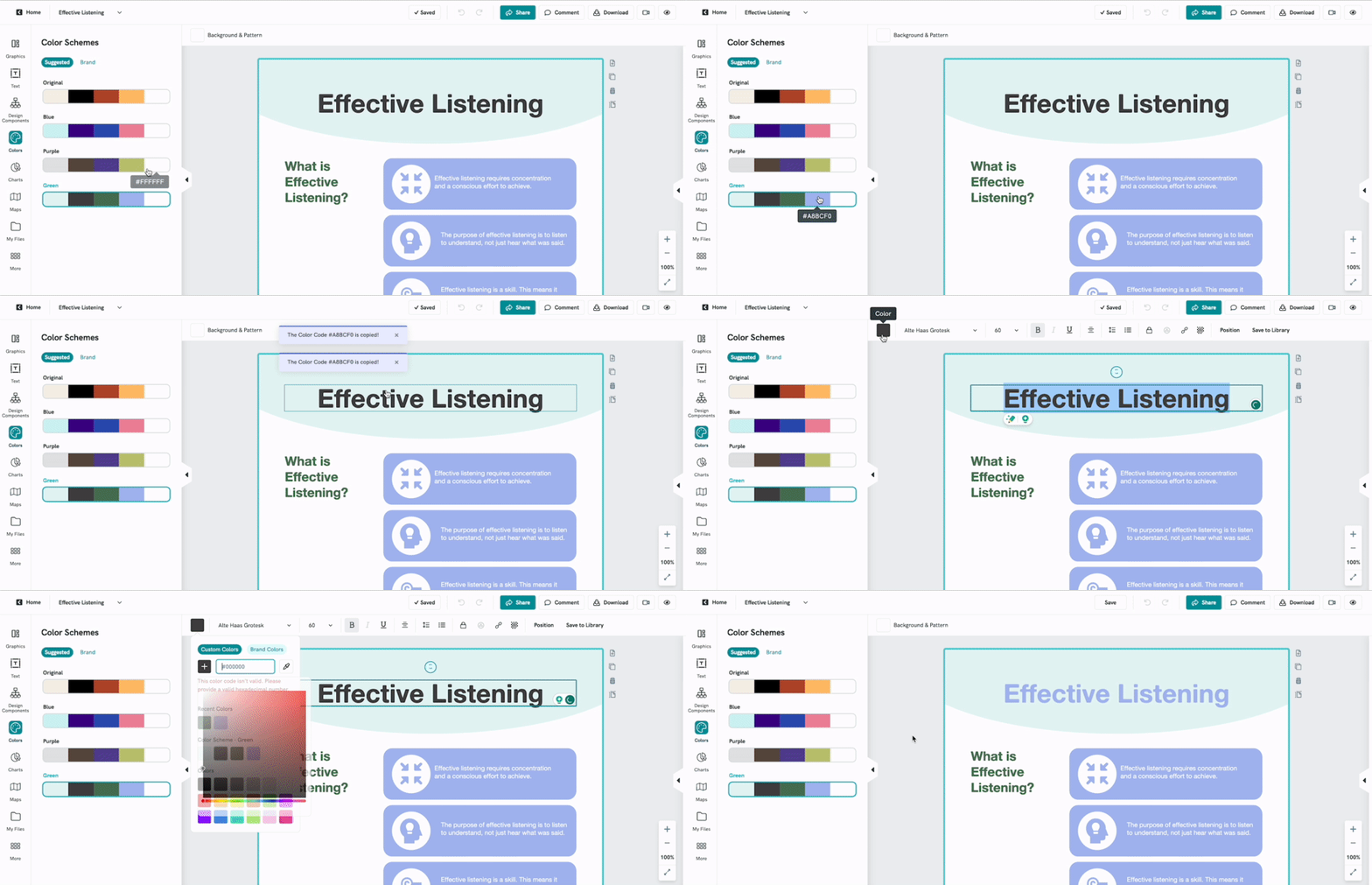
TIP: You can also double-click on a selected custom color tile to copy its HEX code. Then, simply paste the code into the color wheel to apply it. Like this:
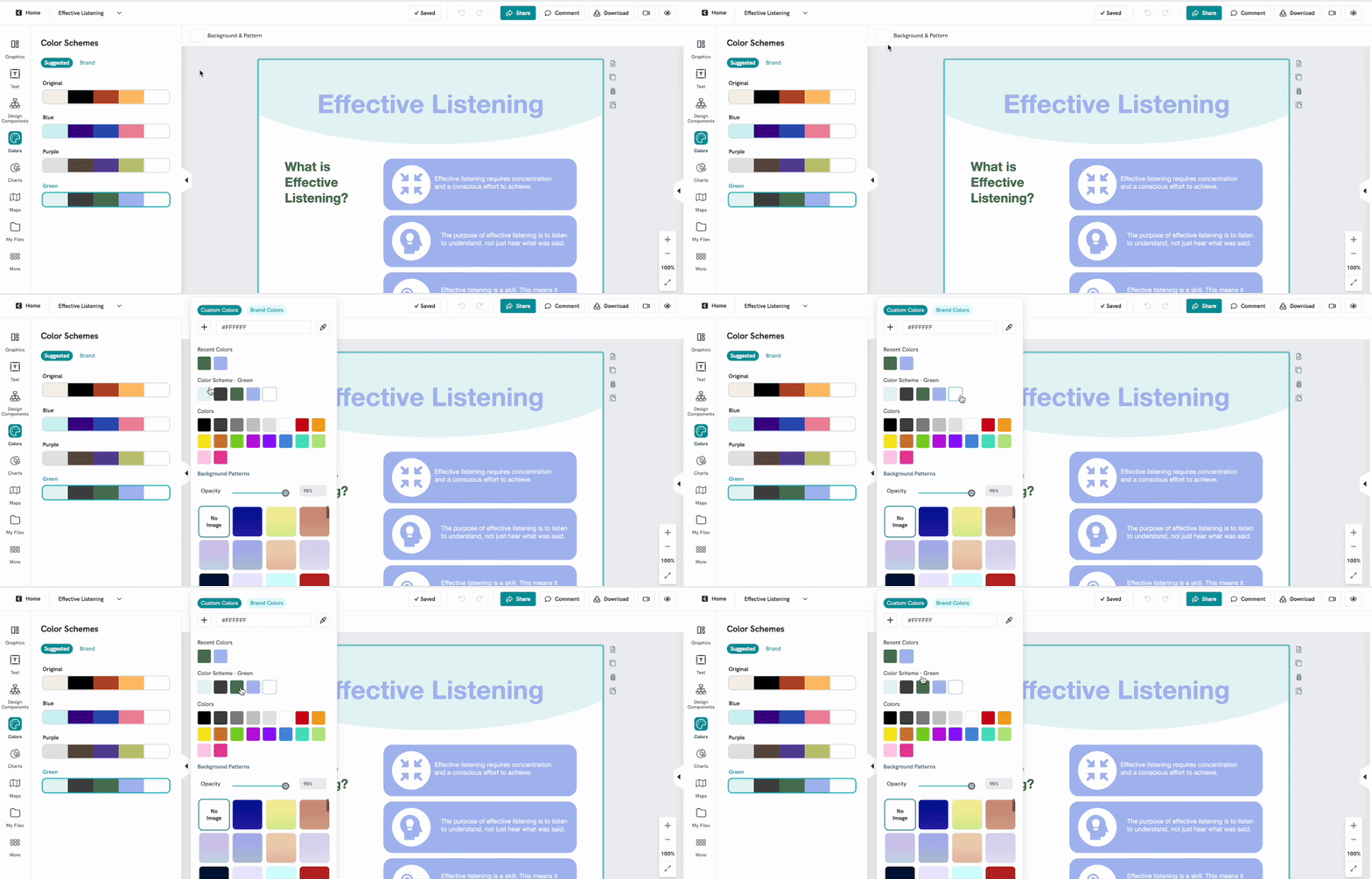
You may also find your selected built-in color schemes in the color menu under Recent Colors or Color Scheme, making it easy to access and reuse them across your visuals.
Your selected color scheme will also be applied across all graphic elements— including charts and maps—for a consistent, on-brand look!
Creating Brand Color Schemes
If you want to easily create a set of your brand colors, just drag and drop an image—like your logo, style guide, or any reference image—and Piktochart will generate a color scheme for you!
You can also manually set your brand colors to suit your preferences.
💡With a Business plan, you can create unlimited color schemes to keep all your projects on-brand.
Here’s how:
- In the Editor, click on the “Colors” tab from the left panel, then select the Brand option.
- Click Create Brand Color Scheme or hit the + symbol at the top.

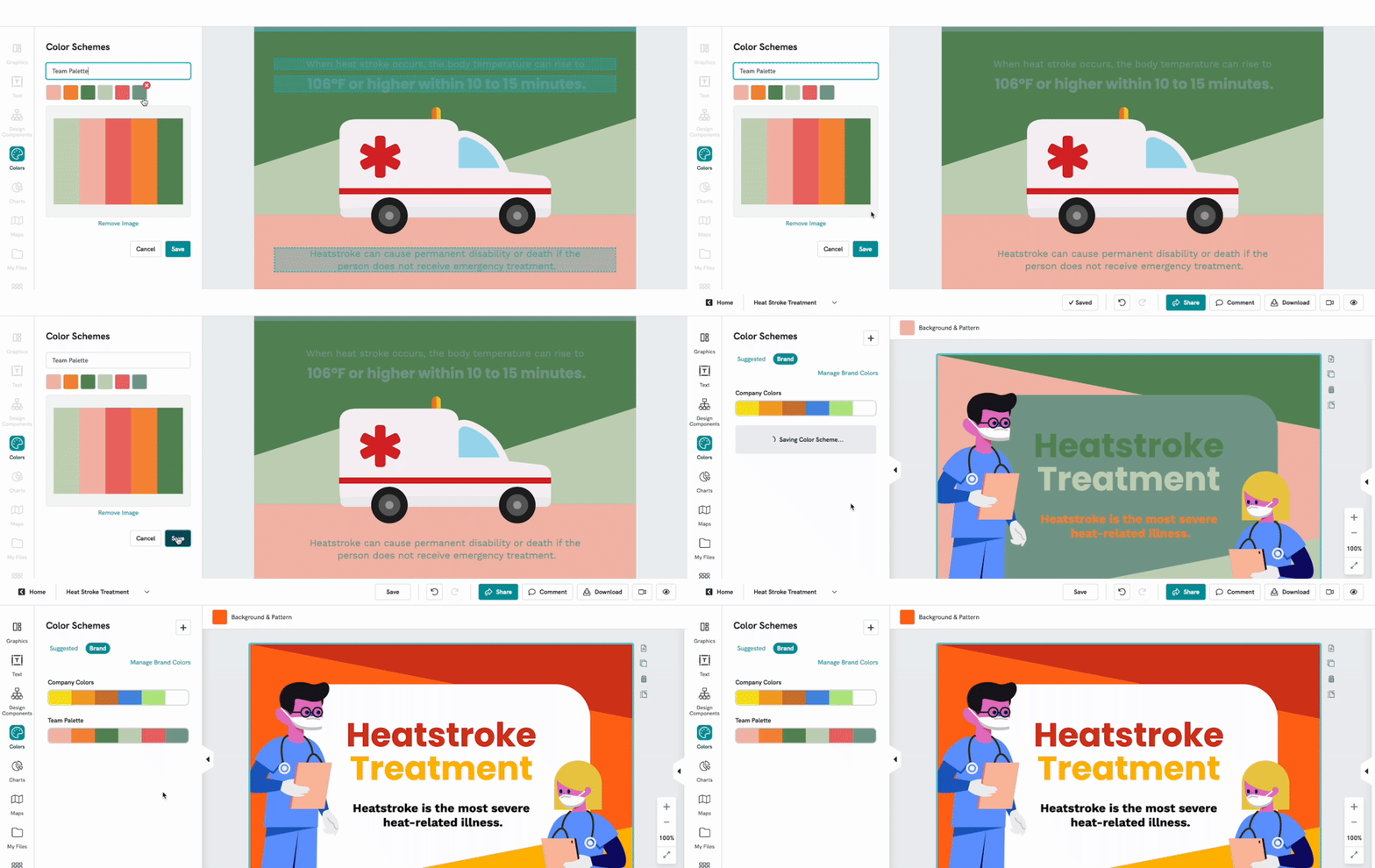
- Name your color scheme and then start choosing the colors you want to assign to the color scheme.

💡You can add up to six colors per color scheme.

Or magically extract your brand colors by uploading an image that contains them. Simply select Browse or drag and drop the image onto the grey area.

- To save your palette, click Save. You'll then see all of your saved color schemes to choose from.
Editing Color Schemes
Edit the colors by clicking the pencil icon above the scheme you want to change. Click each color to choose a different color, or click x on a color tile to remove it from the scheme entirely.

You can also easily switch the order of the colors and change the color of the elements that are associated with that color bucket to customize your visual.

💡Please note that while in this color scheme creation, your canvas will be in Preview Mode so you can see how the color scheme appears on your canvas. Feel free to explore the colors for your color scheme before you choose which colors will be in the scheme!
Once you're done, simply click Save to apply the changes to your visual. If you do not wish to apply or revert your changes, click Cancel.
To delete a color scheme from your saved colors, click on the Delete trashcan icon that appears when hovering over the color palette.
