
AI Logo Generator: Create Logo in Seconds
Piktochart AI Logo Generator lets you create high-quality, custom logos from just a text prompt. From brand identities and wordmarks to unique design concepts, it generates crisp, scalable logo design in seconds.
How to use AI Logo Generator using Pikto AI?
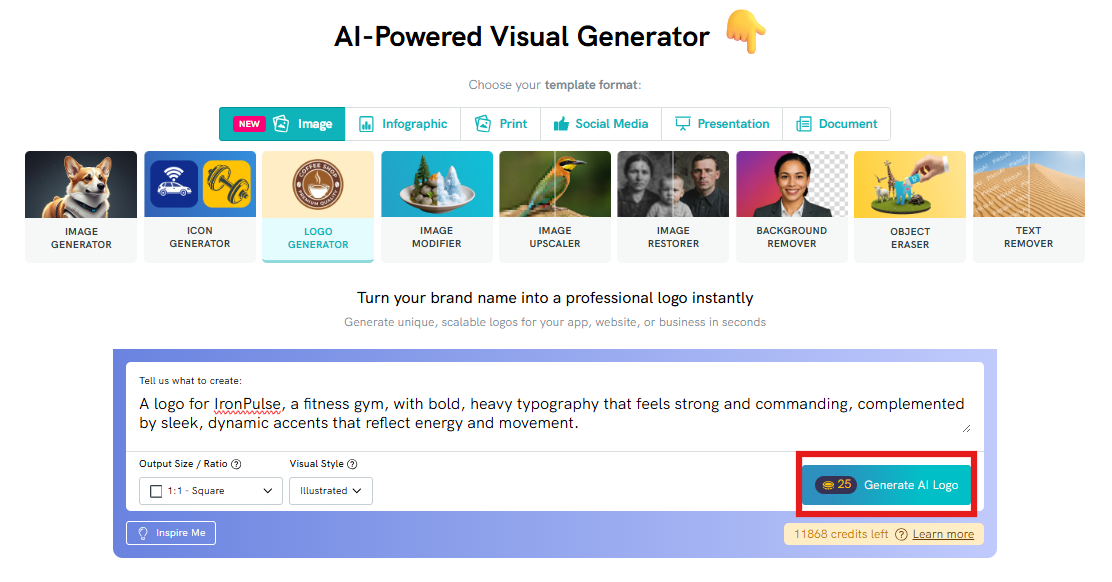
- On Pikto AI, click on the "Image" tab in the format options, then select "Logo Generator."

- Insert Your Prompt
- Describe your logo idea in detail in the prompt box—adding more specifics helps the AI create a more accurate and visually striking result.
- The final result may change depending on how the AI model interprets your text and transforms it into an image, so feel free to experiment with different prompts!
- For example: “A logo for IronPulse, a fitness gym, with bold, heavy typography that feels strong and commanding, complemented by sleek, dynamic accents that reflect energy and movement.”
💡 Please note that there's a 150 character limit in the prompt including spaces.

💡 You can use the “Inspire Me” button to generate a random AI prompt suggestion for you. AI will suggest a creative prompt that you can use as-is or modify to suit your vision.
- Select the image Output Size / Ratio for your AI-generated visual
- Click on the Size/Ratio dropdown to select your preferred size/ratio.

- Choose your preferred Visual Style.
- Illustrated for vibrant and detailed style that brings your logo to life with rich colors and dynamic visuals. Perfect for bold, creative, and eye-catching designs.
- Engraved is for a classic, textured style inspired by traditional etching or engraving. Ideal for logos that want a refined, vintage, or professional feel.
- Line Art is for a clean, minimalist style made entirely of outlines and simple shapes. Great for modern, versatile logos that scale easily and look sharp in any size.

- Click the “Generate Logo” button.
- Within seconds, the AI will create a unique image based on your description.
-
The generated image will automatically be saved under My Uploads > AI Images, so you can easily access it later for use in your designs.
Using the AI Icon Generator in the Editor
- Click AI Tools from the left panel, then under AI Generator, select the Logo Generator option.

- Enter your prompt:
- Provide a detailed description of the logo you want to generate—the more specific you are, the more precise and tailored the result will be.
- Or, click Inspire Me to receive a random AI prompt suggestion to spark your creativity.

- Select the dimensions—square, portrait, or landscape—to set the size and ratio.

- Select a visual style from options such as Illustrated, Engraved, or Line Art to give your design a distinct look.

- Click Generate Logo to create a custom logo based on your details.

- Once satisfied with the results, you can either insert the logo directly into your design or download it to your computer.
- Click Insert to Page to add it to your visual.
- Click Download File to save it directly to your device.

Please note that logos generated from the AI page are saved to your account and will appear in the My Uploads tab; however, they cannot be downloaded directly from there. These logos can only be used within your designs.
Common Questions
What file format are the logos generated in?
The logos generated by the AI Logo Generator are currently available in SVG format. This ensures that your logos are high-quality, scalable, and easy to edit or resize without losing clarity.
How many credits does generating a logo cost?
Each logo generation uses 25 credits. This credit is applied per icon generated.
Can I edit or customize the generated logo after it’s created?
Yes, you can still edit or customize the generated logo after it’s created. However, each additional edit will require 25 AI credits.
My AI credits for the month has been used up. Can I purchase additional AI credits?
Yes! You can unlock more AI credits, which are non-expiring. More details can be found here: Unlocking More AI Credits
Where can I find my generated logos after processing?
Once the generation is complete, your generated logo is automatically saved in My Uploads > AI Images. You can easily access and use it directly in your design projects.
Can I use the logos for commercial purposes?
Yes! Logos created with the Pikto AI Logo Generator are royalty-free and may be used for both personal and commercial projects, provided they adhere to Piktochart’s Terms of Use.
What are the key differences between Illustrated, Engraved, and Line Art logo styles?
- Illustrated – Produces fun, colorful, and simplified visuals featuring bold shapes and a lively, eye-catching style.
- Engraved – Creates intricate, textured icons with a carved or etched look, giving them a classic and sophisticated feel.
- Line Art – Creates sleek, minimalist icons built from clean outlines and simple strokes, ideal for modern and lightweight designs.