
Mini Image Editor
The Mini Image Editor allows you to further edit your images easily within Pikto AI!
How to use the Mini Image Editor on Mobile
-
Go to the Pikto AI page from your browser.
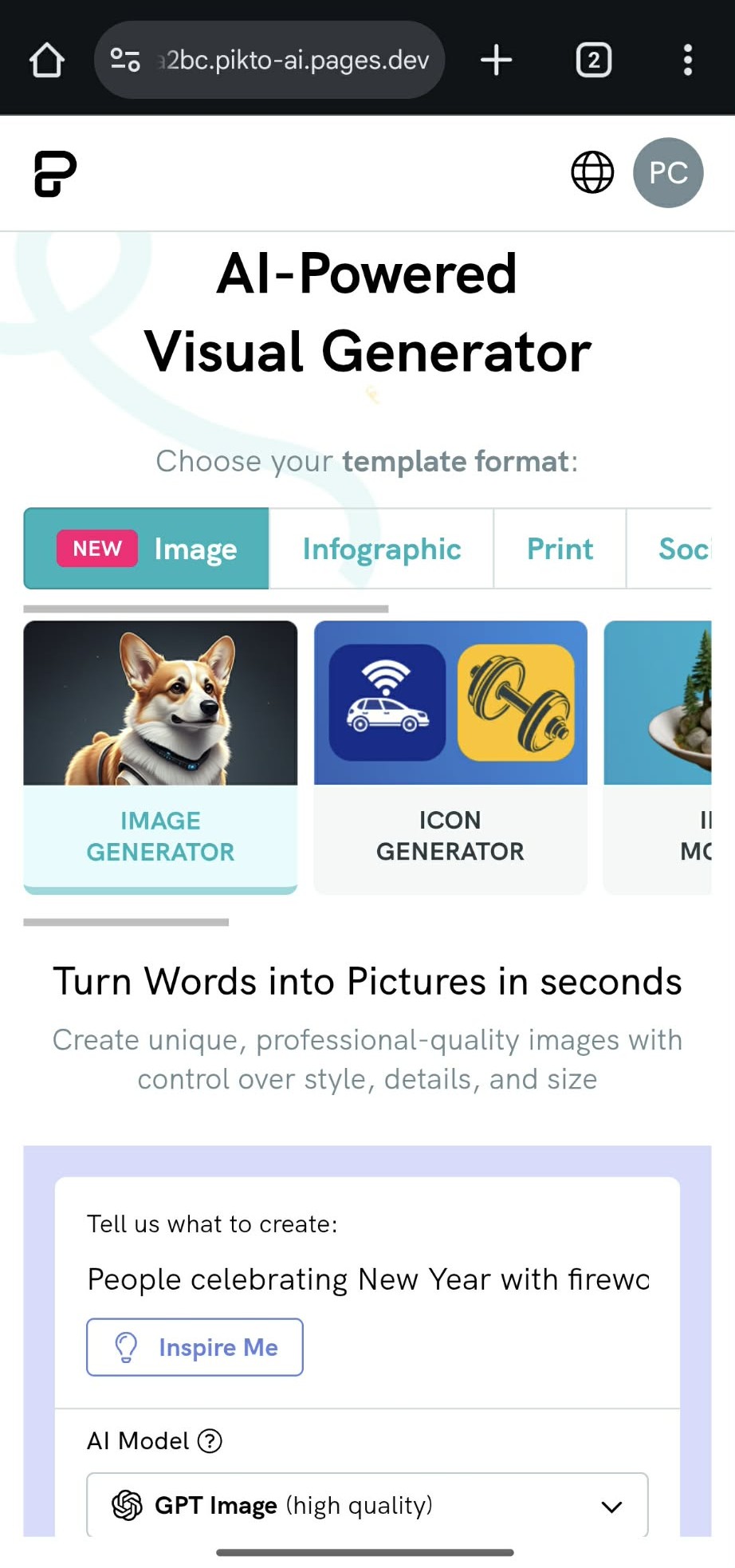
- Select any AI tool you want to use (e.g., Image Generator, Background Remover, AI Image Editing, etc.).
- If you are using Image Generator, enter your prompt and click Generate. If you are using an AI editing tool, upload your image and submit the action (e.g., remove background, extend, replace object).
-
Once your generated or edited image is ready, Piktochart will automatically redirect you to the Mini Image Editor.
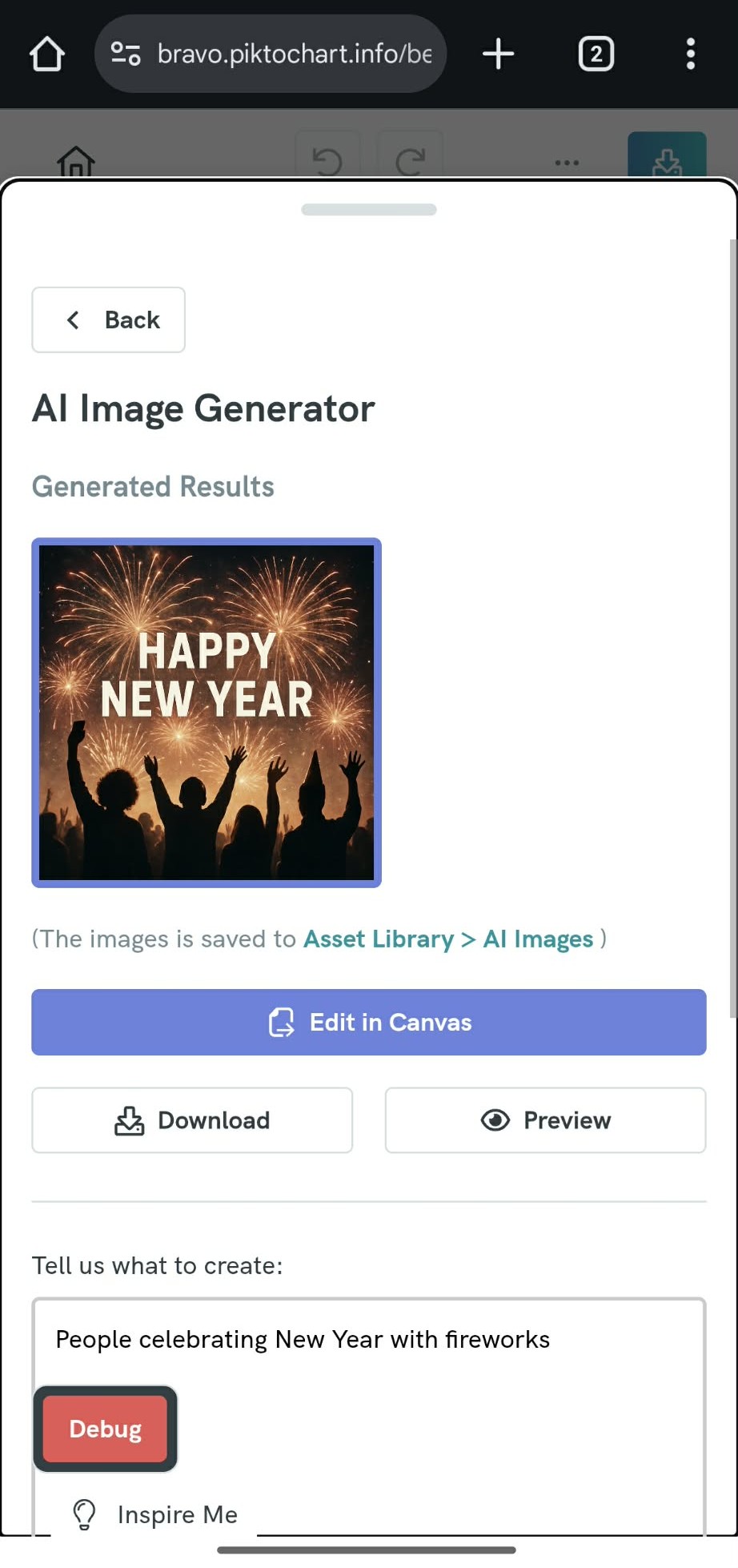
If you are satisfied with the result, you can download it to your mobile device by tapping the Download button.
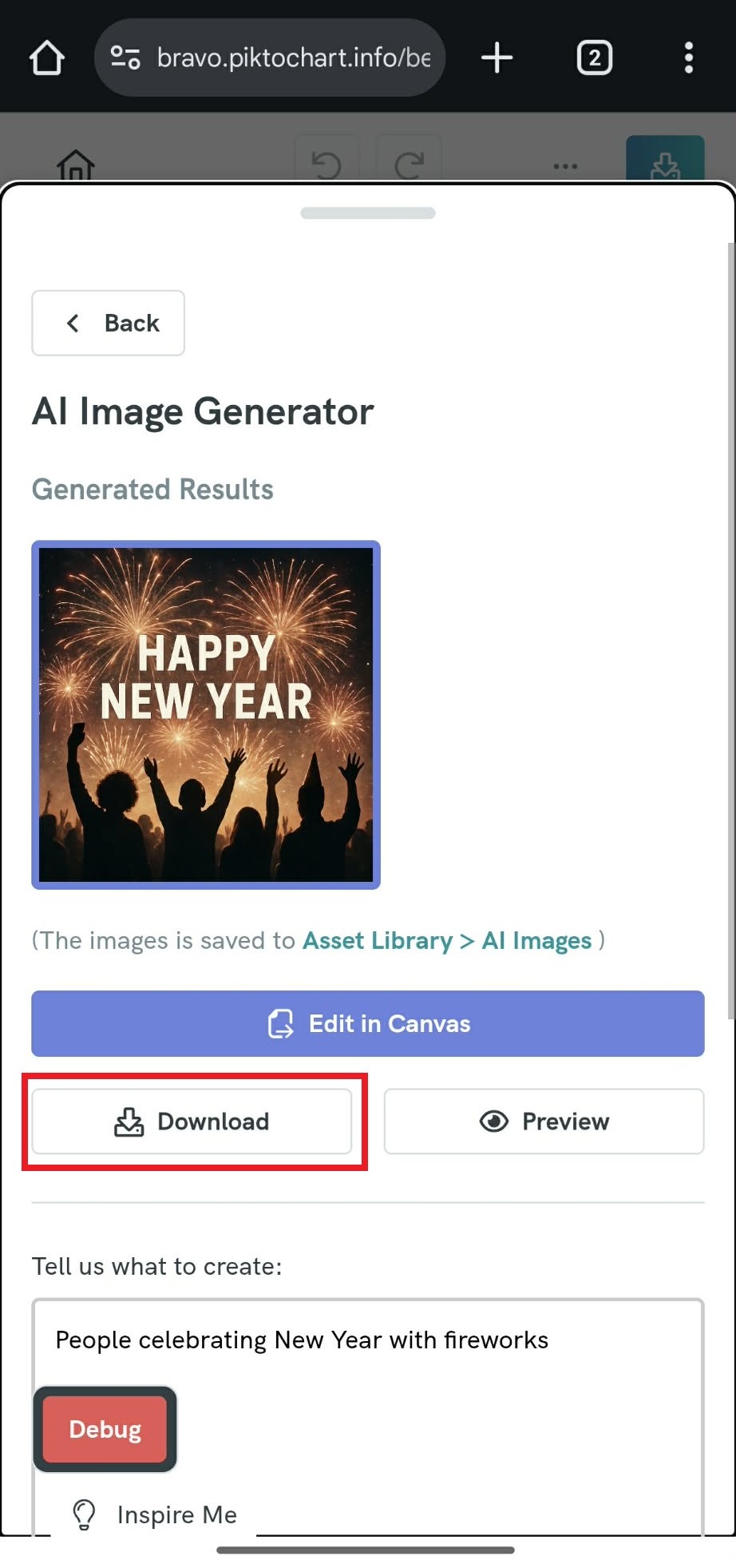
Alternatively, you can add it directly to your visual by clicking Edit in Canvas.
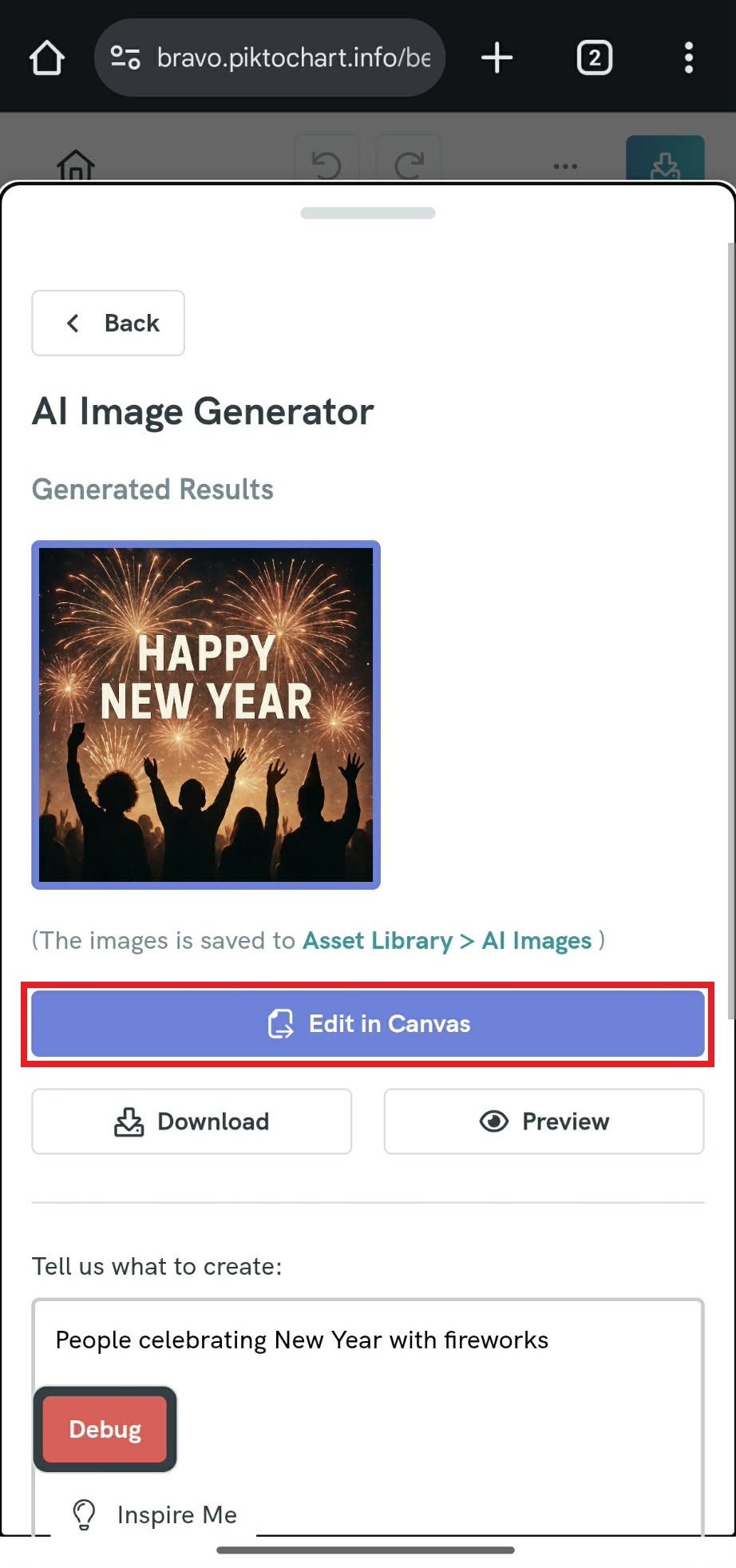
- Once added, the image will appear in the Editor, where you can further refine it:
-
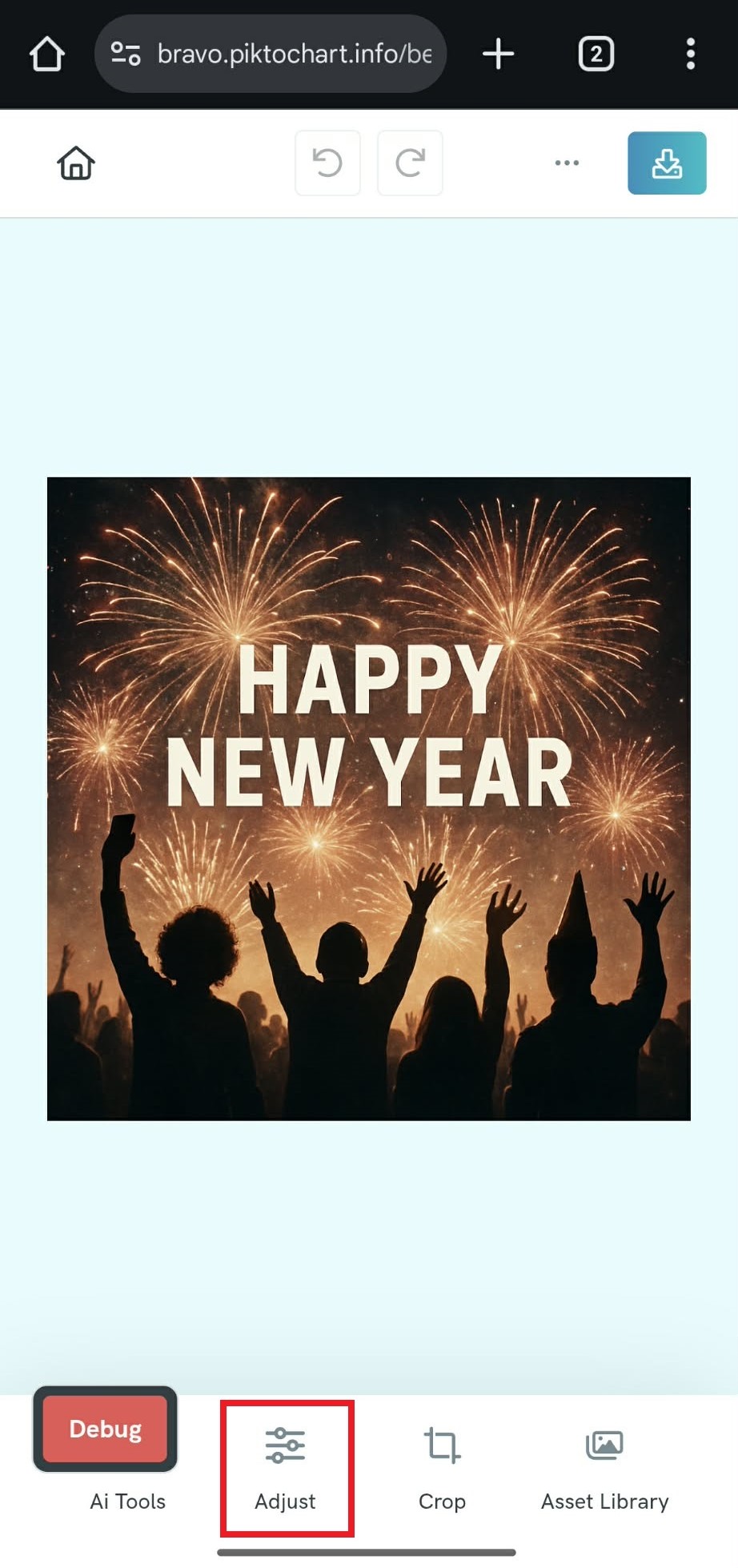
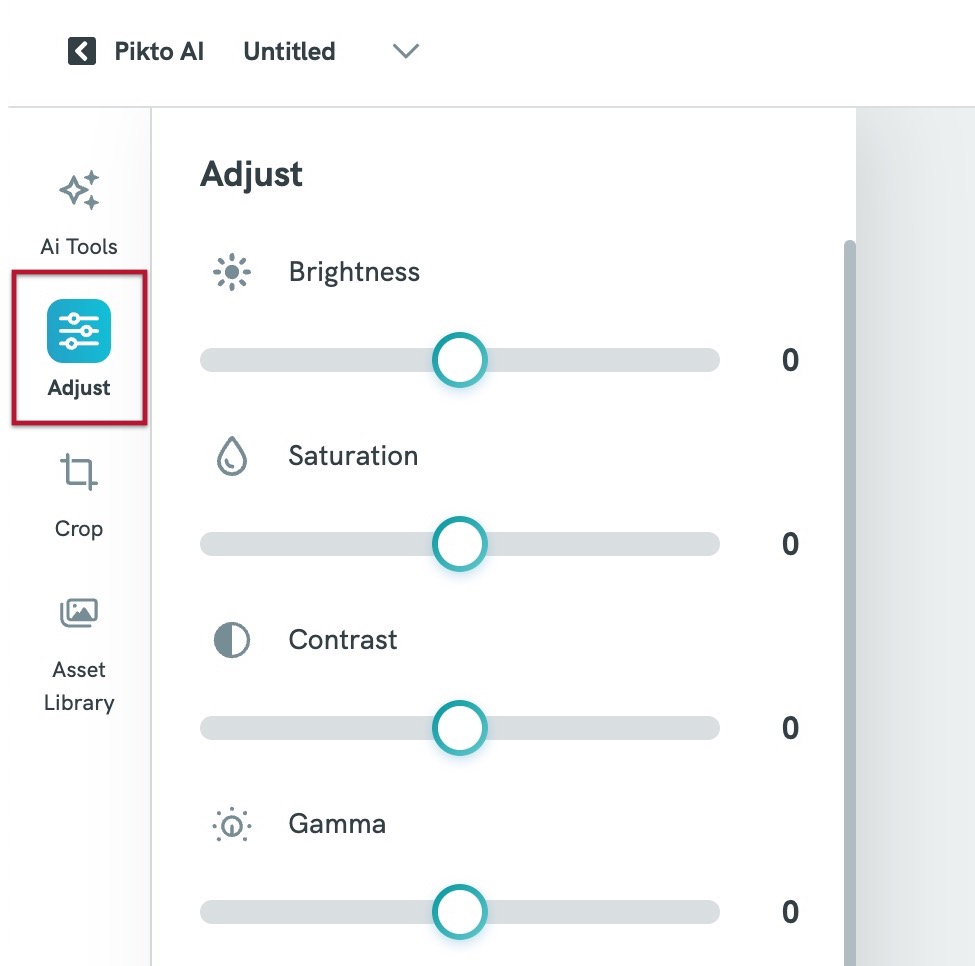
To fine-tune your image, click the Adjust tab, where you can modify brightness, contrast, saturation, and other visual settings.
-
-
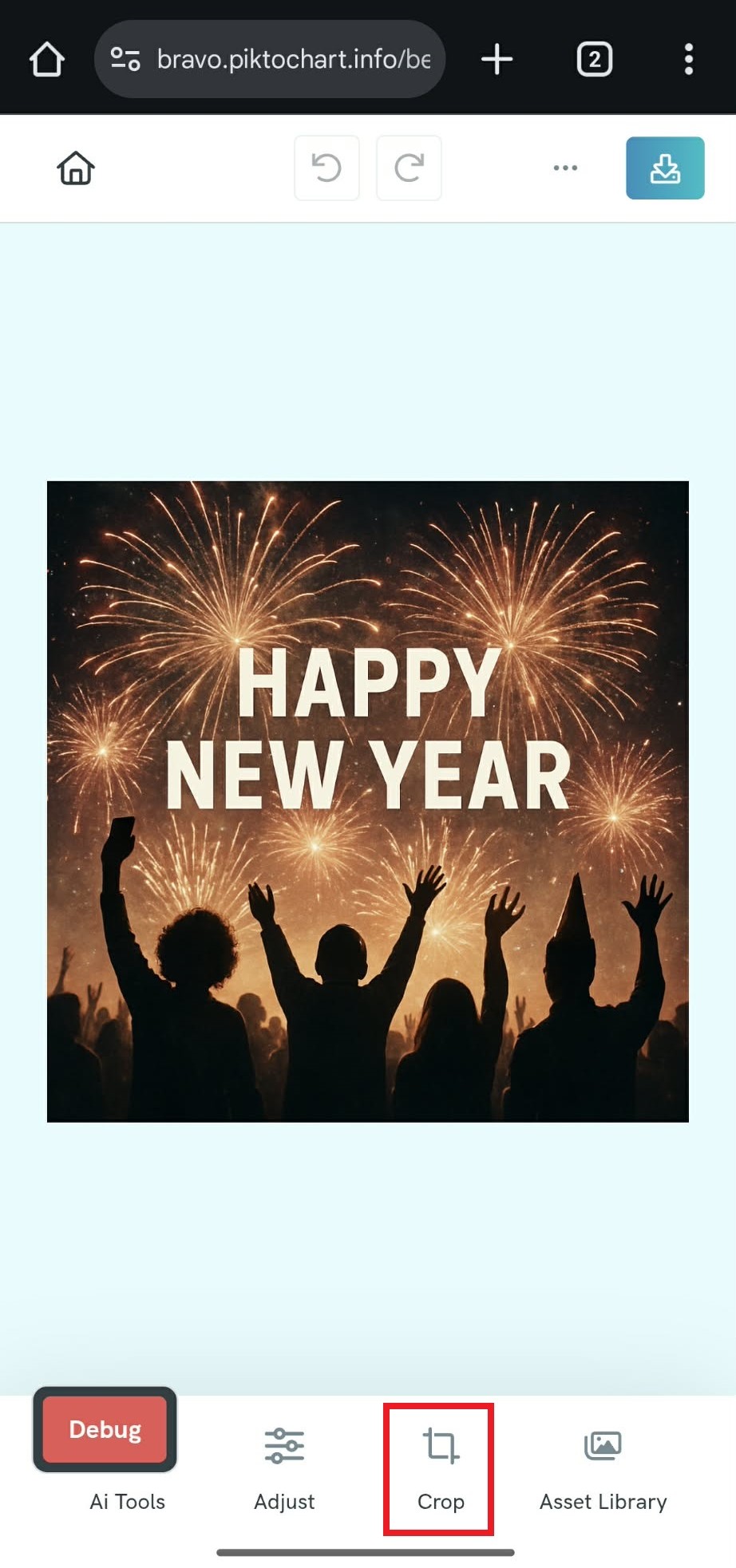
You can also crop or rotate the image as needed by clicking the Crop tab.
6. You can also incorporate your own photos:
-
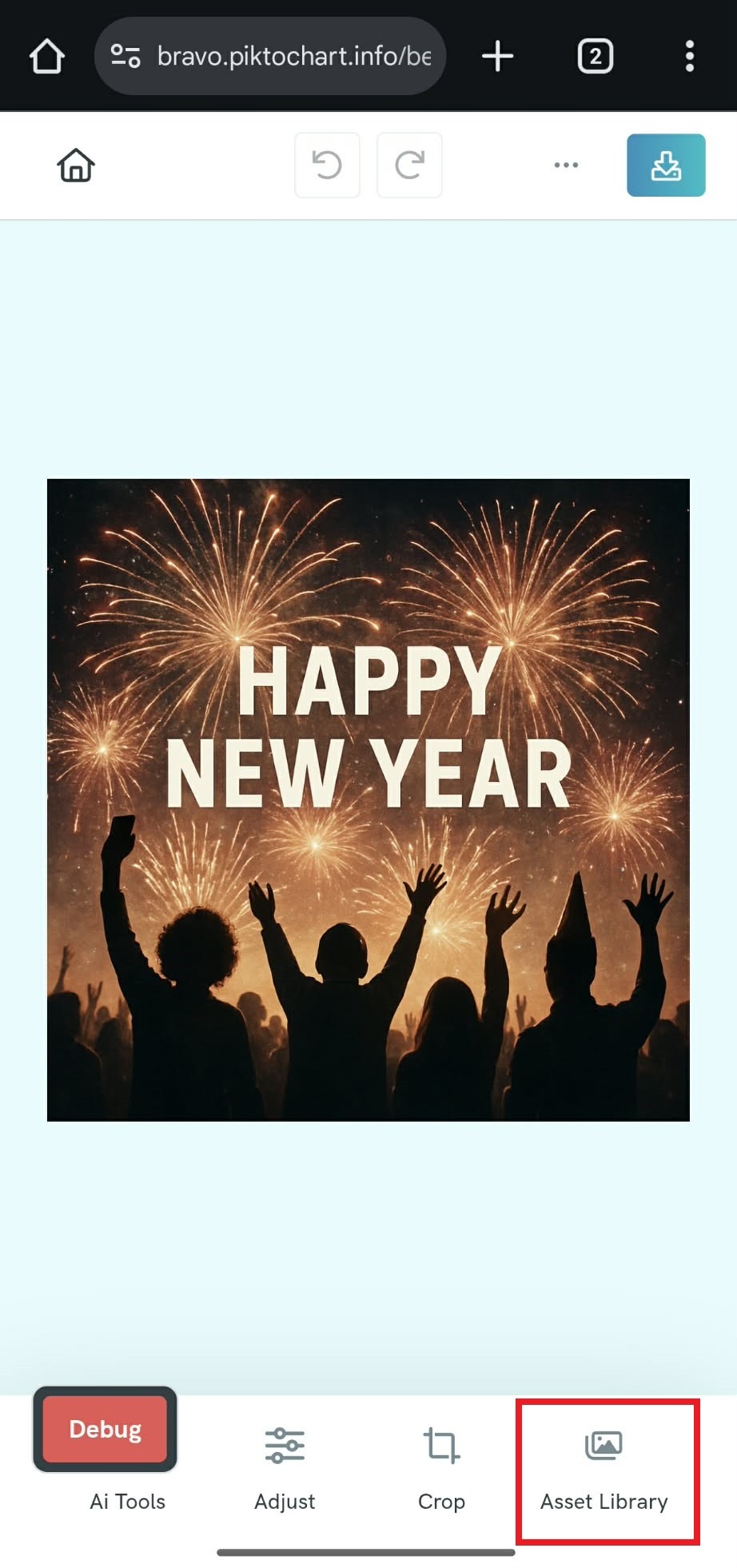
Tap Asset Library → Upload an Image and select a photo from your mobile device.
-
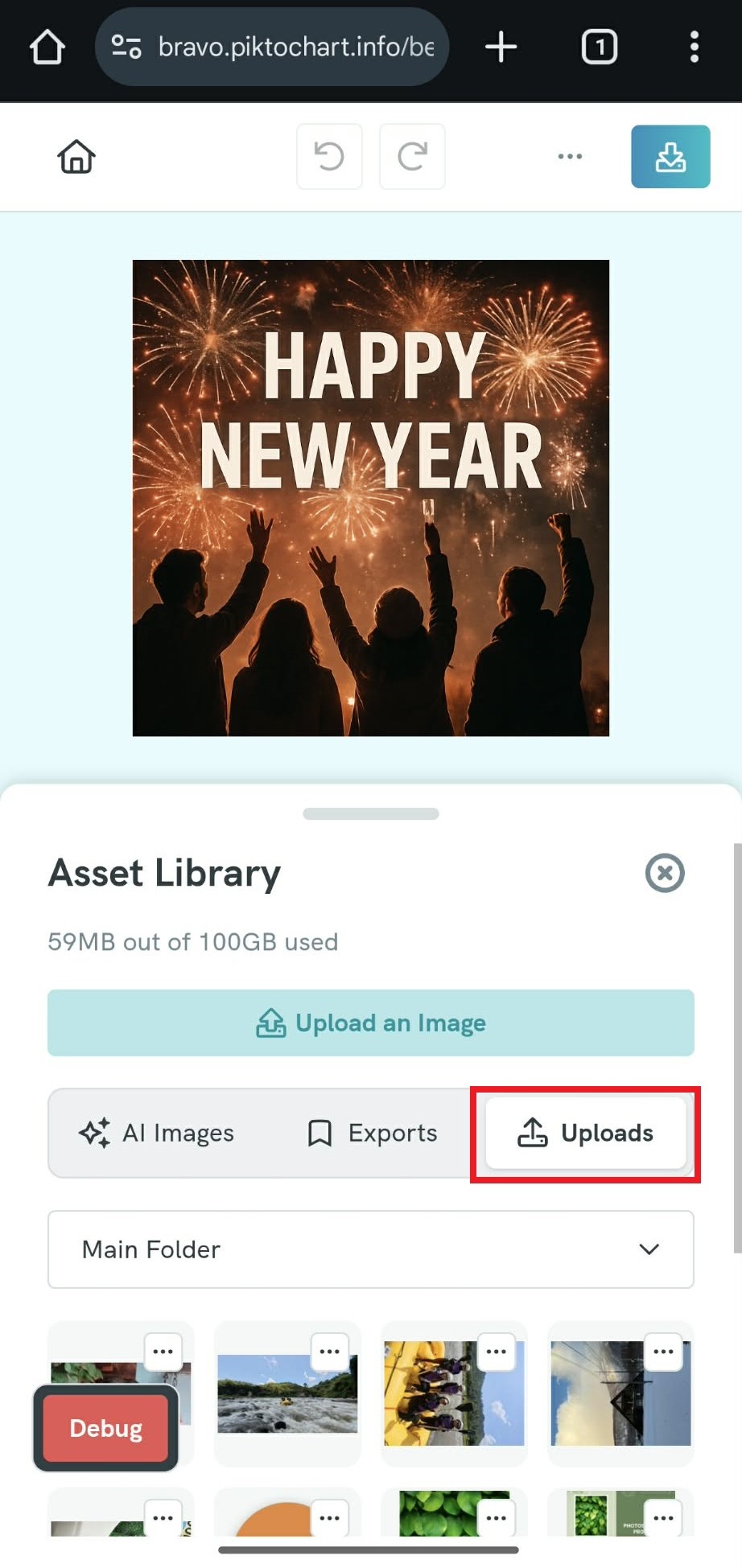
The uploaded photo will be saved under Asset Library → Uploads.
-
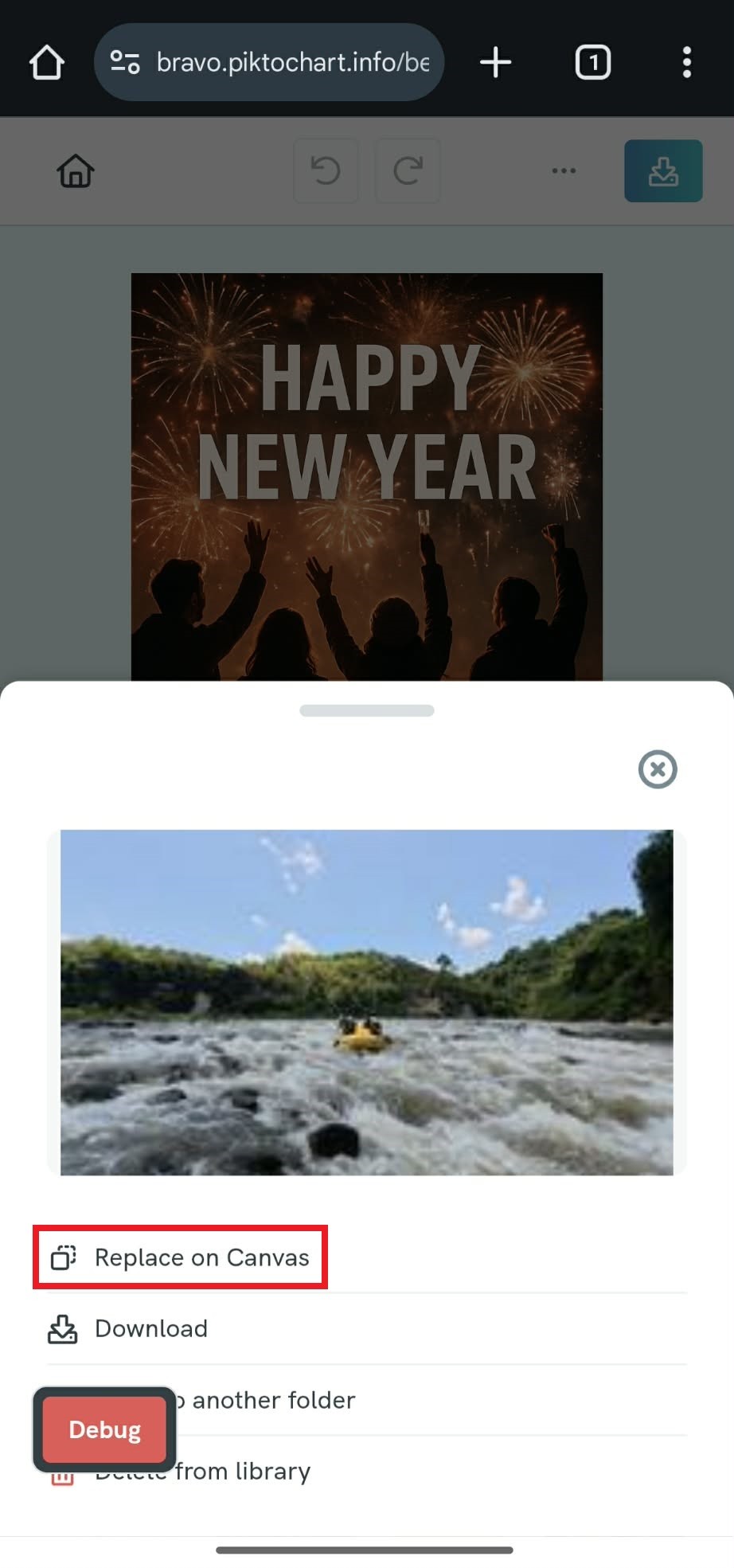
Select your uploaded photo and tap Replace on Canvas to swap it with your generated image.
How to use the Mini Image Editor on Desktop
-
Go to the Pikto AI page from your browser.
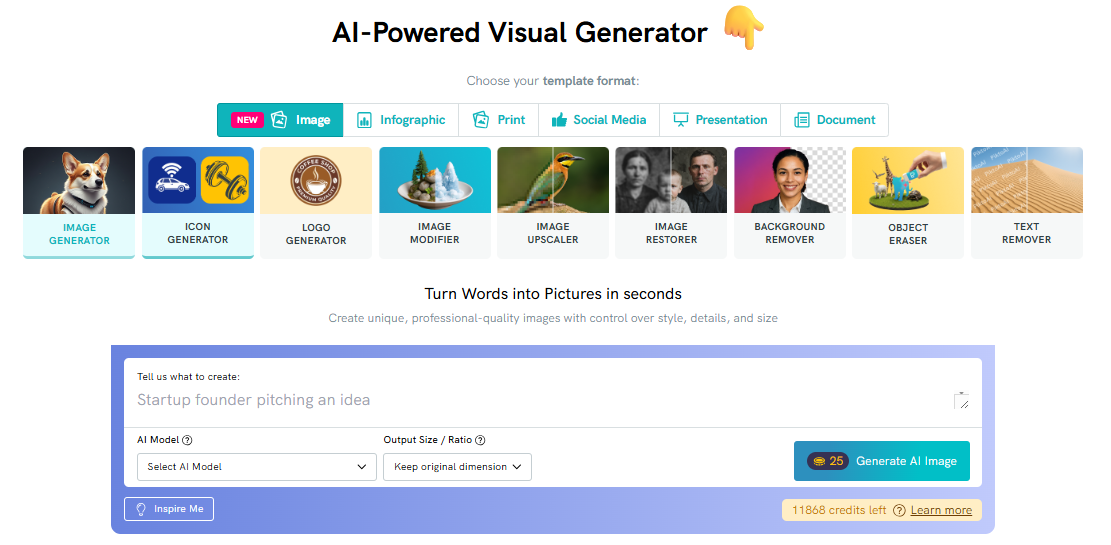
Select any AI tool you want to use (e.g., Image Generator, Background Remover, AI Image Editing, etc.).
If you are using Image Generator, Icon Generator or Logo Generator enter your prompt and click Generate. If you are using an AI editing tool, upload your image and submit the action (e.g., remove background, extend, replace object).
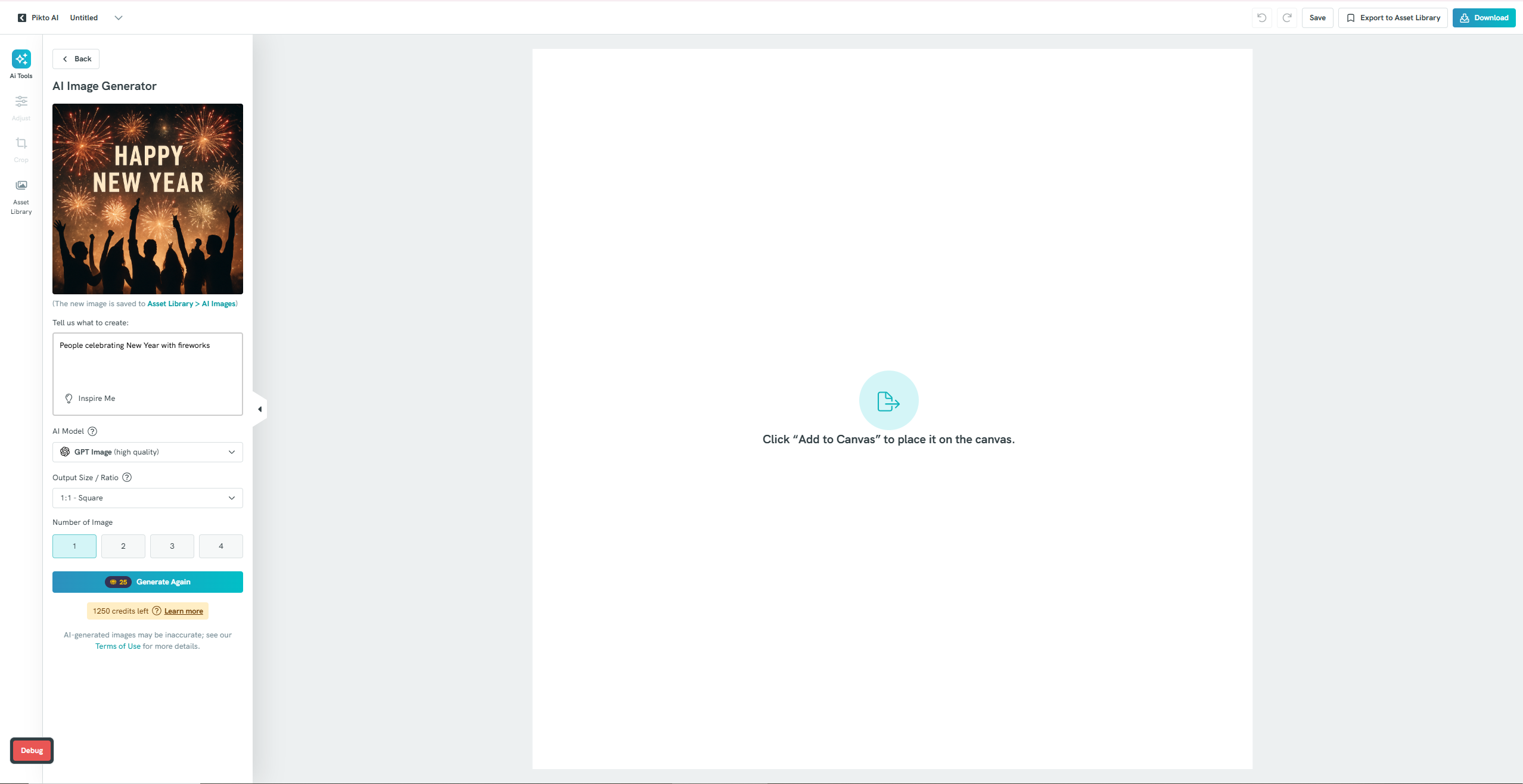
If you are satisfied with the result, you can download it to your device by clicking the Download button.
Alternatively, you can add it directly to your visual by clicking Edit in Canvas to insert the image to the canvas to further edit it.
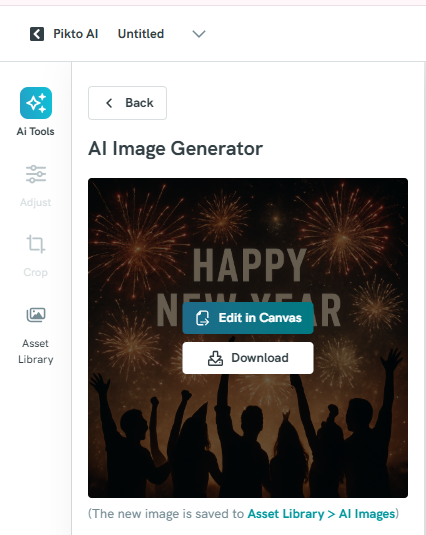
When selecting Edit in Canvas, the image will appear in the Canvas, where you can further refine it:
- To fine-tune your image, click the Adjust tab, where you can modify brightness, contrast, saturation, and other visual settings.
-
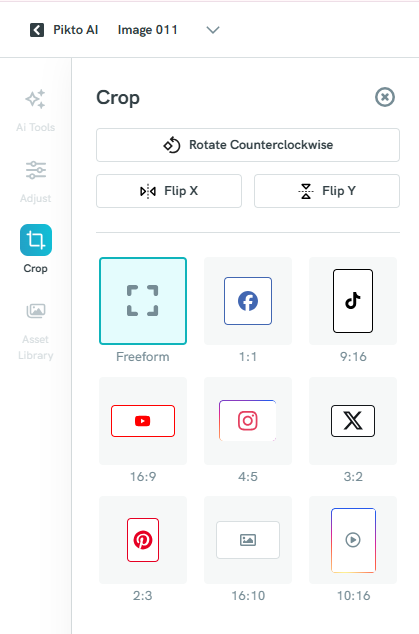
- You can also crop your image either freely using the Freeform option or by selecting a preset size tailored for the social media platform where you plan to post it.
-
You can also rotate the image as needed by clicking Flip X or Flip Y.
6. You can also incorporate your own photos:
-
Tap Asset Library → Browse Images and select a photo from your mobile device.
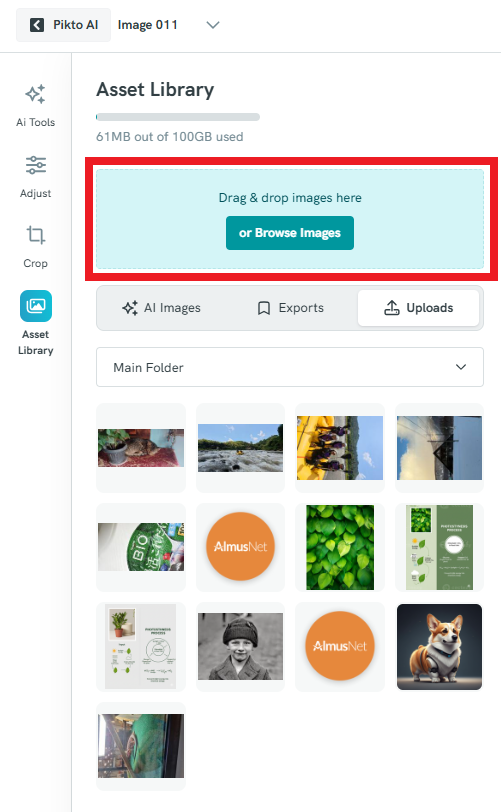
- The uploaded photo will be saved under Asset Library → Uploads.
-
Select your uploaded photo and tap Replace on Canvas to swap it with your generated image.
Common Questions
What editing features are available in the Mini Image Editor?
You can adjust brightness, contrast, saturation, crop your image, rotate it, or replace it with photos from your device.
What file formats can I download?
You can download your image in PNG format (default).
Can I edit multiple images in one session?
Currently, the Mini Image Editor only allows you to edit one image at a time. To edit another image, you’ll need to start a new session with that image.