
How to Merge Multiple Video Clips Together
Merging video clips in Piktochart allows you to combine multiple video segments into a single clip for smoother editing and better project organization. This feature is useful when creating presentations, tutorials, marketing videos, or any project that requires multiple video clips to play seamlessly.
Steps to Merge Multiple Video Clips
Step 1: Open Your Project
- Go to your Dashboard.
- Click the video project you want to edit.
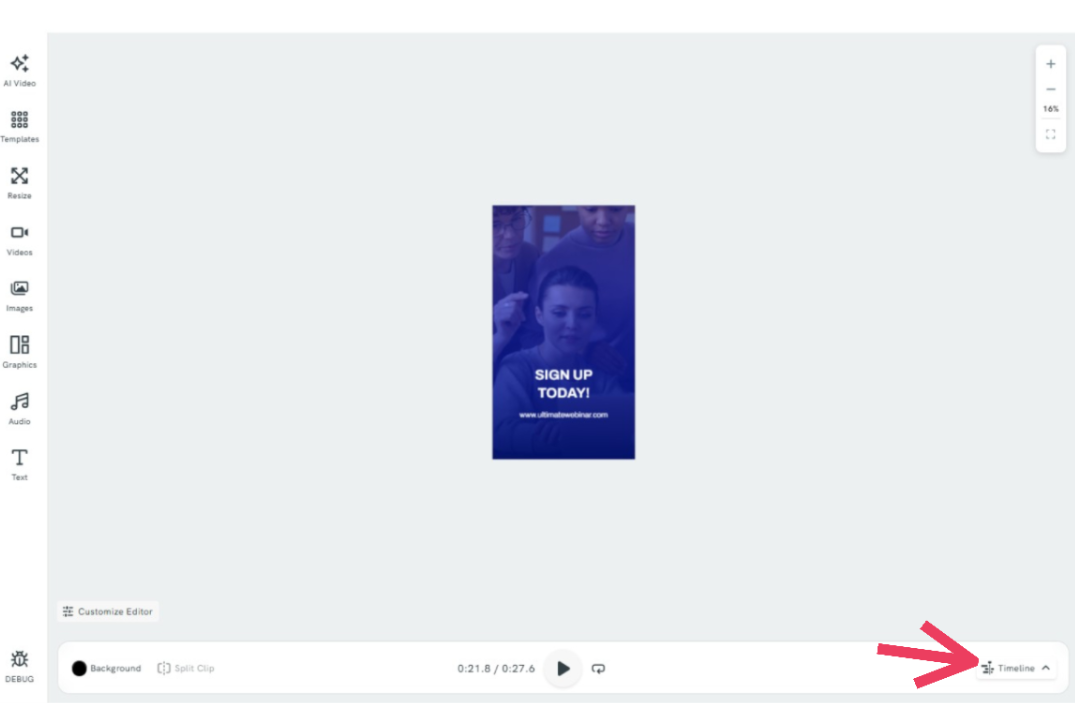
Step 2: Upload or Prepare Your Video Clips
Option A: Upload a New Video Clip
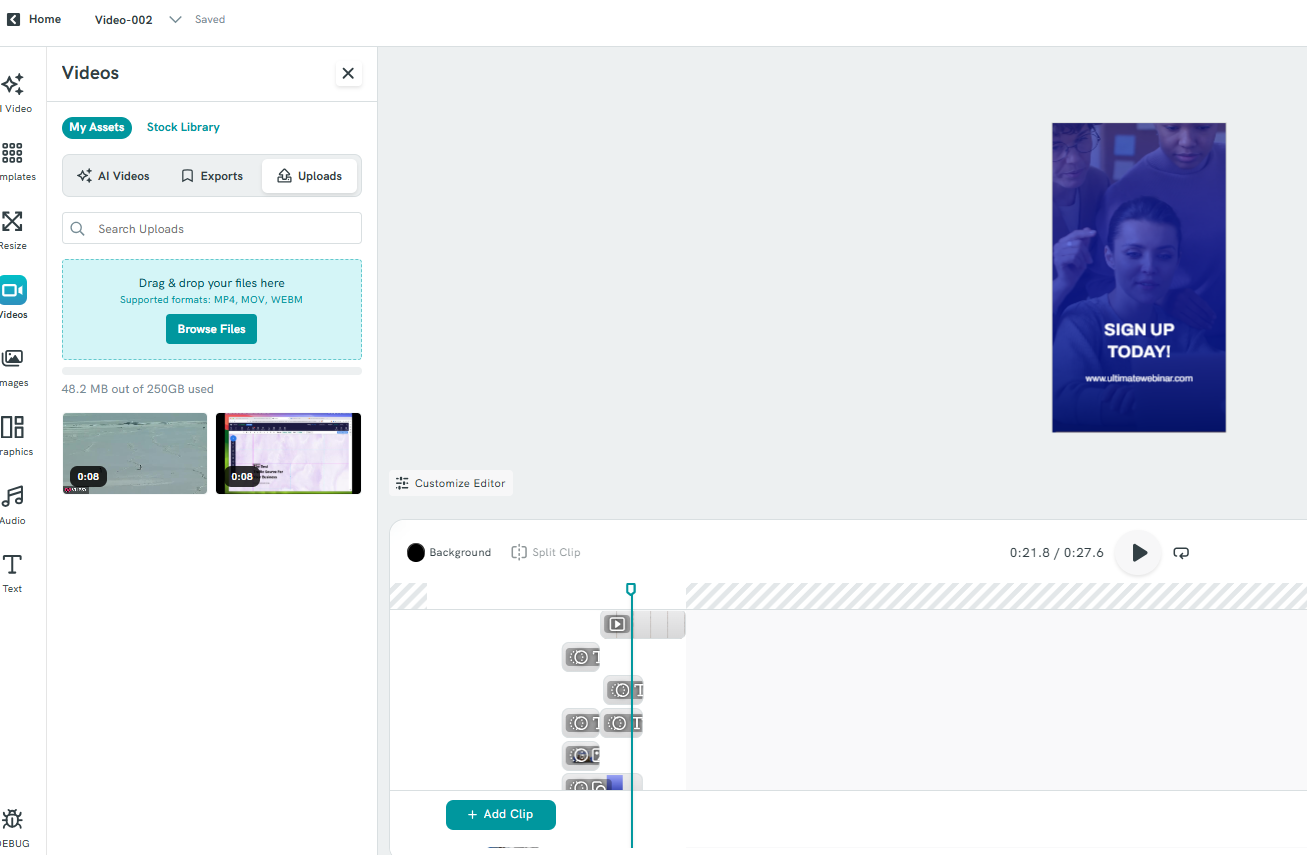
- Click Add Clip.
-
Drag and drop your video file into the upload window, or click Browse Files to select a file from your computer.
Option B: Edit an Existing Clip
- Drag the Playhead to the section of the video you want to work with.
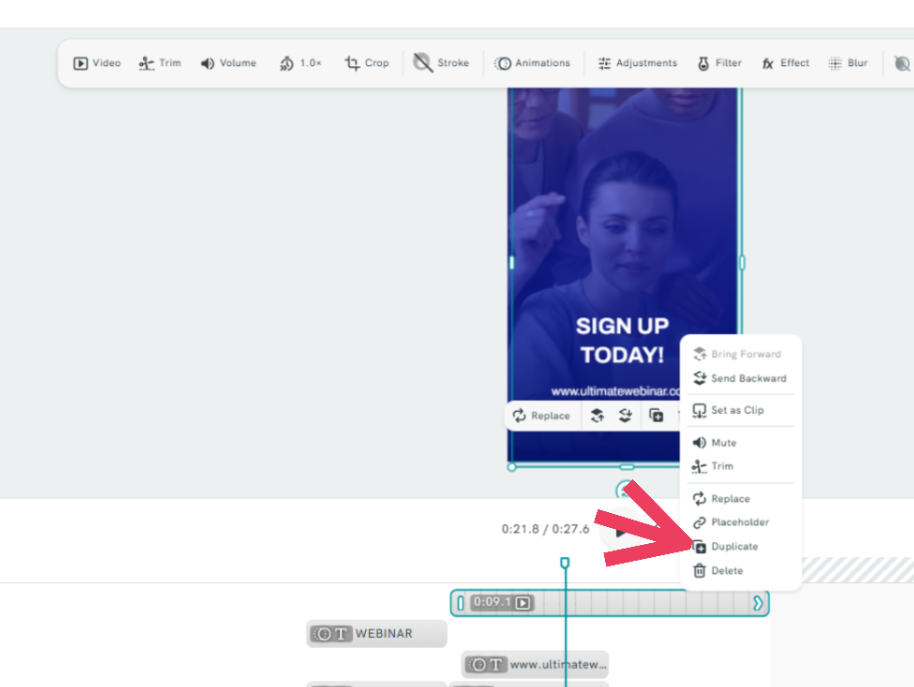
- To duplicate a clip:
- Click the three-dot menu (⋮) on the clip.
- Select Duplicate.
Step 4: Position the Clips
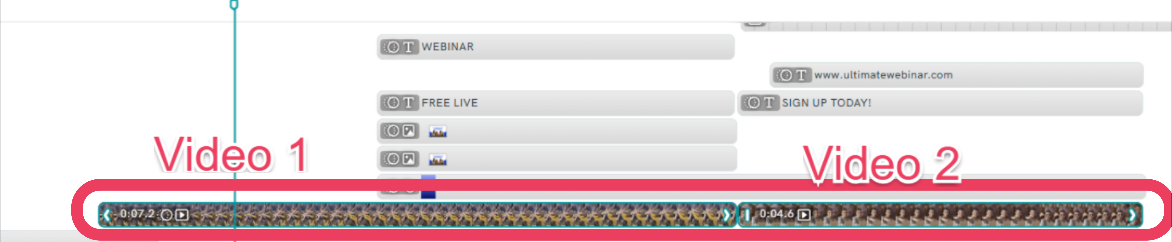
- Ensure the clips you want to merge are placed:
- On the same track/path, and
-
Side by side on the timeline.
Step 5: Select the Clips
-
Highlight the clip(s) you want to merge.
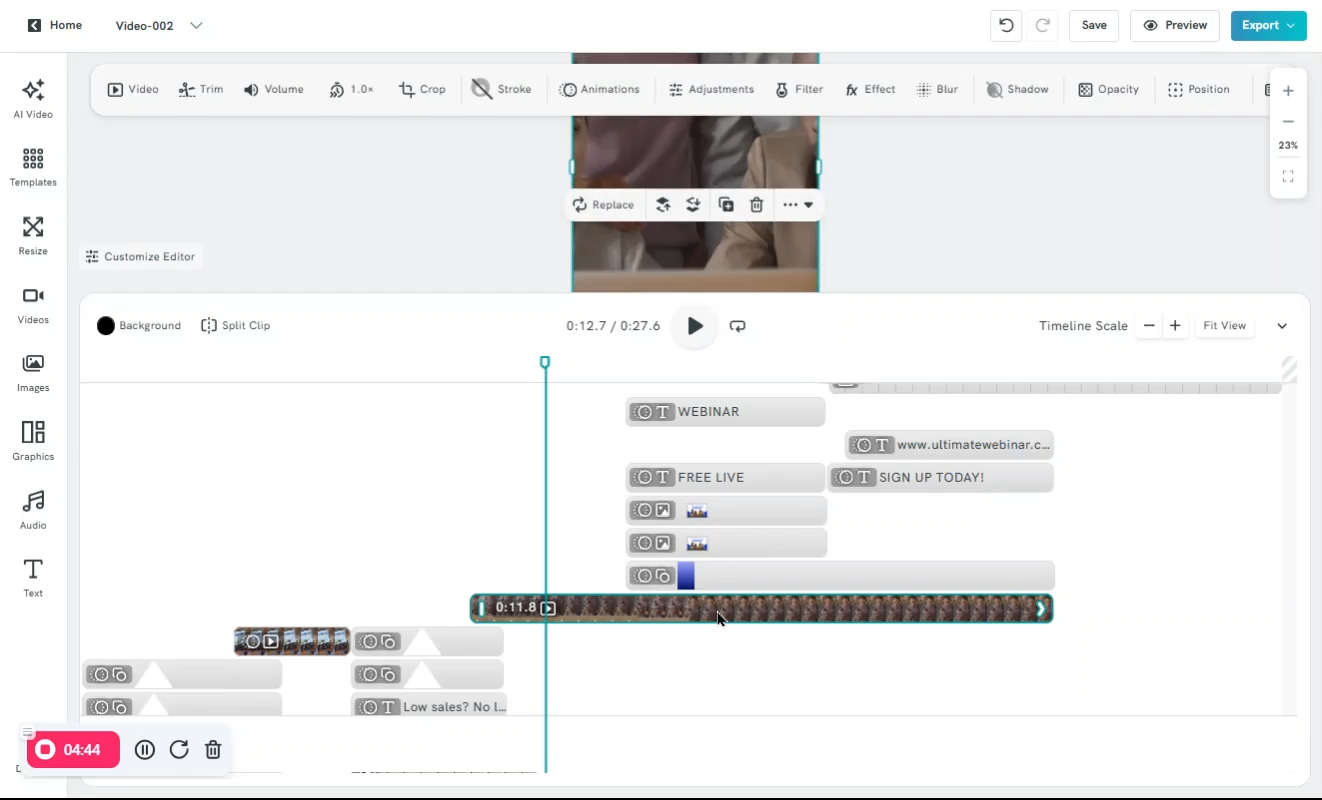
Step 6: Combine the Clips
- Once selected, the Clip Element toolbar will appear above the video.
-
Click Combine.
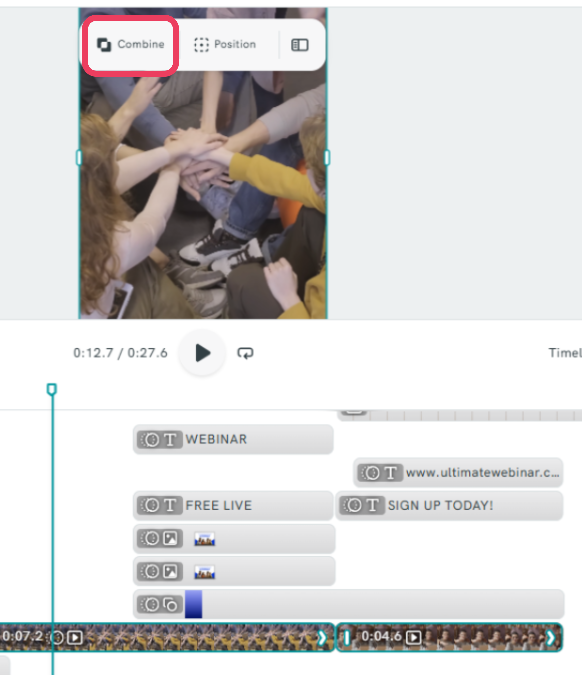
-
Choose the desired merge method:
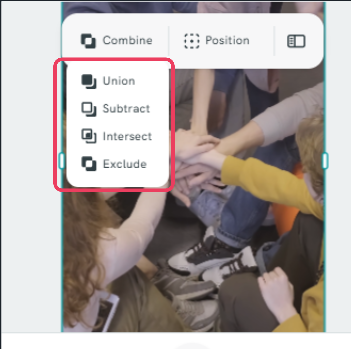
Union
Combines all selected clips into a single merged clip, keeping all visible areas.
Subtract
Removes the overlapping area of one clip from another, leaving only the remaining visible portions.
Intersect
Keeps only the overlapping area shared by the selected clips.
Exclude
Removes the overlapping areas and keeps only the non-overlapping portions of the selected clips.
Step 7: Preview Your Changes
After combining the clips:
- Click the Play button on the timeline to preview the edited section.
- Alternatively, click Preview in the upper-right corner to watch the entire project.
Step 8: Save Your Work
Piktochart includes an AutoSave feature, so your changes are automatically saved as you work. You can safely leave the project without manually saving.
Common Questions
Why can't I merge my clips?
Make sure the clips are:
- Located on the same track/path.
- Positioned side by side on the timeline.
-
Properly selected before clicking Combine.
What does the Combine option do?
The Combine option allows you to merge clips using different methods (Union, Subtract, Intersect, or Exclude) depending on the effect you want to achieve.
Can I undo a merge?
Yes. Use the Undo button or keyboard shortcut (Ctrl + Z on Windows or Cmd + Z on Mac) immediately after making changes.
Can I preview my video before finalizing the merge?
Yes. You can use the timeline Play button to preview a specific section or click Preview to view the entire project.
Do I need to save my project manually?
No. Piktochart automatically saves your changes while you work.
Tips and Best Practices
- Arrange clips in the correct order before merging.
- Preview your edits frequently to ensure smooth transitions.
- Duplicate original clips before merging if you may need to revert changes later.
- Zoom in on the timeline for more precise clip placement.
- Use the appropriate combine method (Union, Subtract, Intersect, or Exclude) based on the visual result you want to achieve.
- Keep related clips on the same track to make merging easier.