
How to Download Your AI Video
Once your AI-generated video is ready, you can export it as an MP4 file straight from the Video Editor.
Steps to Download Your AI Video
- Open the video you want to download in the Video Editor.
- Click the Export button in the top-right corner of the editor.
- A dropdown menu opens showing two options: Download Video and Export to Asset Library.
- Click Download Video.
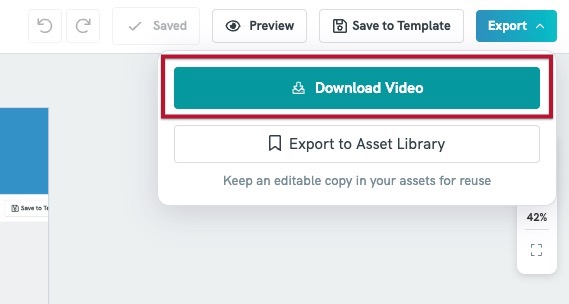
- Your video will begin rendering and download as an MP4 file.
- Once the download finishes, the file will be saved to your computer's default downloads folder.
Download Limits
- Free users can download up to 2 videos.
- Subscribed users can download videos unlimited times, with no restriction on the number of downloads.
If you're on the Free plan and reach the 2-video limit, you'll need to upgrade your subscription to continue downloading additional videos.
Accessing Your Video Without Downloading
If you'd rather not download the file right away, you can still keep an editable copy for later use:
- Click the Export button in the top-right corner of the editor.
- Select Export to Asset Library from the dropdown menu instead of Download Video.
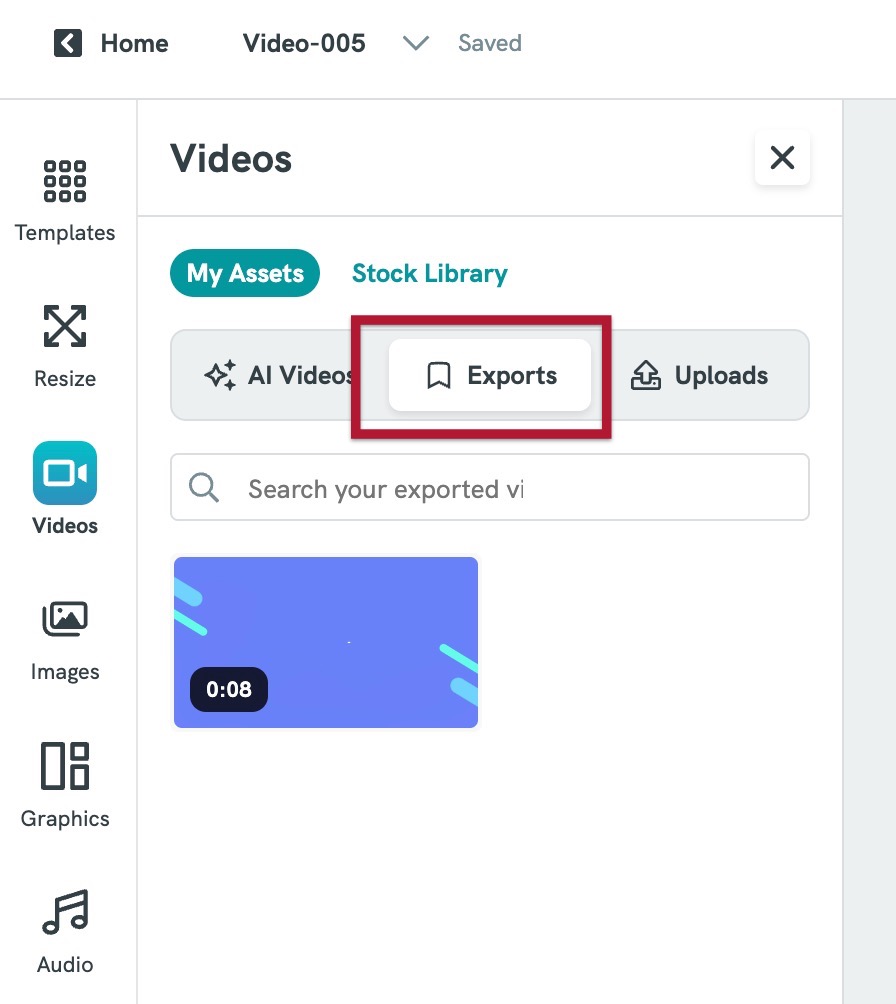
- Your video is saved to your Asset Library > under Export, where you can access, reuse, or download it at any time — without using up a download credit.
Common Questions
Why is my video taking time to download?
Video files need to be processed before downloading. The time depends on the length and complexity of your project.
Where can I find my downloaded video?
Check your device’s Downloads folder or your browser’s download history.
Can I download my video in different formats?
Currently, videos are downloaded in .mp4 format only.
What should I do if the download fails?
Try refreshing the page, checking your internet connection, or exporting the video again.
Can I share my video without downloading it?
No, currently it is not possible to share your video via link without downloading. You are required to download your video in mp4 format to share them.