
How to Add Audio / Sound to Your Piktochart AI Video
How It Works
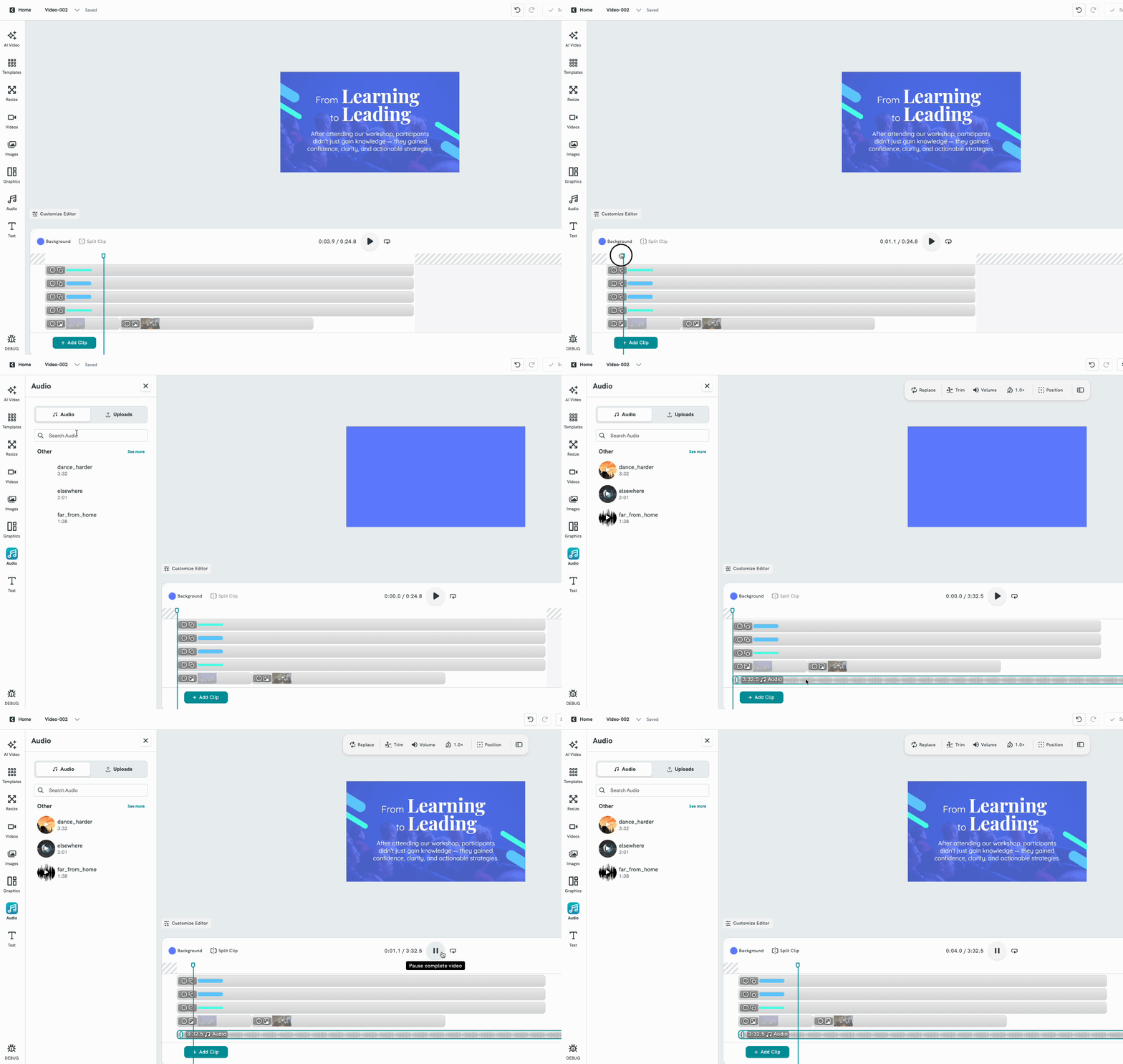
Adding Audio to Your Video
- Open your video project in the Piktochart AI Video Editor.
- Position the Playhead - Drag the Playhead marker to the exact part of your video where you want the background music to start.
- On the left side panel, you will see different editing tools. Click the Audio icon (🎵)..
- Choose from the selection of sound/music from the Audio Library or Upload Audio
You can:
- Select audio from Piktochart’s built-in audio library
- Upload your own audio file from your computer
- Add Audio to the Timeline - After selecting your audio, click it to add it to your Timeline Frame.
- Edit the Audio - An Audio Editing Panel will appear. From here, you can:
- Trim the audio
- Adjust volume
- Adjust speed
7. Split the Audio Clip
You can split audio into parts:
- Click the audio clip
- Move the Playhead to the point where you want to split
- Click Split Clip on the upper left side of the timeline scale
- Trim the Audio Manually
You can adjust the length of the audio using the trim handles:
- Click the audio clip
- Drag the Trim Handle (edge of the clip) to shorten or extend the audio
11. Move the Audio Clip
Click and drag the audio clip to reposition it anywhere in the timeline to match your video timing.
12. Preview Your Video
- Click the Play button to preview a section of your video
- Or click Preview on the upper right corner to watch the full project
Replacing the Current Audio
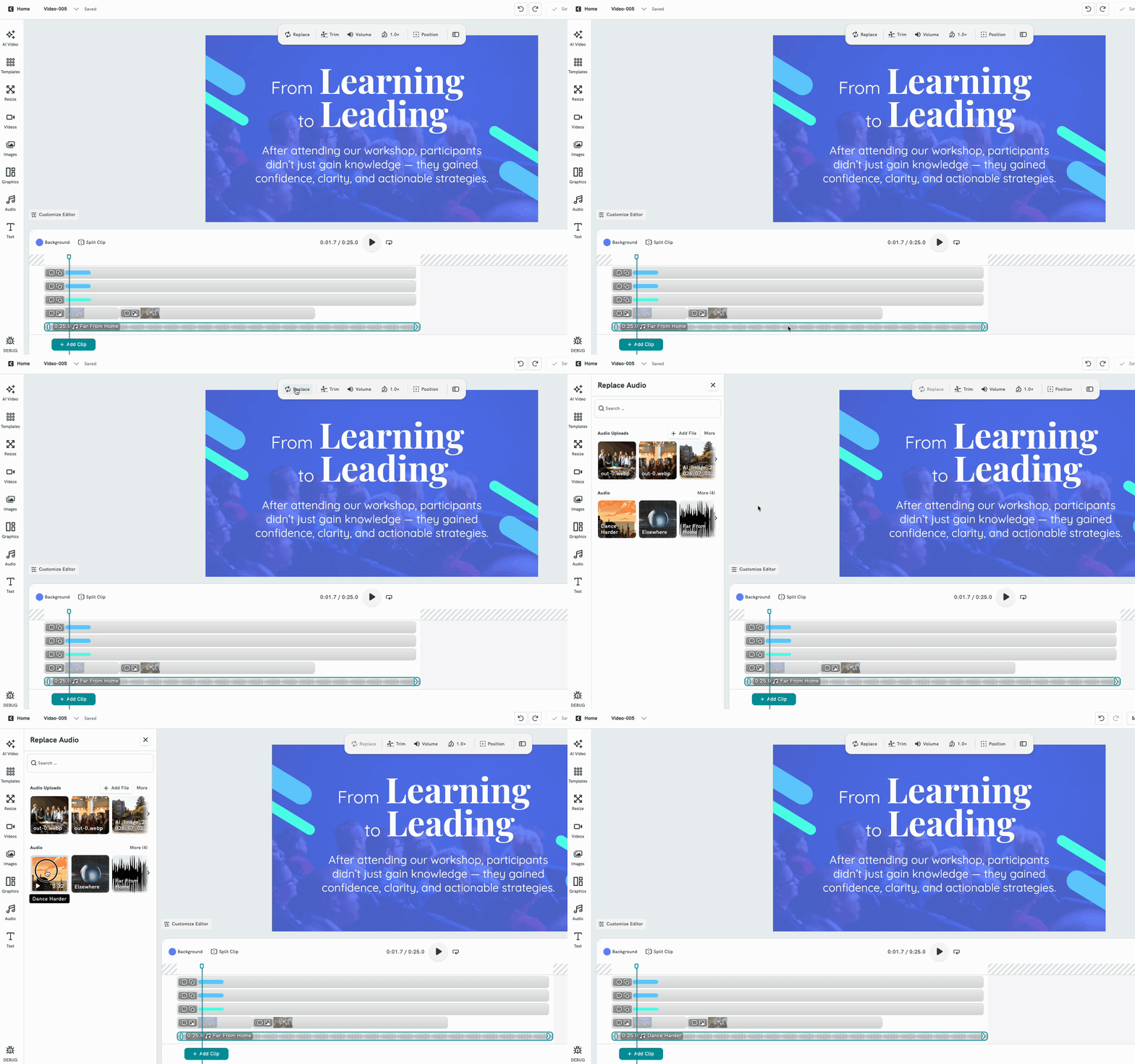
- Click on the existing audio track in the timeline (the waveform bar at the bottom).
- The Replace Audio panel will open in the left sidebar automatically.
- Browse the built-in music library or your uploaded files, then click any track to replace the current audio.
- The new audio track replaces the old one on the timeline immediately.
How to Edit Audio Speed and Volume in Piktochart AI Video

- With your audio clip selected, click the Volume button in the toolbar.
- A slider will appear. The default value is 100 (full volume).
- Drag the slider left to decrease the volume, or right to increase it.
- The speaker icon on the right of the slider reflects the current volume level.
- Your changes are applied in real time — press Play on the canvas to preview.

- With your audio clip selected, click the Speed button (displayed as 1.0× by default).
- A dropdown or control will appear, allowing you to select a different speed multiplier.
- Values below 1.0× slow the audio down (e.g., 0.5× plays at half speed)
- Values above 1.0× speed the audio up (e.g., 2.0× plays at double speed)
- Select your preferred speed and preview the result by pressing Play.
How to Mute the Original Audio of a Video Clip
- In the timeline at the bottom of the editor, click on the video clip whose audio you want to mute. A toolbar will appear above the canvas with editing options for that clip.
- In the toolbar, click Volume. A slider will appear showing the current volume level (default: 100).
- Drag the volume slider all the way to the left until it reads 0. This completely silences the original audio in that video clip.
Common Questions (FAQs)
1. Can I upload my own music?
Yes. You can upload your own audio files directly from your computer.
2. Where can I find audio in Piktochart?
You can access the built-in audio library from the Audio tool in the left panel.
3. Can I use multiple audio tracks in one video?
Yes. You can add and arrange multiple audio clips in the timeline.
4. Why is my audio not aligned with the video?
Make sure you properly position the Playhead before placing or splitting audio clips.
5. Can I adjust music volume separately from video sound?
Yes. The audio editing panel allows you to adjust volume independently.
- Can I set different volume levels for different parts of the same audio clip?
At this time, the Volume control applies to the entire audio clip. To achieve varying volume levels, consider splitting the audio into multiple clips using the Trim function and setting individual volume levels for each segment.
- I can't see the Volume or Speed controls.
Make sure you have clicked directly on an audio clip in the timeline at the bottom of the editor. The toolbar only appears when an audio element is selected. If you've clicked on the canvas (video area) instead, the controls shown will be for the video, not the audio.