
How to Add Text to Your AI Video
The PiktoAI Video Editor makes it easy to enhance your videos with text overlays. Whether you need titles, subtitles, captions, or callouts, the Text tab gives you full control over how your message appears on screen — with styling and animation options to keep your content polished and engaging.
Step 1: Open the Text Tab
- Open your project in the Piktochart AI Video Editor.
- In the left panel, click on the Text tab.
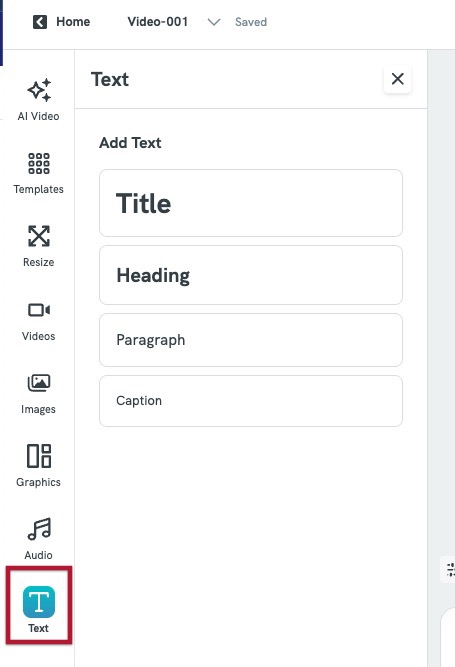
- Select the text type that suits your needs:
| Text Type | Best Used For |
|---|---|
| Title | Main headings or scene titles |
| Heading | Section headers or key points |
| Paragraph | Body text, descriptions, or longer copy |
| Caption | Subtitles, credits, or short callouts |
- Click on your chosen text type and it will be placed directly onto the current scene's canvas.
Step 2: Edit Your Text Content
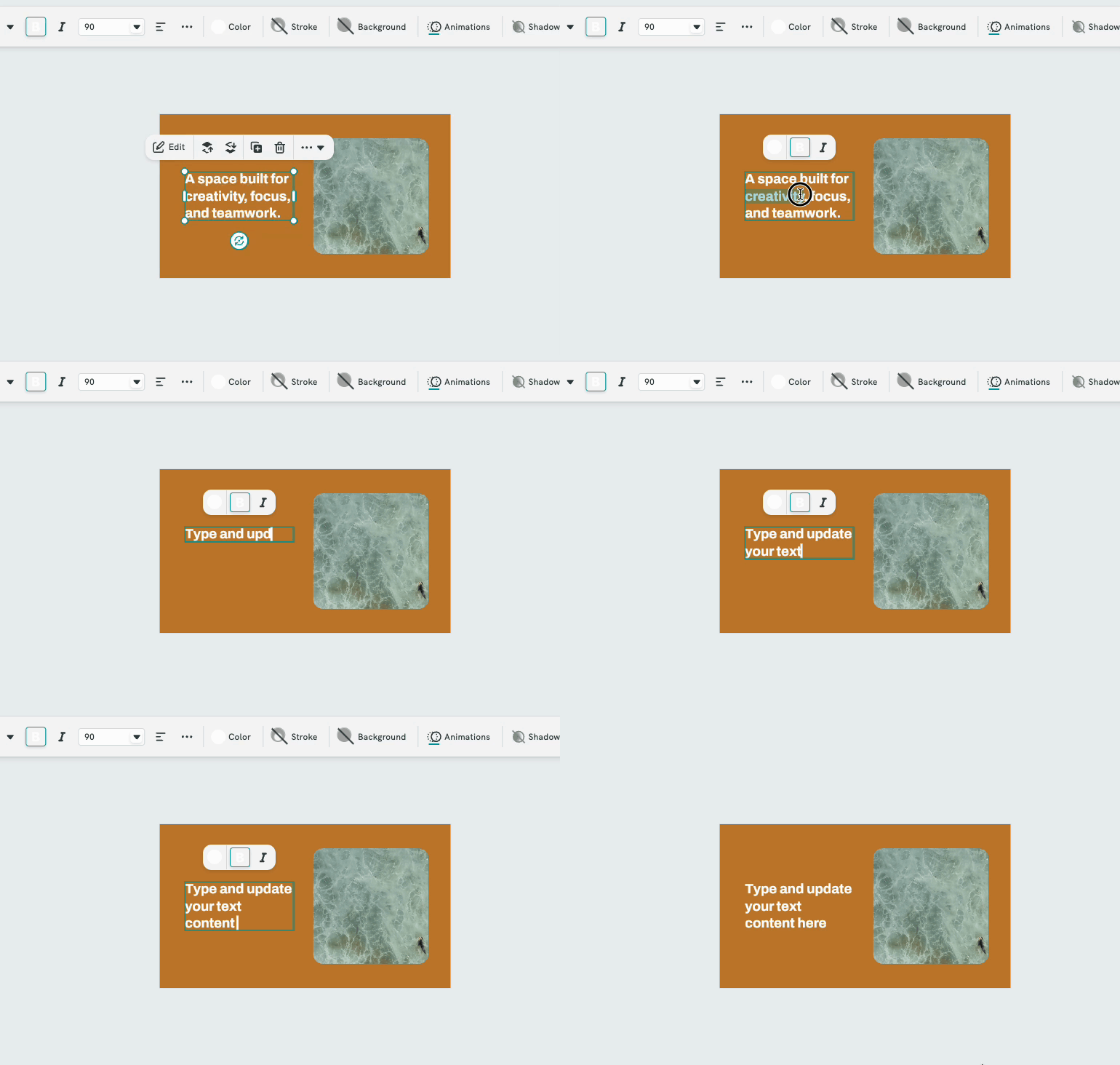
- Double-click on any text element on the canvas to select it.
- Type to update the wording.
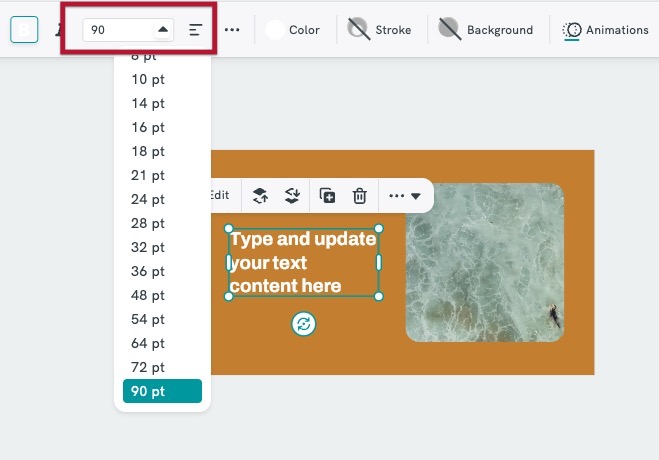
- Adjust the font size using the options in the toolbar.
- Click and drag the text element to reposition it anywhere on the scene.
Step 3: Style Your Text
| Option | What It Does |
|---|---|
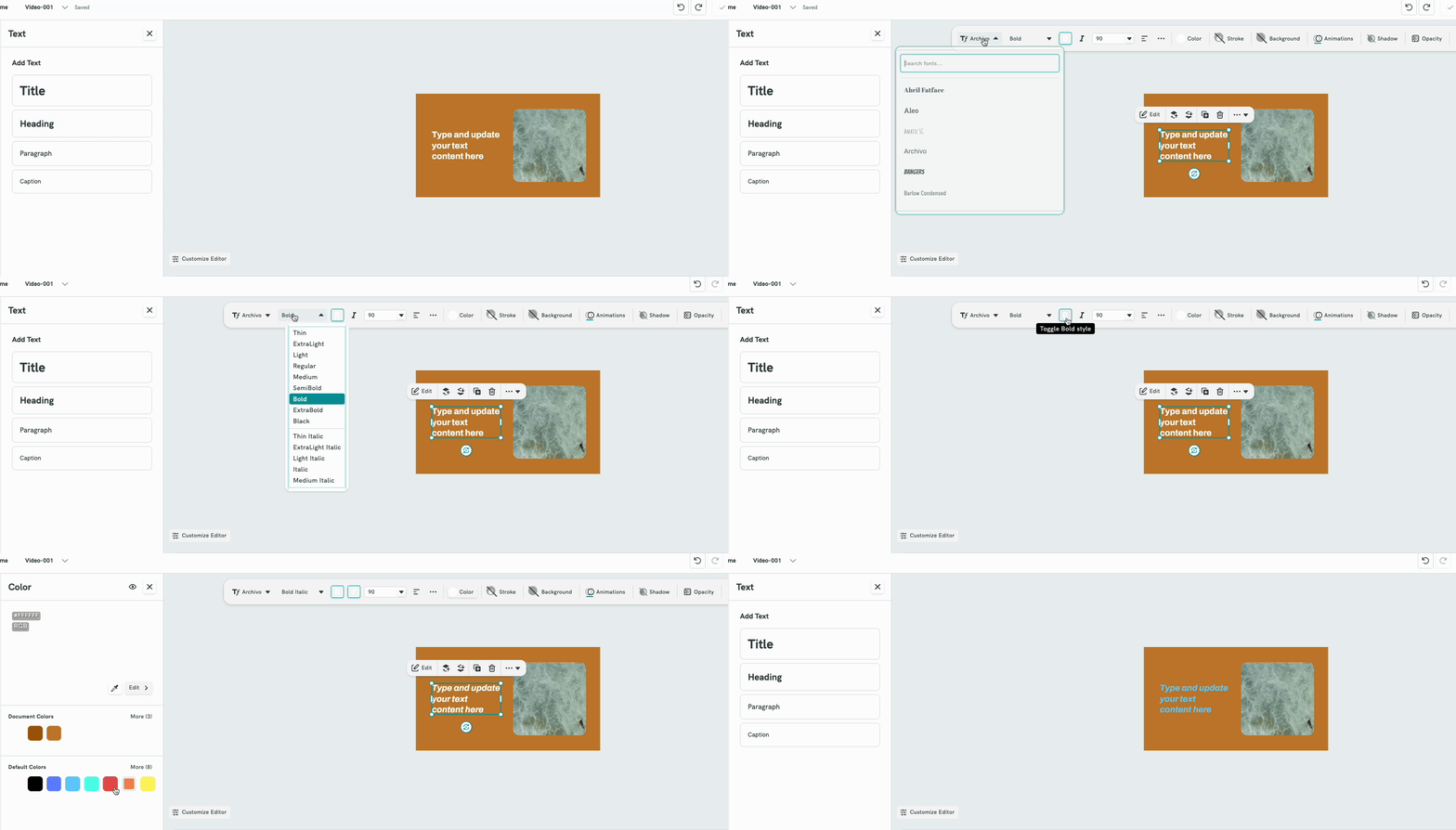
| Font | Choose a font from the available font library |
| Weight | Toggle Bold or Italic styling |
| Font Size | Enter a size value or use the dropdown to adjust |
| Alignment | Align text to the Left, Centre, or Right |
| Color | Change the text colour to match your brand or scene |
Step 4: Use Advanced Text Settings
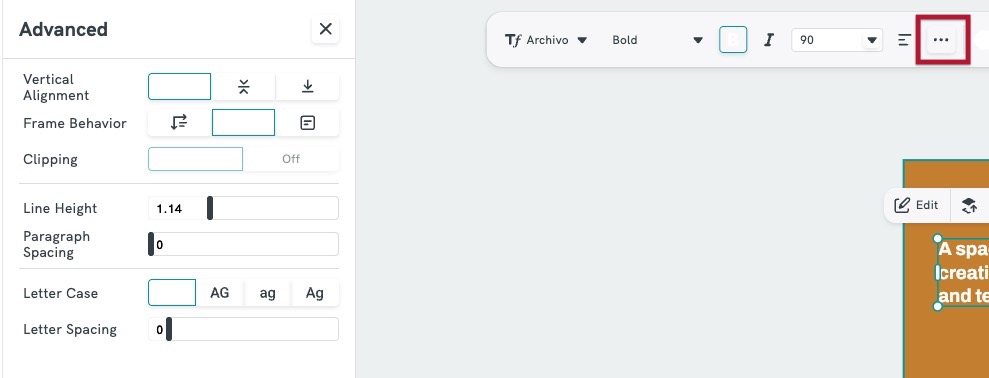
| Setting | Description |
|---|---|
| Vertical Alignment | Position text at the top, middle, or bottom within its frame |
| Frame Behavior | Control how the text behaves within its container |
| Clipping | Toggle clipping on or off to control text overflow |
| Line Height | Adjust the spacing between lines of text (default: 1.14) |
| Paragraph Spacing | Add spacing between paragraphs |
| Letter Case | Switch between ALL CAPS (AG), lowercase (ag), or Title Case (Ag) |
| Letter Spacing | Increase or decrease the space between individual characters |
Step 5: Reposition Your Text
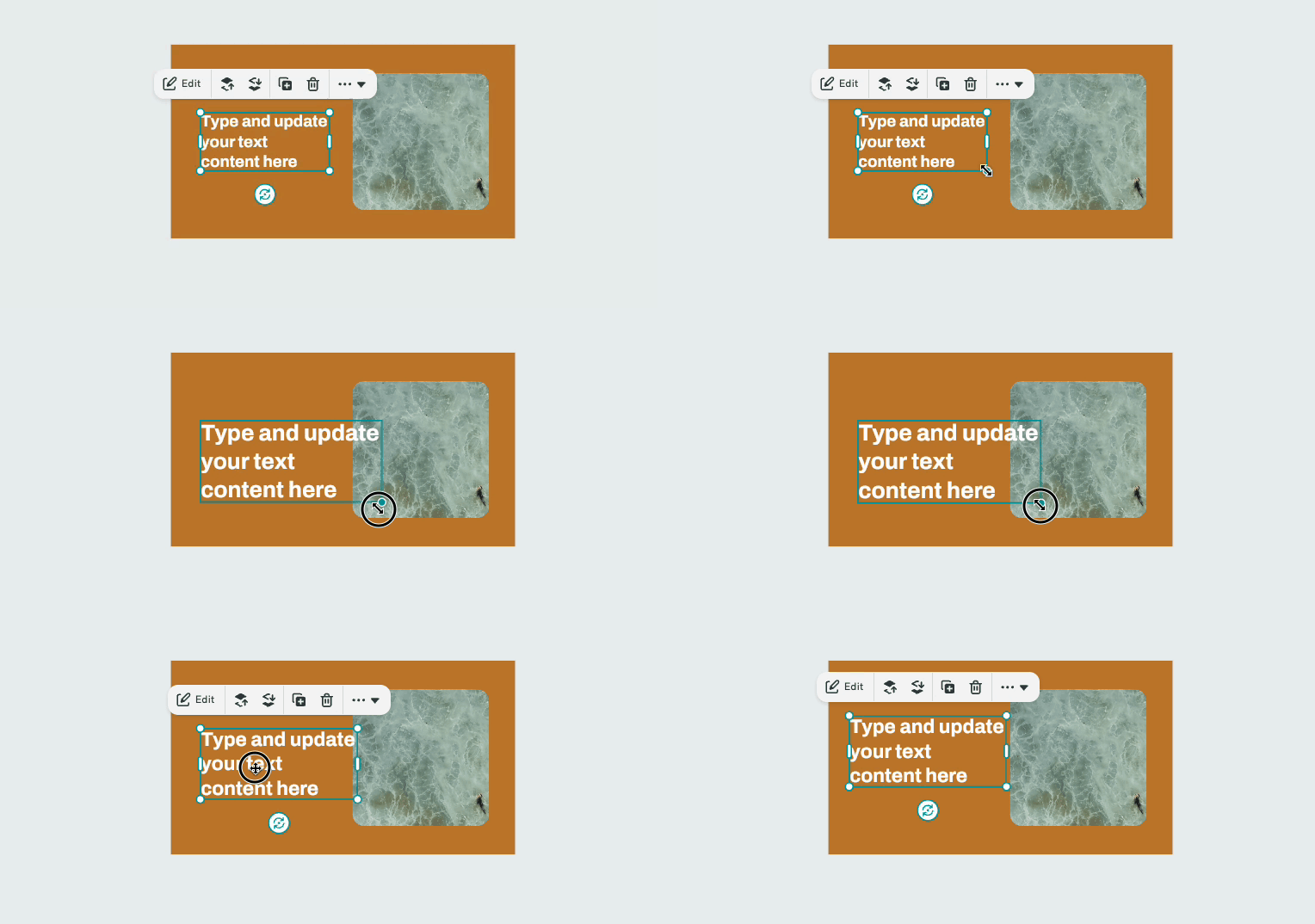
- Click and drag the text element to move it anywhere on the scene.
- Use the resize handles (the green dots around the element) to change the size of the text box.
Step 6: Animate Your Text
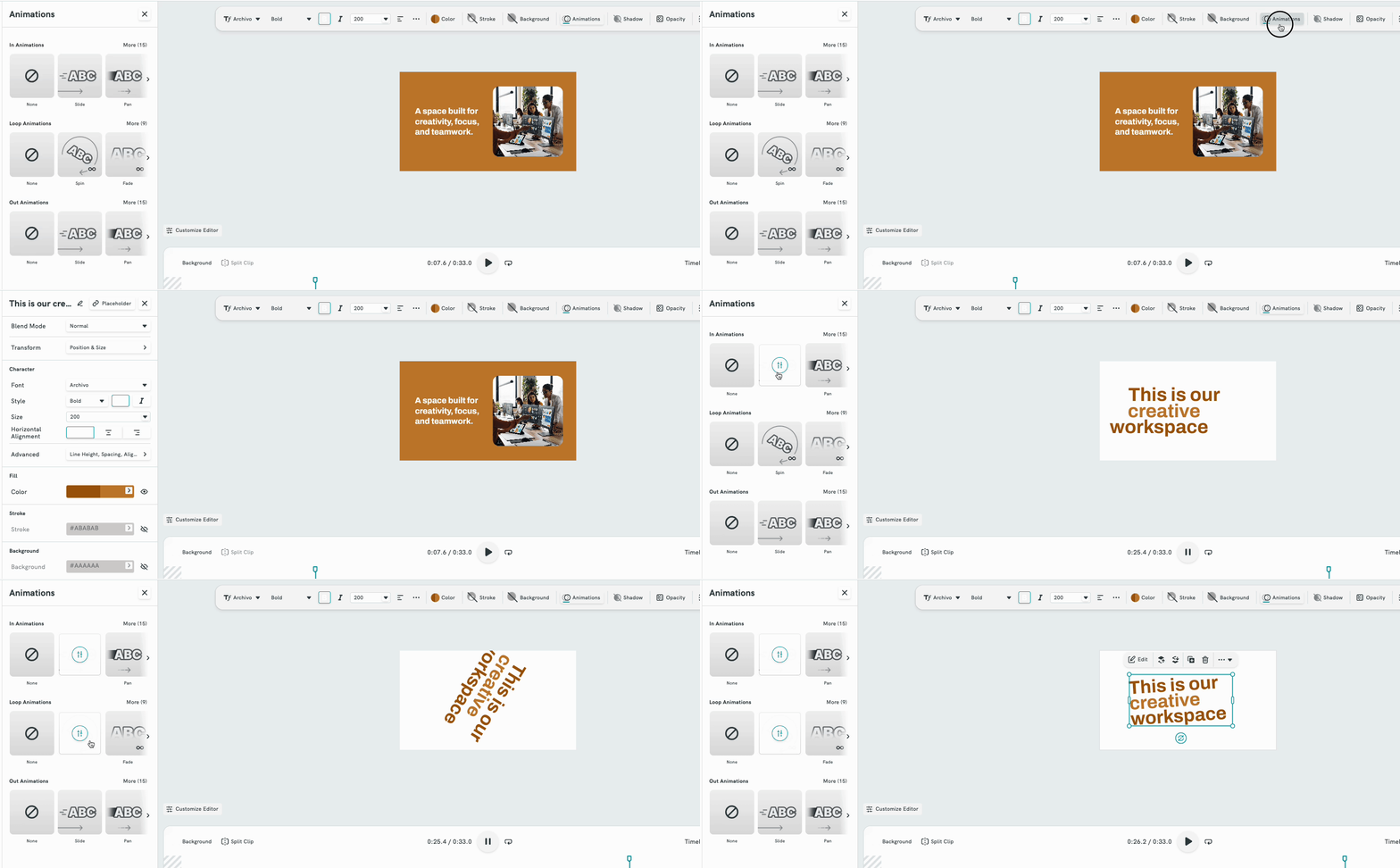
- Select a text element on the canvas.
- Open the Animation options from the toolbar or side panel.
- Choose an entrance animation (how the text appears) and/or an exit animation (how it disappears).
- Preview the scene to see your animation in action.
Frequently Asked Questions
Can I add text to multiple scenes at once?
Text overlays are added per scene. Navigate to each scene individually and add the text you need.
Can I resize text elements on the canvas?
Yes. Select the text element and use the resize handles or adjust the font size from the toolbar.
How do I delete a text overlay?
Click the text element to select it, then press the Delete or Backspace key on your keyboard, or use the delete option in the toolbar.
Will my text animations play during export?
Yes, all animations applied to text elements will be included in your exported video.