
Sharing and Publishing your Visual
There are two different ways to share and publish your visual. You can share it using a simple output URL link, or share using an embed code (such as if you'd like to publish your visual on your website).
IN THIS ARTICLE
Sharing Visual via Output URL
By default, only you can see your visual online now. To allow others to see your visual online:
1. In the Editor, click Share in the top-right menu in the Editor. You can also Share right from your visual Thumbnail on your Account Dashboard by clicking on the 3-dots. 2. Toggle on the Public on the web option.
3. Click on the Copy Link button. This will copy your URL link to your clipboard to share with your intended viewers.
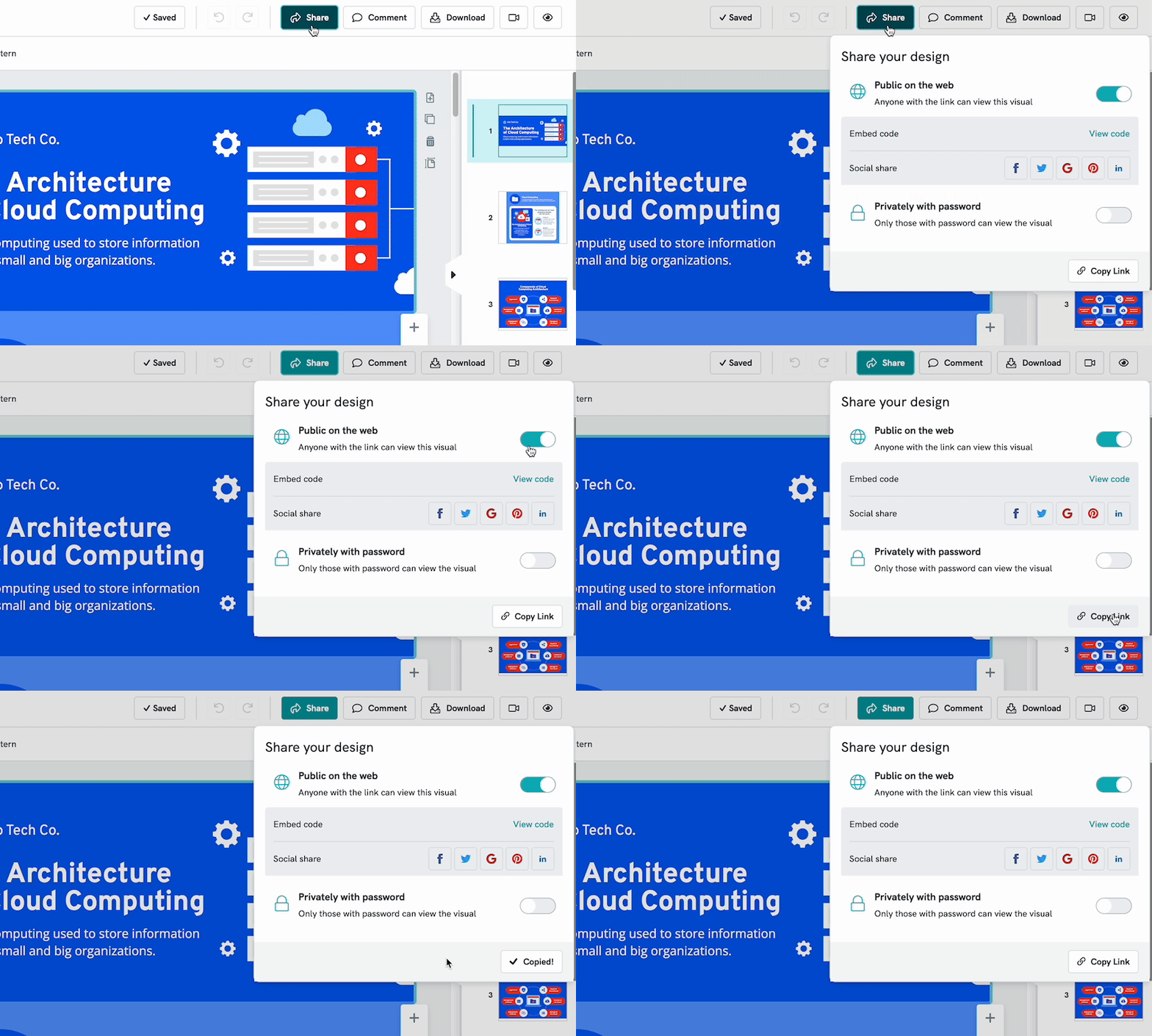
- You can also use the Social Media icons to immediately publish your visual on one of those social sites.
Password Protection
If you are a Piktochart Pro or Business subscriber, you can limit who can see your visual by adding a password to it.
How to set password protection to my visual?
- Toggle the Privately with password option.
- Set the password and click Save. Make sure your password is at least six characters and be sure to provide your chosen password to the person viewing your visual!

Sharing Visual via Embed Code
You can generate the HTML code and paste that to a blog or website. Please note that you cannot edit the output link once the visual is published. To retrieve the embed code,
1. In the Editor, click Share in the top-right menu.
2. Ensure that your visual is set to Public on the web.
3. Click View Code and copy the code you need.
The embed code is accessible through the Editor view only.
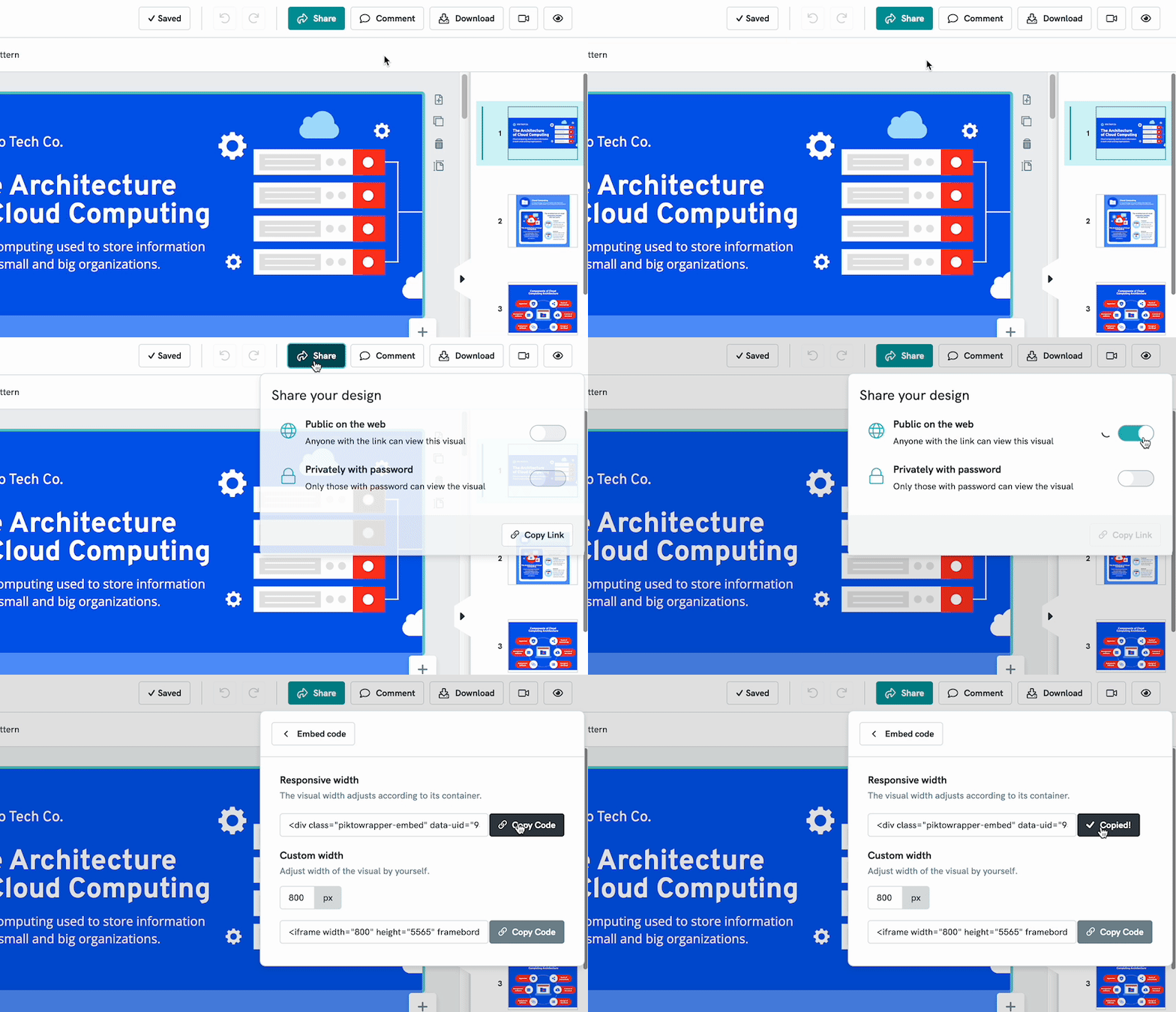
You can choose from either the Responsive Width code or Custom Width code if you prefer to adjust the width of the visual yourself.
Common Questions
Can I edit the URL of my output link?
If you rename your visual, the output link will always reflect the new name. Once you have renamed your visual, copy the output URL again following the same steps. To rename your visual title,

Will my visuals appear in Google Searches?
As a free user, your visuals are no-index and no-follow. Meaning, your results will appear in any organic search results. If you're a PRO user, your visuals will be searchable on Google searches if you publish to the Public. Learn more about SEO optimization.
How to share my visual in email?
While Piktochart doesn’t currently support direct embedding of visuals into email platforms, you can still easily share your work with others by attaching it as an image file. Simply download your visual as a PNG and upload it into your email message.
Why is my published visuals on my website are no longer available?
If you encounter this issue—for example, seeing an error message like the one in the screenshot below—it’s likely because your free account access has ended.

When a free account is locked after its free access period, all published visuals are automatically unpublished and deleted. Once deleted, they cannot be recovered.
To avoid this in the future, we recommend upgrading to a paid plan before your access ends. This ensures your visuals remain published and available on your website without interruption.