
How to Trim, Split and Rearrange Clips in PiktoAI Video Editor
You can trim clips to remove unwanted sections, and reposition clips along the timeline to perfect the flow of your video.
IN THIS ARTICLE
Select Clips
Before editing any clip, you need to select it to apply modifications to it. To select a clip, click it either:
- From the page
- From the timeline
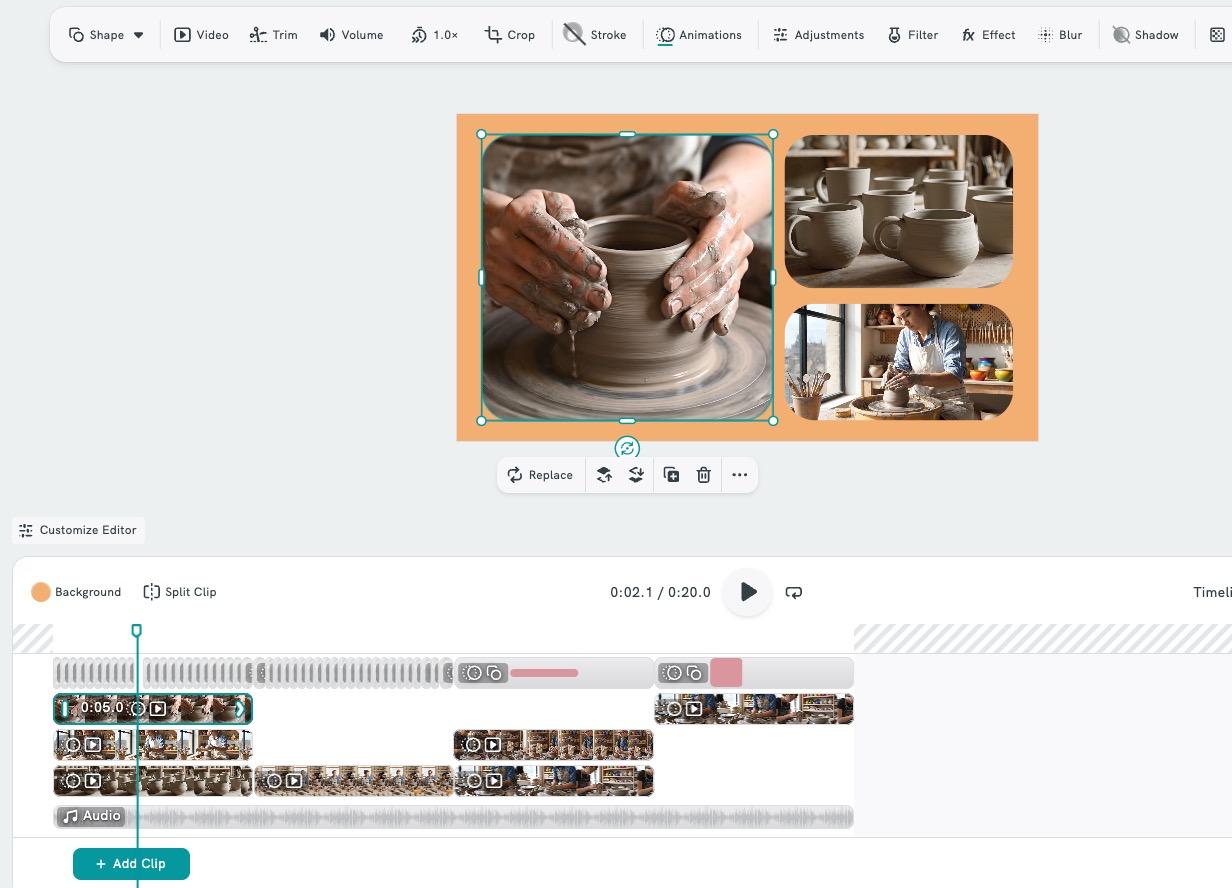
Selecting a clip reveals editing handles to:
- Crop the clip.
- Flip the clip.
- Trim the clip.
How to Trim a Video Clip
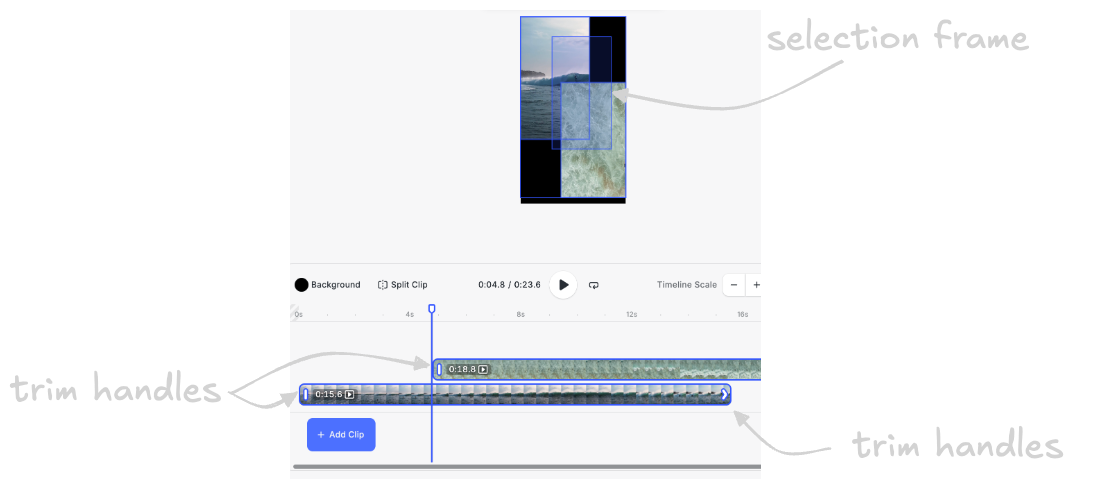
In the timeline, selected clips show drag handles at their beginning and end. Use these handles based on your goals:
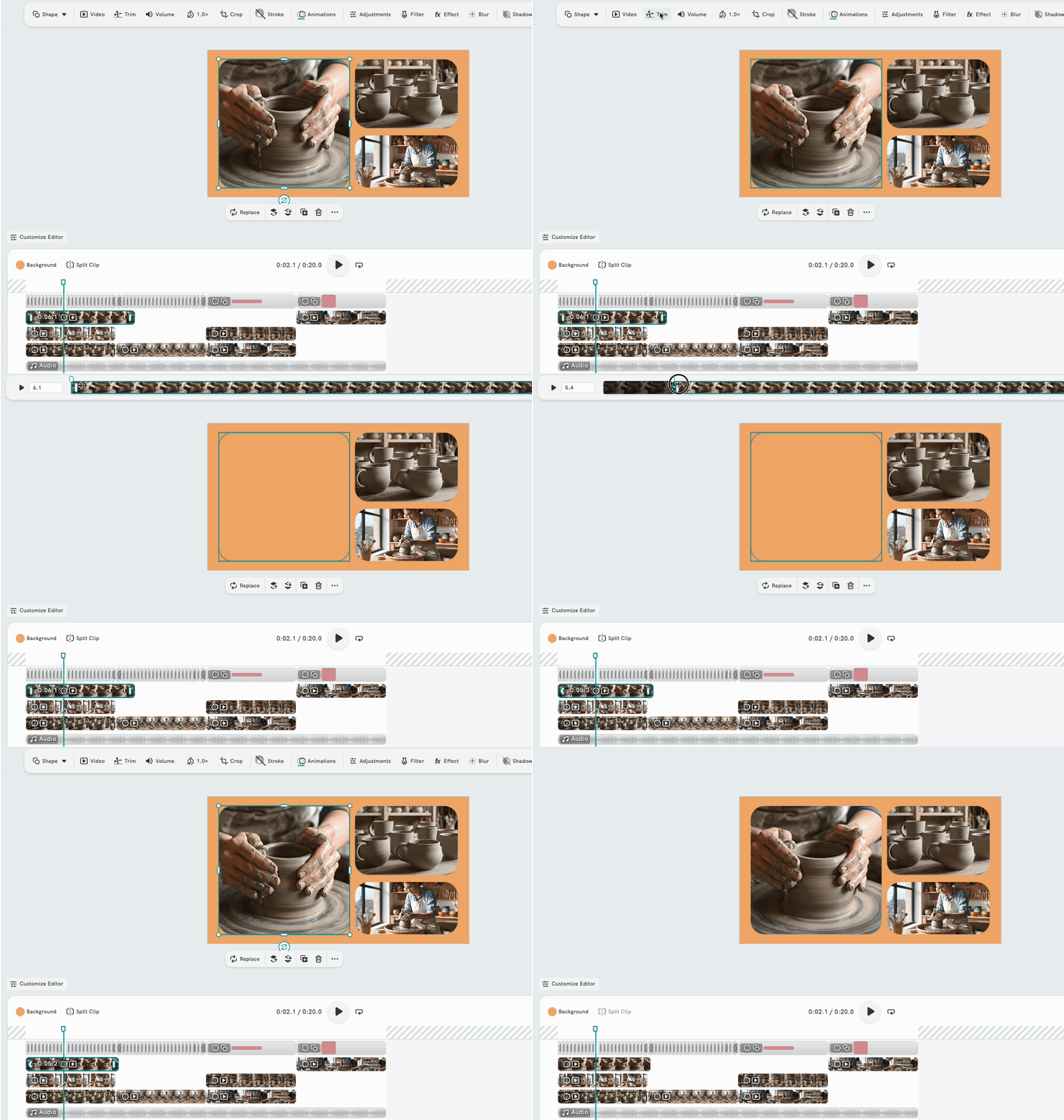
- In the top toolbar, click Trim.
- The Trim panel will open, displaying the clip with trim handles.
- There are 2 methods to adjust and trim your video:
- Set a specific duration: Enter the exact time (in seconds) you want.
- Manual adjustment: Drag the handles at the start or end of the clip to shorten it.
- Trim the clip from the beginning: use the left handle (at the start of the clip).
- Trim the clip from the end: use the right handle (at the end of the clip).
- Click Done
- Preview your clip.
- Click the Play button next to the time duration to preview your trimmed video and ensure it matches your needs.
As you move the clip, its position on the timeline automatically updates. Trimming shortens the clip, and the cut portions:
How to Split a Clip
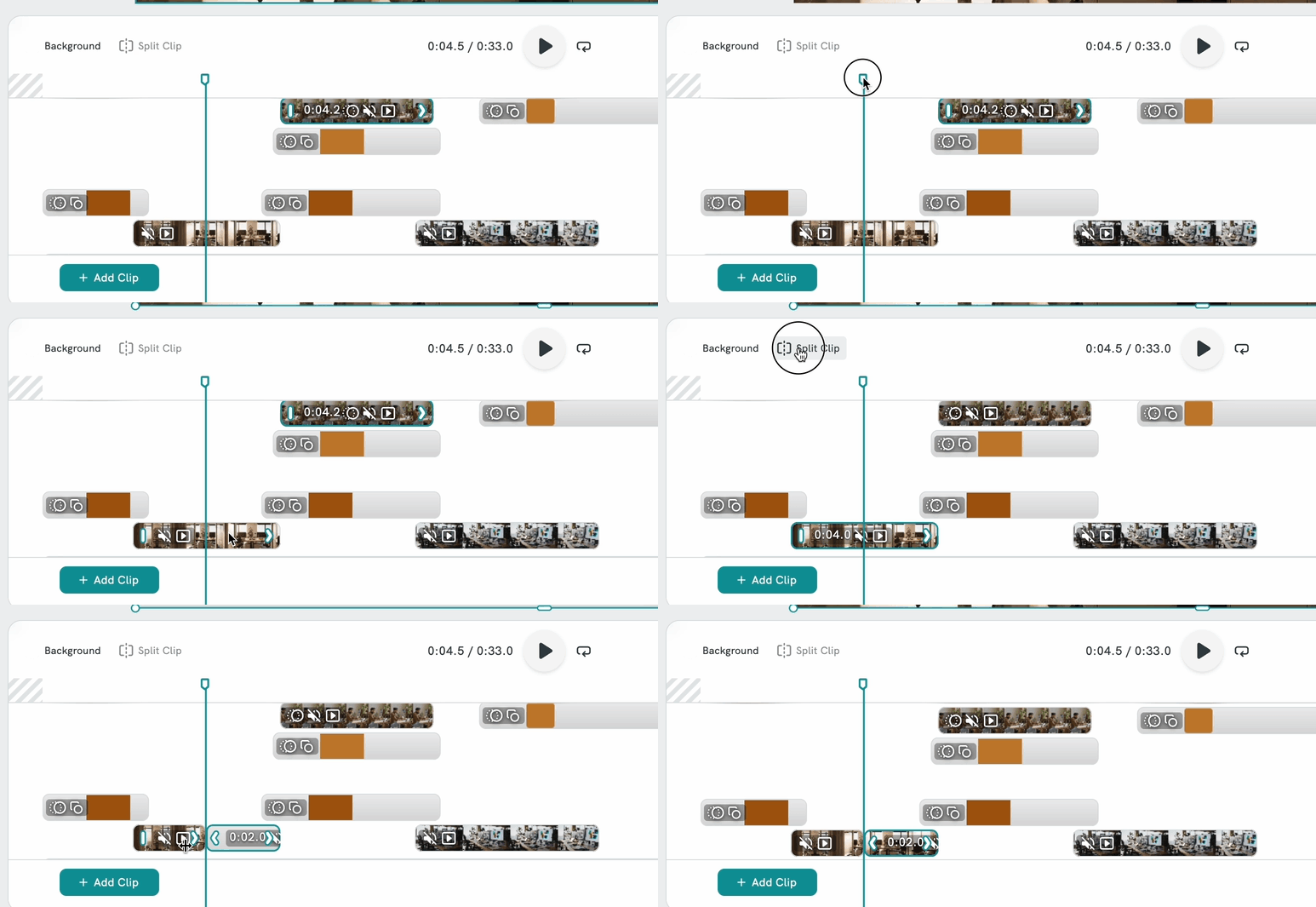
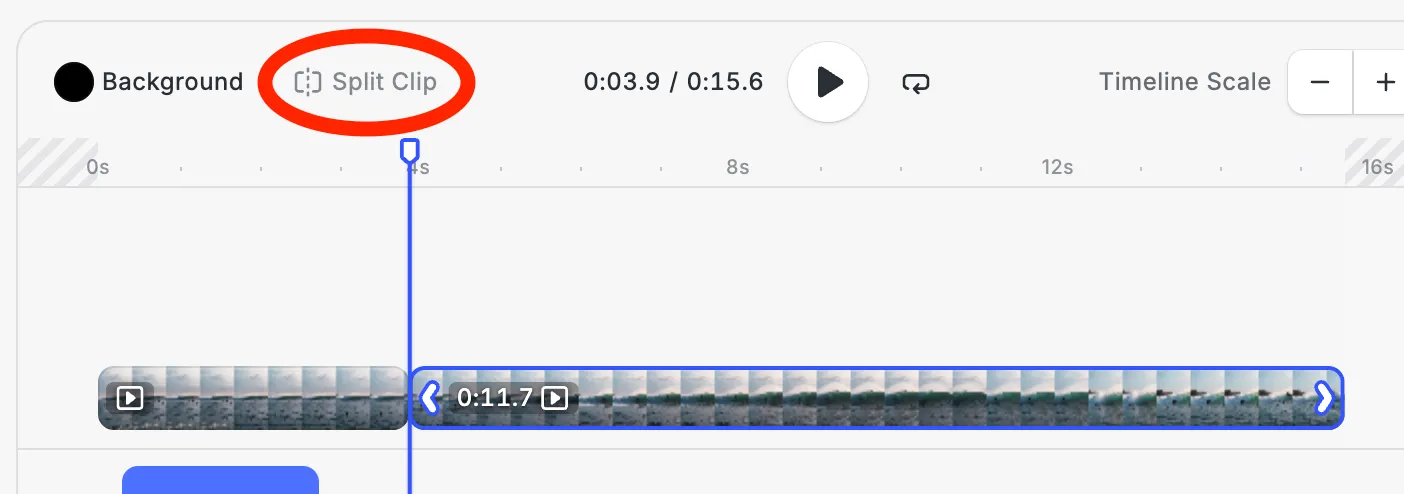
- Click on the clip in the timeline to select it.
- Click the Split Clip button located above the timeline on the left side.
- The clip will be divided into two clips at the playhead position.
- Each clip can now be trimmed, moved, or deleted independently.
How to Adjust a Clip's Position
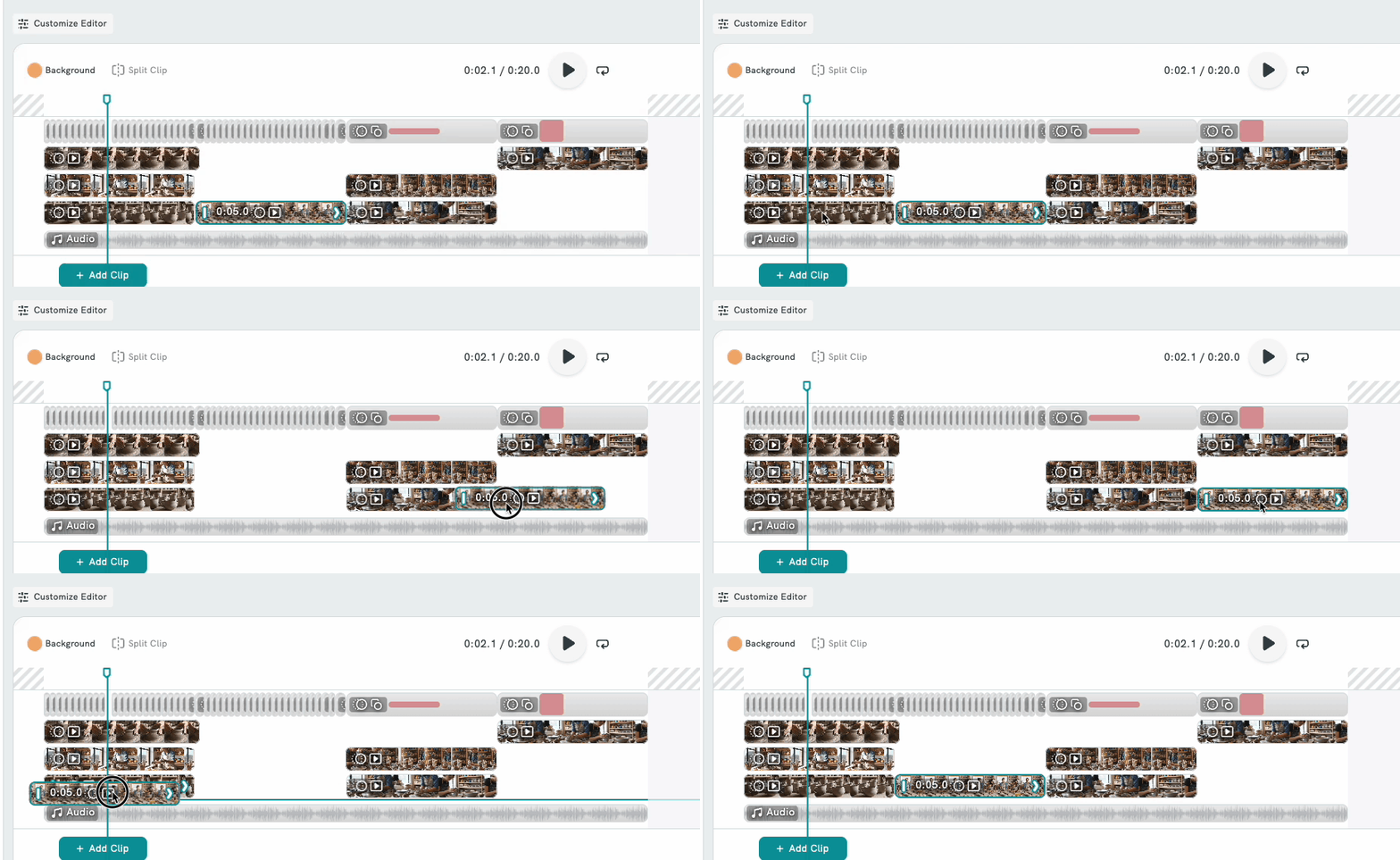
- Click and hold on the clip you want to move in the timeline.
- Drag it left or right to the desired position.
- Release to drop the clip in its new position.
TIPS 💡
- Use Split Clip for precise cuts: Move the playhead to the exact frame you want, then split. Zoom in using the + control for more accuracy.
- Delete unwanted sections: After splitting a clip, click the unwanted segment and press Delete or Backspace to remove it.
Add Content to the Scene
Once you’ve edited the clips, you can add more elements to the scene to customize it further, such as:
- Additional clips
- Audio tracks
- Graphics and text
Frequently Asked Questions
What is the difference between trimming and splitting a clip?
Trimming shortens a clip by removing footage from the beginning or end. Splitting cuts a clip into two separate parts at a specific point, allowing you to delete, move, or edit each part independently.
Can I undo a trim or split?
Yes. Press Ctrl + Z (Windows) or Cmd + Z (Mac) immediately after trimming or splitting to undo the action.
Will trimming permanently delete my footage?
No. Trimming in Piktochart is non-destructive. You can reopen the Trim tool at any time and drag the handles outward to restore footage that was trimmed.
Does trimming affect the original video file?
No, trimming only affects how the video appears in your project. Your original file remains unchanged.
Why can’t I see the Trim option?
Make sure you’ve selected a video clip and that the timeline is expanded. The Trim option only appears when a clip is selected.
How do I add more clips to my timeline?
Click the + Add Clip button at the bottom left of the timeline to insert a new clip into your project.