
How to Change Video Background Color
PiktoAI Video Editor lets you customize your video's background color — as a solid color, a gradient, or a fully transparent background. This article walks through opening the color editing menu and using its options.
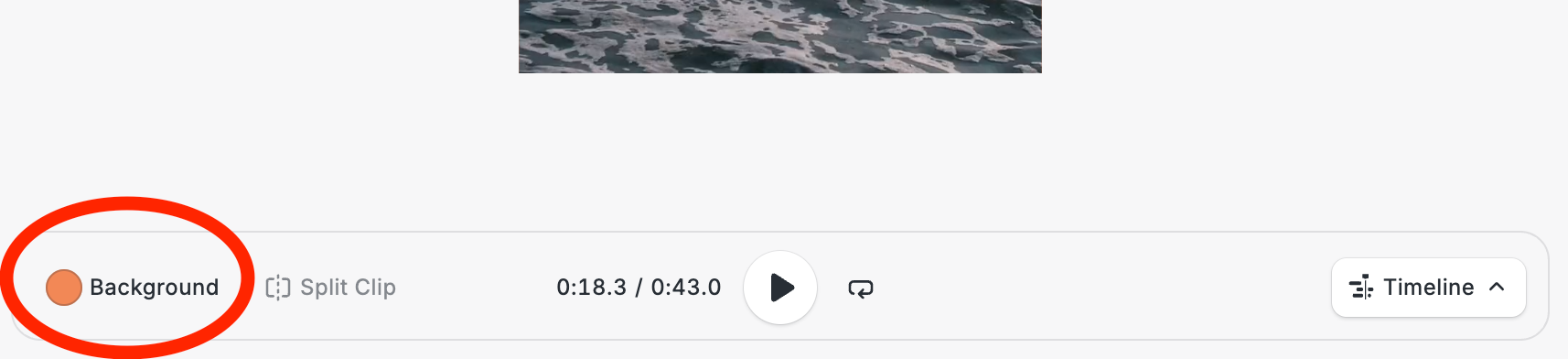
- Open your video project in the AI Video Editor.
- Click the Background button on the left side of the play bar.
- This opens the full color editing menu, where you can customize the background as described below.
Color Editing Menu Options
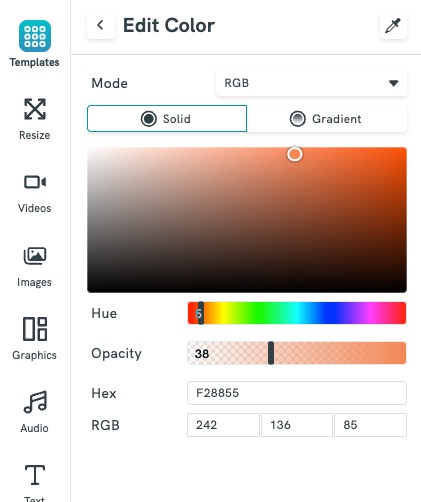
The menu lets you customize the background using:
- Color settings — enter a value in RGB, CMYK, Hex, or Hue to set an exact color.
- Solid or gradient — apply a single flat color, or blend between two or more colors as a gradient.
- Color picking from the scene — use the color picker to sample a color directly from an element already in your video.
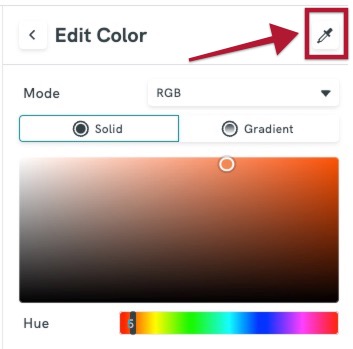
- Transparency — adjust the opacity of the background color.
Common Questions
Where do I find the background color settings?
Click the Background button on the left side of the play bar to open the color editing menu.
Can I use a gradient instead of a solid color?
Yes. The color editing menu lets you choose between a solid color or a gradient.
How do I match the background to a color already in my video?
Use the color picker in the menu to pick a color directly from the scene.
Which color formats are supported?
You can set the background color using RGB, CMYK, Hex, or Hue values.
Will a transparent background show up when I download my video?
This depends on the export format you choose — check your download settings to confirm which formats support transparency.