
How to Use AI Video Editor
The Piktochart AI Video Editor lets you create professional videos directly from your Piktochart workspace — no video editing experience required. Using AI, you can generate videos from text prompts, transform existing designs into animated content, and customize your output with an intuitive editing interface.
📌 Note: Piktochart AI Video Editor vs. Piktochart Video
Piktochart AI Video Editor and Piktochart Video are two separate products and are not connected to each other.
Piktochart Video is a standalone tool designed to help you transcribe, repurpose, and transform long-form videos into multiple formats, such as short clips, social media posts, blog articles, and more, making it easy to maximize the reach of your existing video content.
Piktochart AI Video Editor is a visual editing tool for creating and editing video projects using templates, clips, text, graphics, and AI-powered features.
Features, assets, and projects from one product cannot be accessed, linked, or transferred to the other. Please make sure you are in the correct product for your intended task.
Step 1: Access Pikto AI Video Editor

- Log in to your Piktochart account
- Navigate to the Video AI App from your dashboard.
- Select Create AI Video.
Step 2: Enter Your Prompt

- From the PIkto AI generator page, select the Video format.
- Type in a prompt or short description of the video you want to create
- Example: “Create a short promotional video for a coffee shop”
- Select the AI model and visual dimensions.
- Click Generate. The AI will begin processing your video. This may take a couple of seconds/minutes depending on length and complexity.
Step 3: Open in AI Video Editor
Once your video is generated:
- Click “Open in Editor”
- This will launch the AI Video Editor, where you can customize your video

Step 4: Customize your video in the Video Editor
What You Can Do in the AI Video Editor
Once your video is generated, the editor gives you full control to review, refine, and personalise your content. Here's what's available:
-
Regenerate Video Clips
Describe a scene and the AI will produce new video clip. The more specific your prompt (subject, action, setting, mood), the better the result.
- Click on the AI Video button from the left panel in the Editor

- Describe what you wish to generate
- Click the Generate Video button to create a new video
-
Edit on the Timeline
- Rearrange scenes — Drag and drop clips on the timeline to reorder your video's structure.
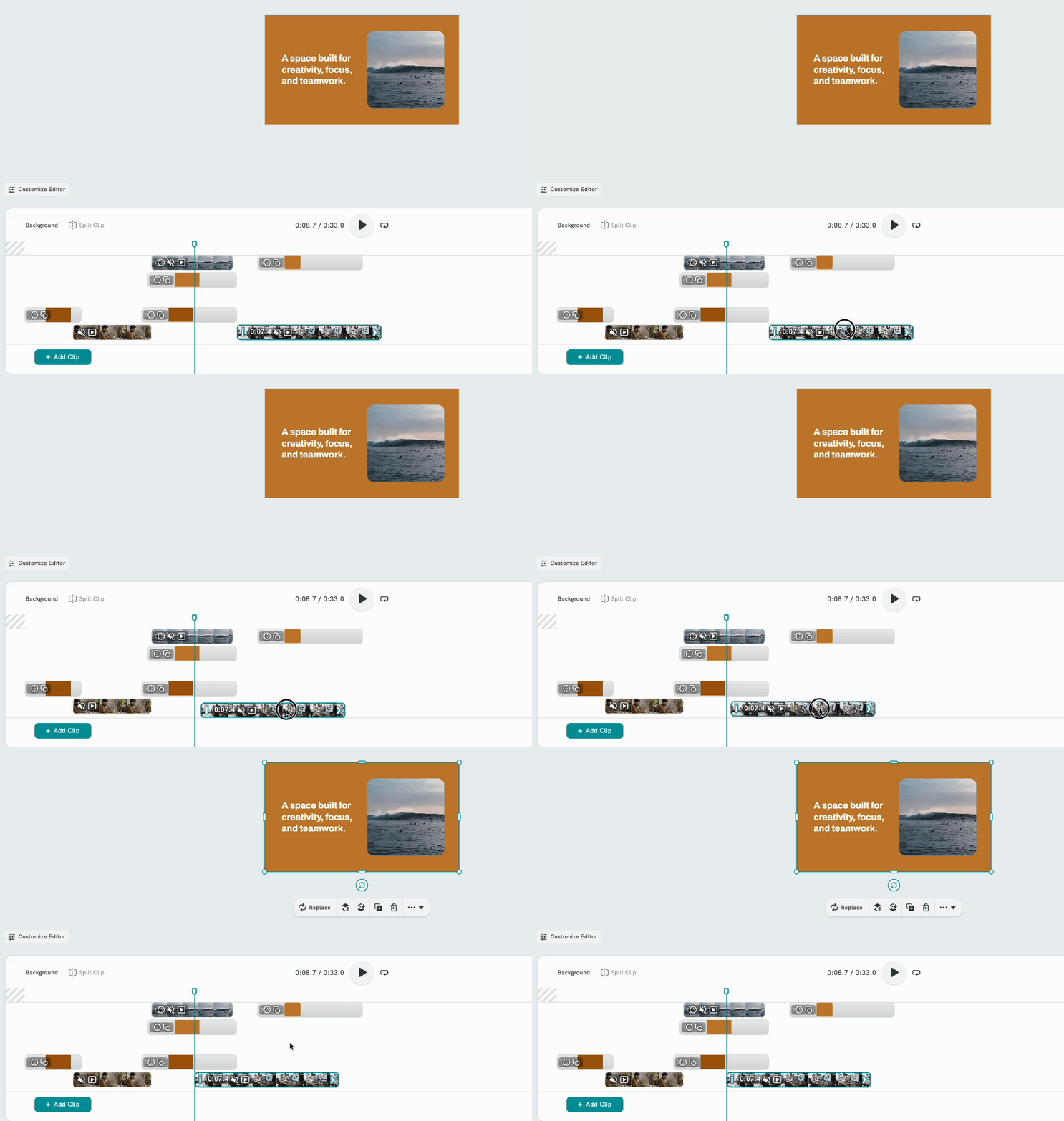
- Trim clips — Shorten the start or end of any clip by dragging its edges on the timeline or click on the Trim button from the Edit Panel.

- Delete scenes — Remove unwanted clips and close the gap automatically.
- Add transitions — Insert smooth transitions between scenes for a more polished flow.
-
Add and Edit Text
-
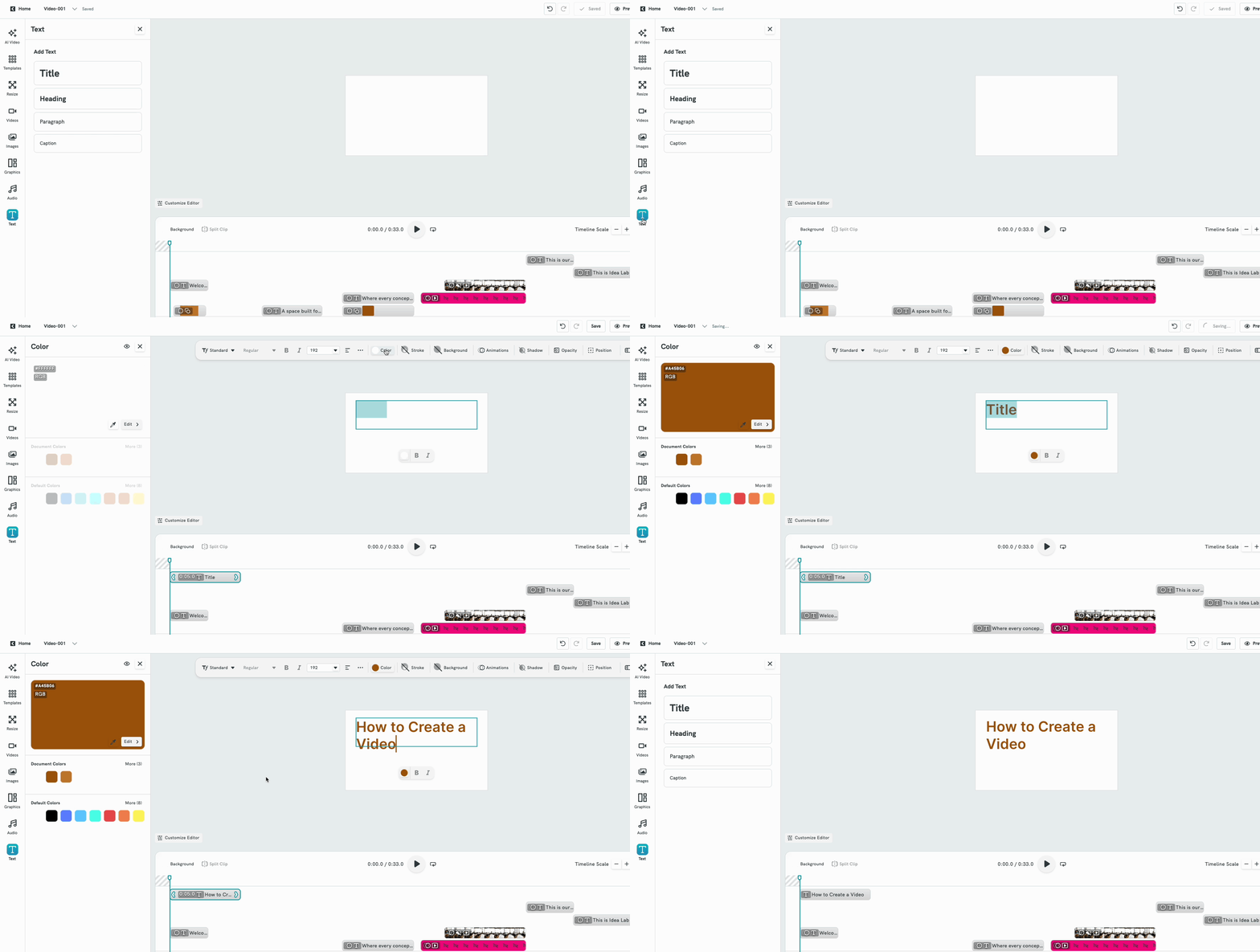
- Add text overlays — Place titles, subtitles, captions, or callouts on any scene.
- Edit text content — Click any text element to change wording, adjust font size, or reposition it on screen.
- Style your text — Choose from available fonts, colours, and alignments that match your brand or presentation needs.
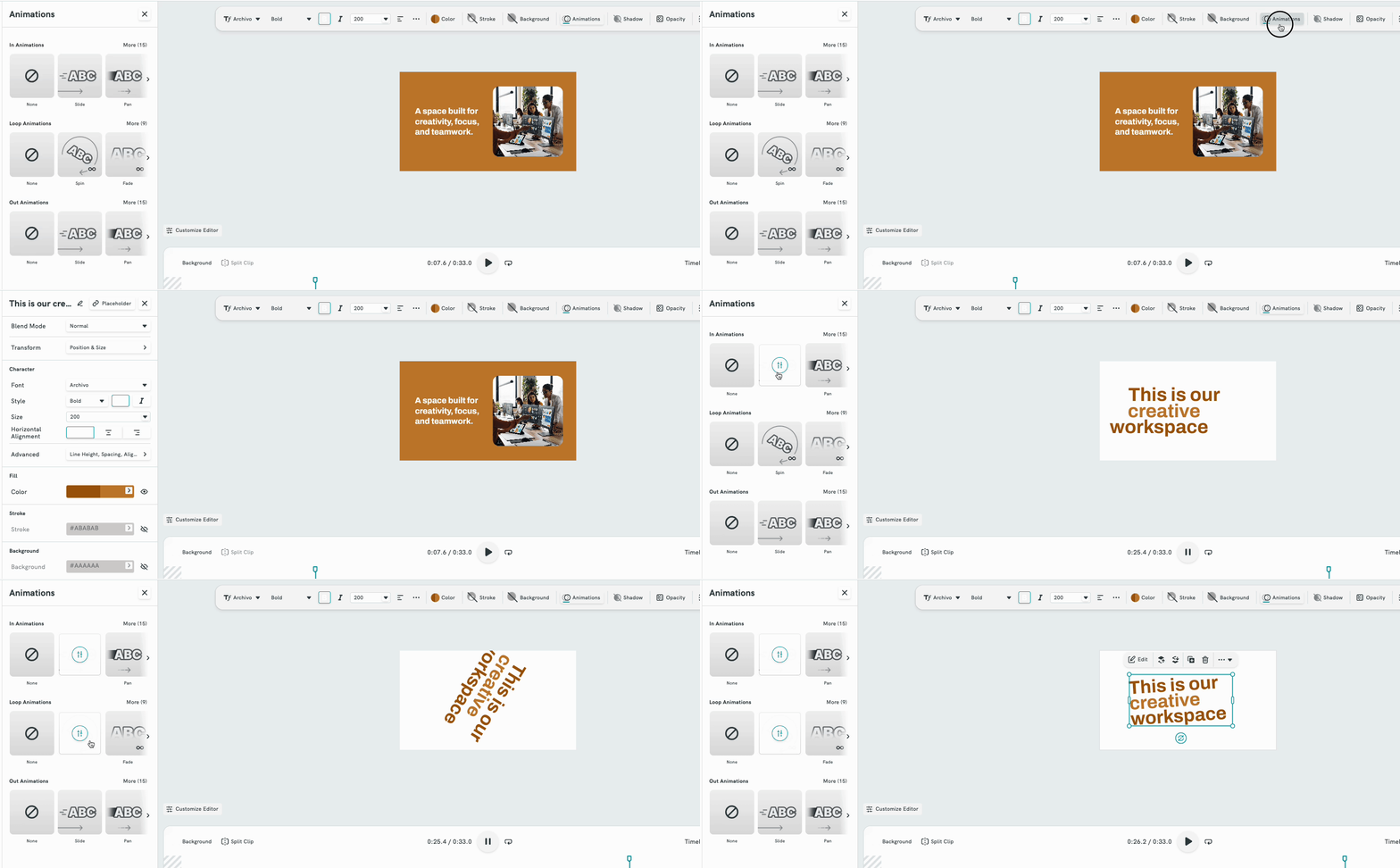
- Animate text — Apply entrance and exit animations to text overlays to keep your video dynamic.
-
Manage Visuals and Assets
- Swap AI-generated clips — Replace any generated scene with a clip from your own uploaded footage or from
- Upload your own media — Add your own images or video clips to use as scene backgrounds or overlays.
- Add your logo or branding — Insert your company logo and apply consistent brand colours across your video.
- Use Piktochart assets — Access icons, illustrations, and graphics from the Piktochart asset library to enhance your scenes.
-
Adding Audio to your Video
- Add background music — Choose from a library of royalty-free music tracks to set the tone of your video.
- Adjust audio volume — Control the volume level of background music independently from any narration.
- Upload your own audio — Add a custom voiceover or background track by uploading an audio file.
-
Save and Export
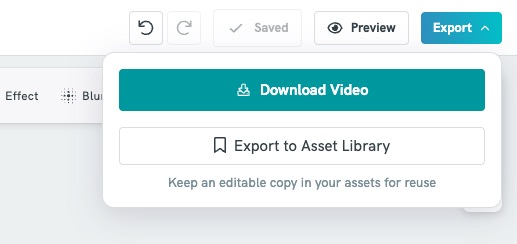
- Export as MP4 — Download your finished video in MP4 format for use in presentations, websites, or social platforms.
Frequently Asked Questions
Can I edit a video after it's been generated?
Yes. The AI Video Editor includes basic editing tools for trimming, adding text, and adjusting transitions. For more advanced changes, you can regenerate individual sections with a revised prompt