
How to Enhance Videos and Images Using Visual Effects in PiktoAI Video Editor
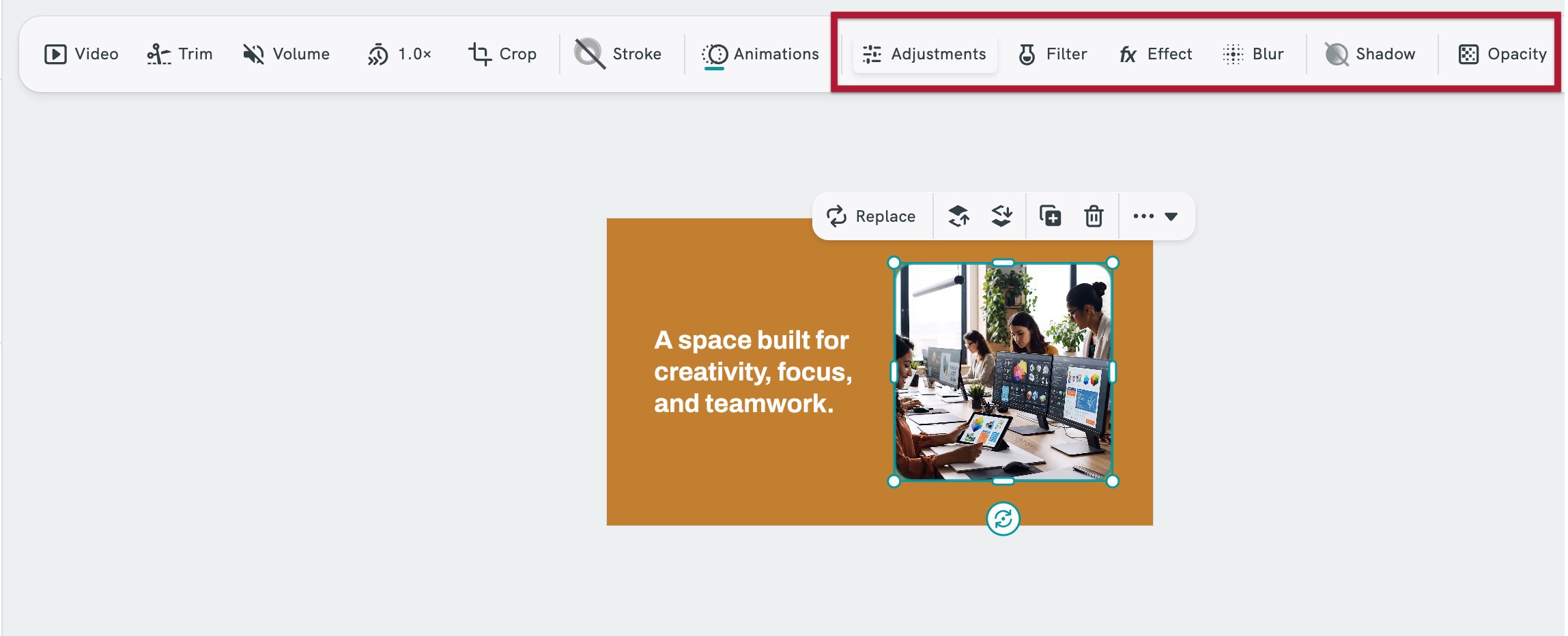
PiktoAI Video Editor includes a set of visual enhancement tools that let you style and polish any video clip or image in your project. When a clip or image is selected, the top toolbar gives you access to Adjustments, Filter, Effect, Blur, Shadow, and Opacity, each offering a different way to control how your element looks on screen.
How to Access the Visual Enhancement Tools
- Open your project in the Piktochart Video Editor.
- Click on a video clip or image on the canvas to select it.
- The top toolbar will display all available editing options.
- Click any of the following tools to open their respective panels:
-
Adjustments
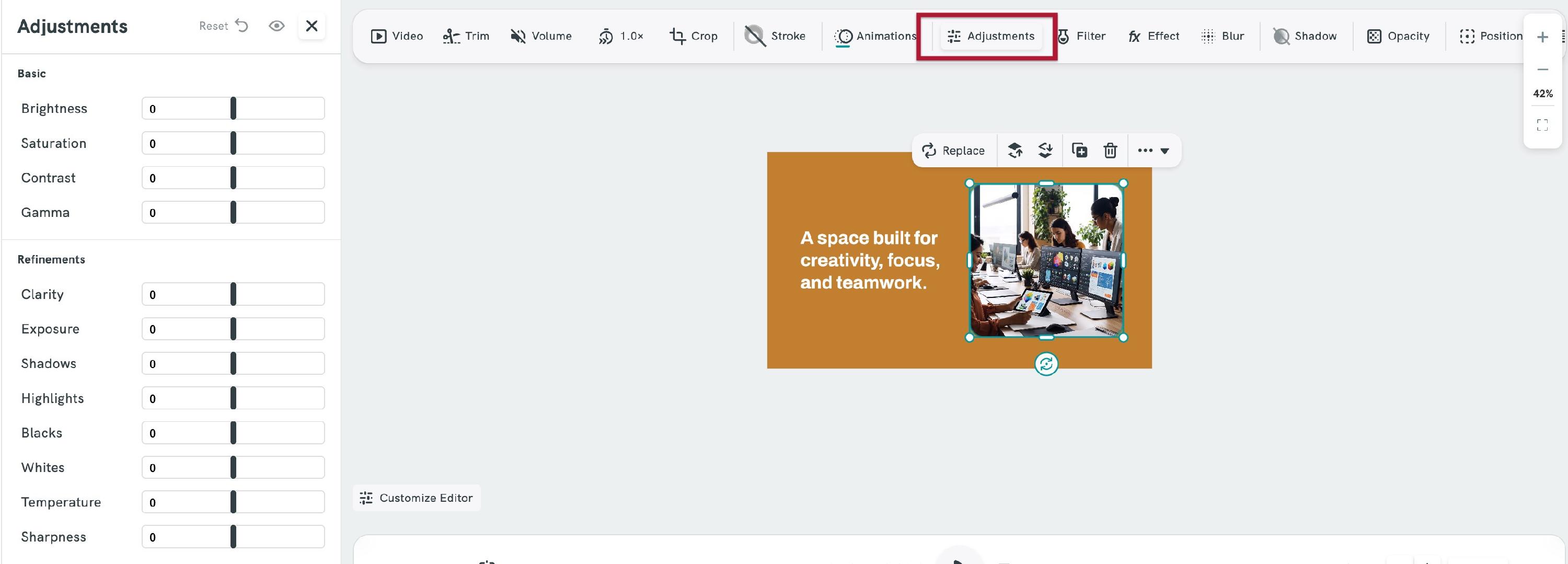
Fine-tune the visual tone of your clip or image with manual sliders.
Settings available:
Basic
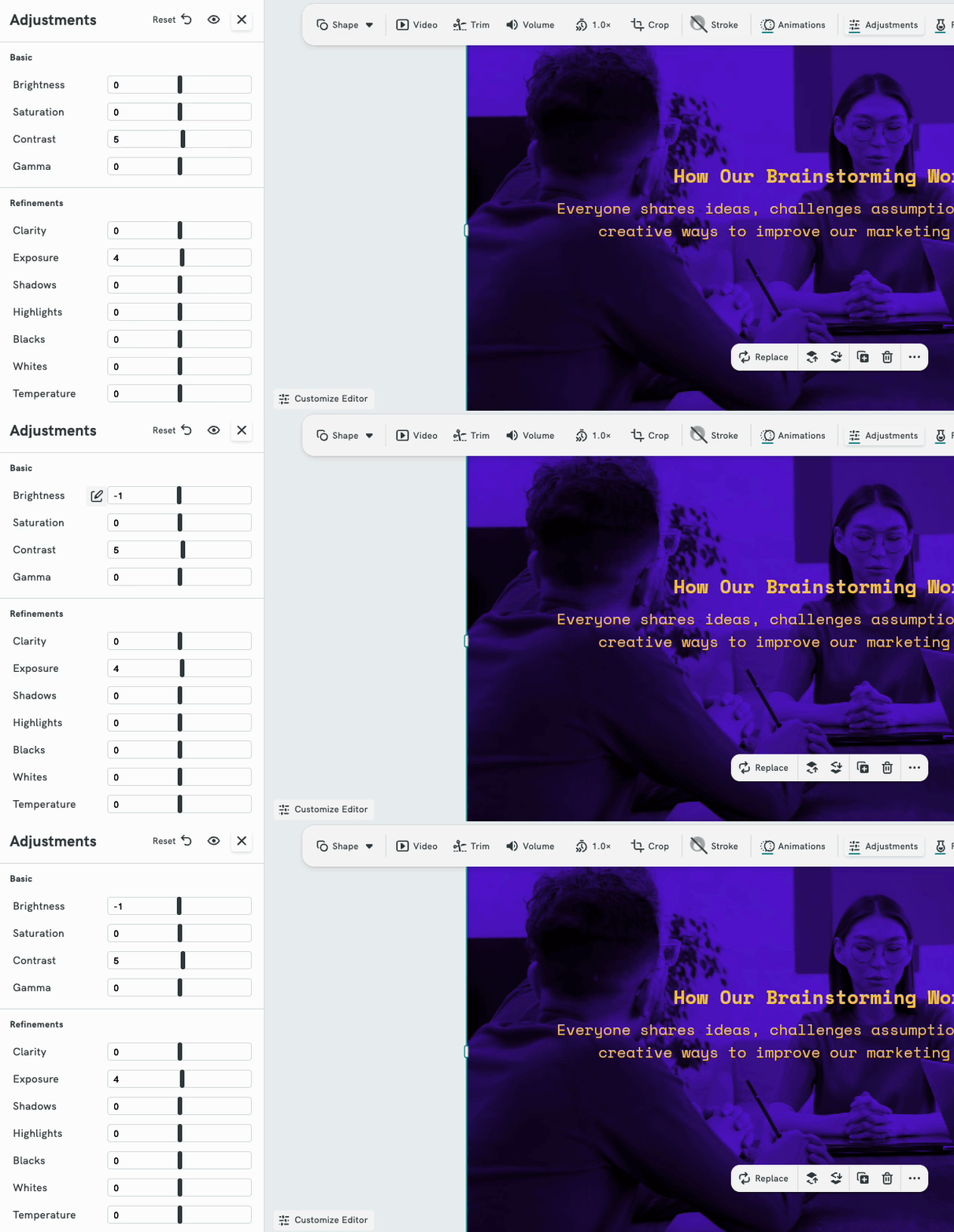
| Setting | What It Does |
|---|---|
| Brightness | Makes the image lighter or darker overall |
| Saturation | Controls color intensity; higher for vivid, lower for muted |
| Contrast | Increases or decreases the difference between light and dark areas |
| Gamma | Fine-tunes midtone brightness independently of highlights and shadows |
Refinements
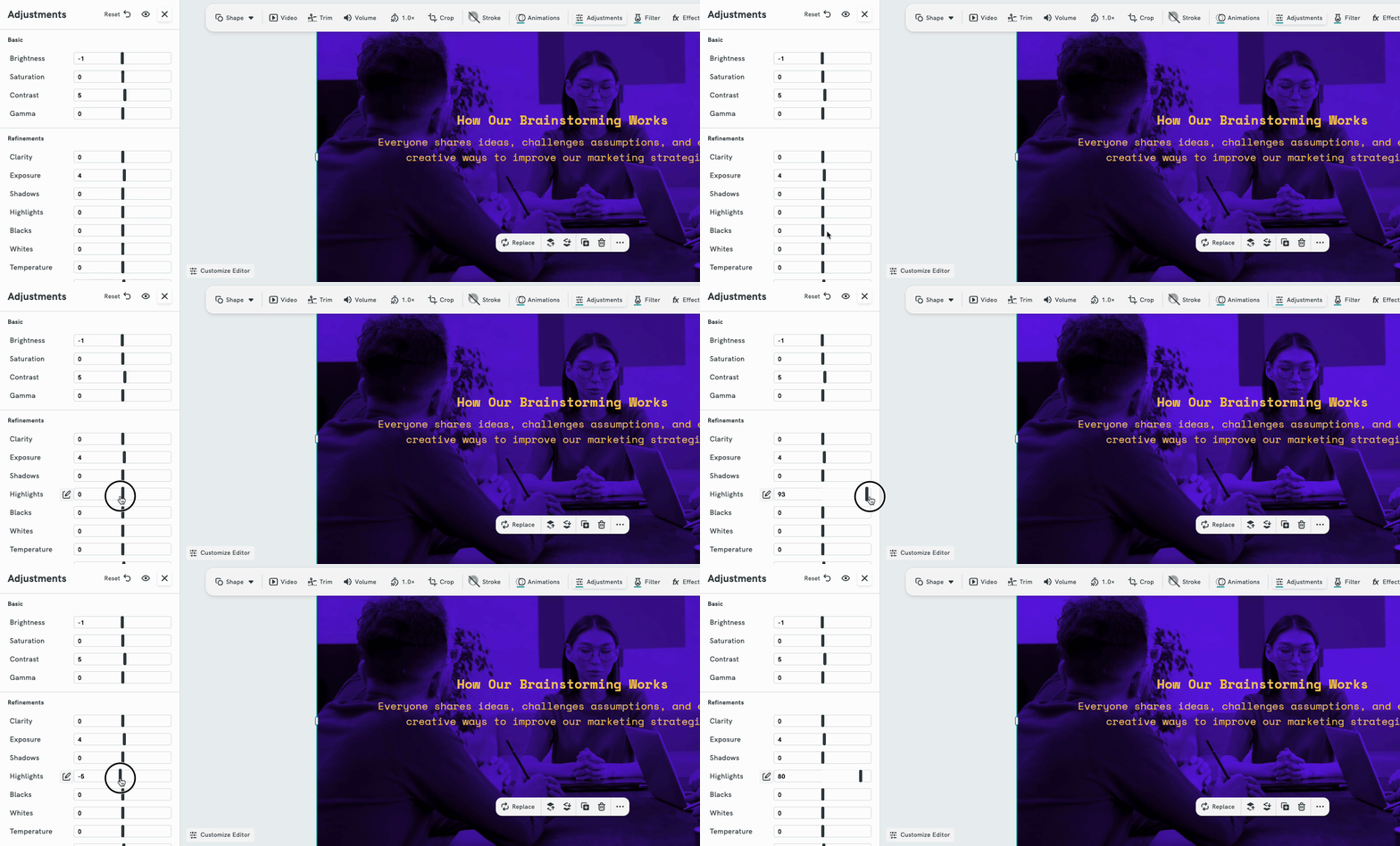
| Setting | What It Does |
|---|---|
| Clarity | Enhances mid-tone contrast for more depth and texture |
| Exposure | Simulates camera exposure; brightens or darkens evenly |
| Shadows | Lightens or darkens only the dark areas |
| Highlights | Lightens or darkens only the bright areas |
| Blacks | Controls the depth of the darkest tones |
| Whites | Controls the ceiling of the brightest tones |
| Temperature | Shifts color toward warm (orange) or cool (blue) tones |
| Sharpness | Enhances edge definition for a crisper look |
- Use the Reset button to revert all sliders to default.
- Use the eye icon to toggle a before/after preview.
-
Filter
Apply a preset color grade to your clip or image with a single click.
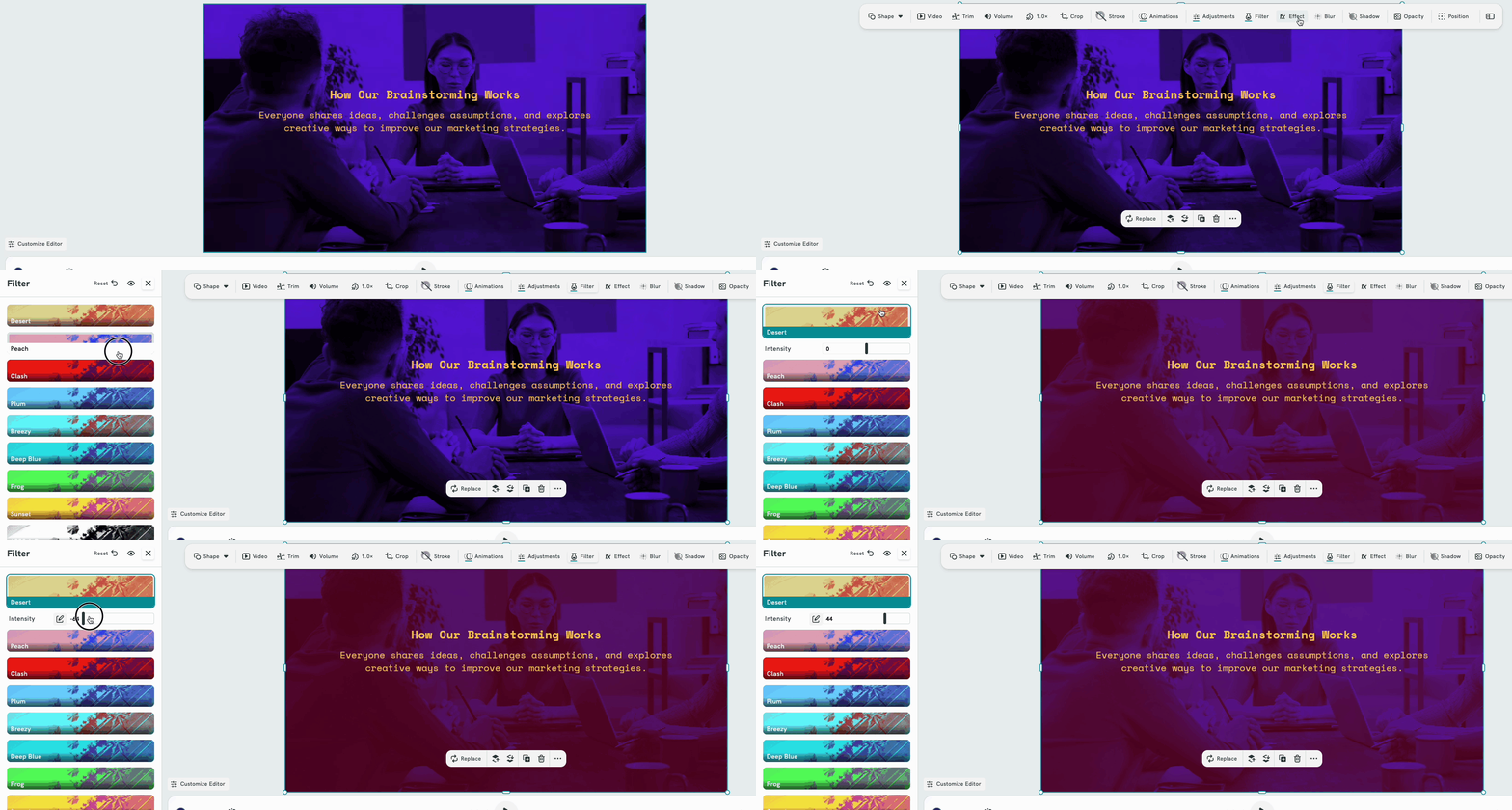
- Select your clip or image and click Filter in the toolbar.
- Browse the available filter presets in the left panel.
- Click a filter to apply it. A live preview will appear on the canvas.
- Toggle the Intensity bar to manually adjust the intensity of the filter.
- To remove a filter, select the Reset or the eye icon to on and off preview filter.
Effect
Let your clip or image really shine by adding some creative visual effects.
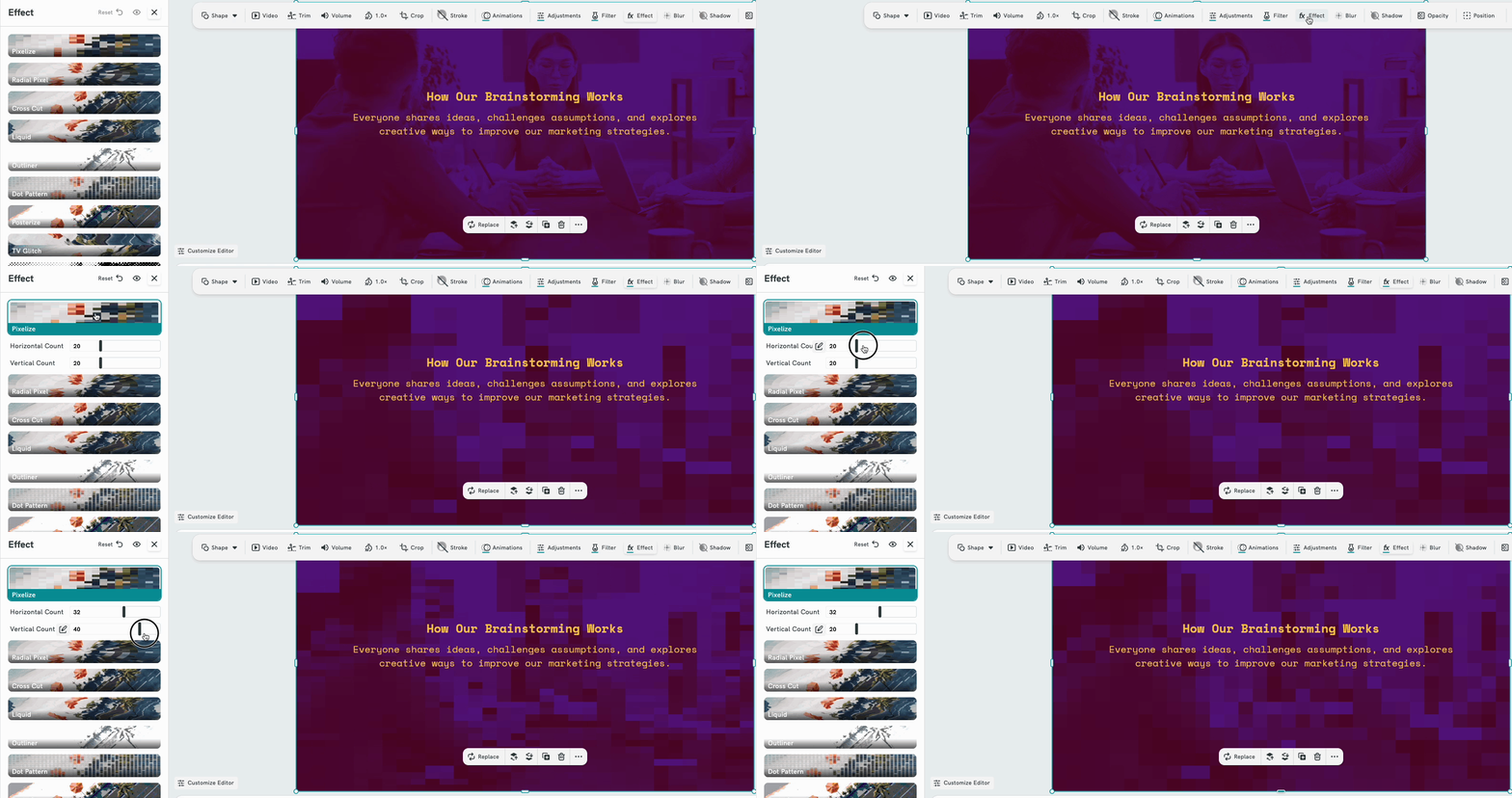
- Select your clip or image and click Effect in the toolbar.
- Browse the available effects in the panel.
- Click an effect to apply it and preview the result on the canvas.
- Select None to remove an applied effect.
Adding Blur Effect
You can apply a blur effect to an image or video visual in PiktoAI Video. Blur can be used to create visual depth, soften busy backgrounds, or draw attention to text and other elements in your video.
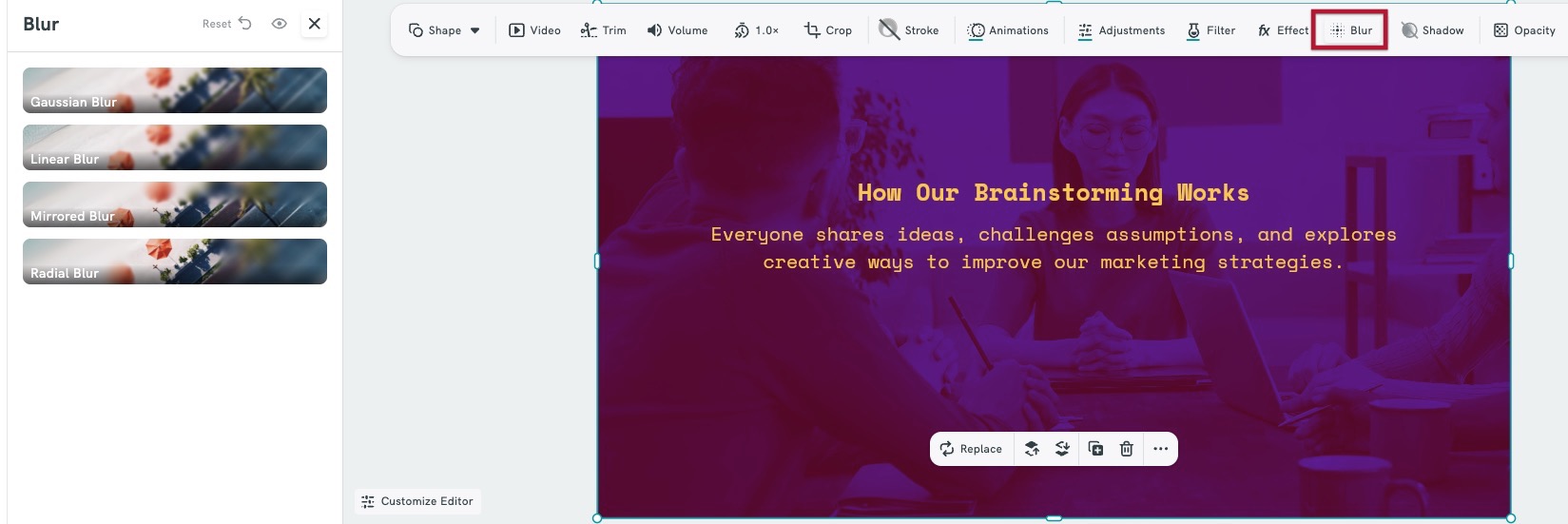
- Select the image or video on the canvas.
- In the top toolbar, click Blur.
- Choose a blur style:
- Gaussian Blur for a soft, evenly distributed blur
- Linear Blur for a directional blur
- Mirrored Blur for a mirrored blur effect
- Radial Blur for a blur that spreads outward from a focal point
- Adjust the effect as needed using the available controls.
- To remove the effect, open Blur and select Reset.
Adding Shadow
You can add a customizable shadow to an image or video visual in PiktoAI Video.

- Select the image or video on the canvas.
- In the top toolbar, click Shadow.
- Customize the shadow using the available settings:
- Color: Choose the shadow color.
- Angle: Set the direction from which the shadow appears.
- Distance: Adjust how far the shadow extends from the visual.
- Blur: Control how soft or defined the shadow looks.
- Adjust the settings until the shadow matches your design.
- To hide the shadow, click the visibility icon in the Shadow panel.
A subtle shadow can help separate a visual from the background and create more depth in your video.