
How to Use Pikto AI Image Tool
- Select the Image template format.
- Input your content
-
For Image/Icon generator, turn words into pictures - provide a detailed description of what you'd like to generate, enhance or modify for your image.
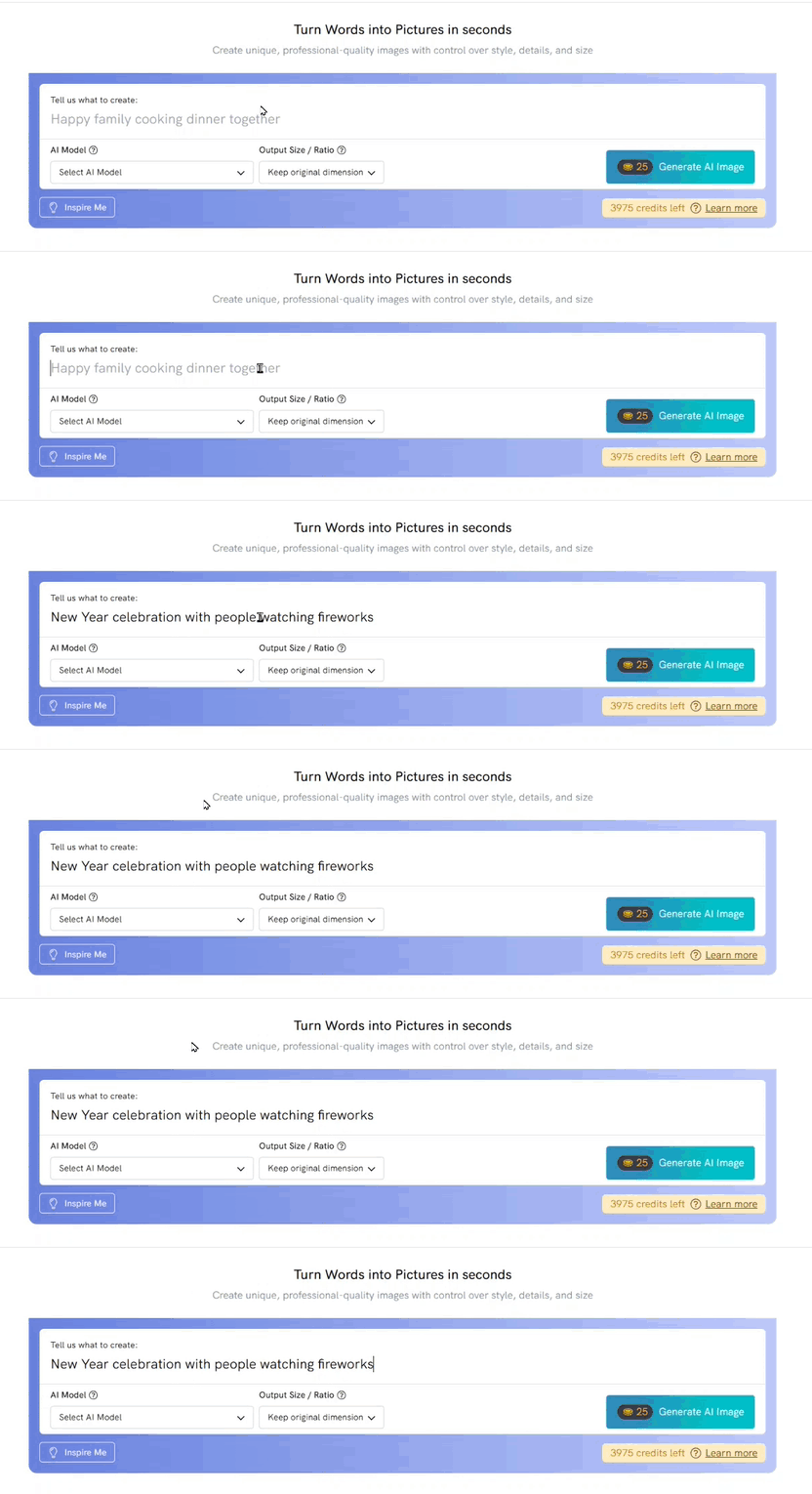
-
For other AI tools, upload the photo you want to modify by selecting an image from your device.
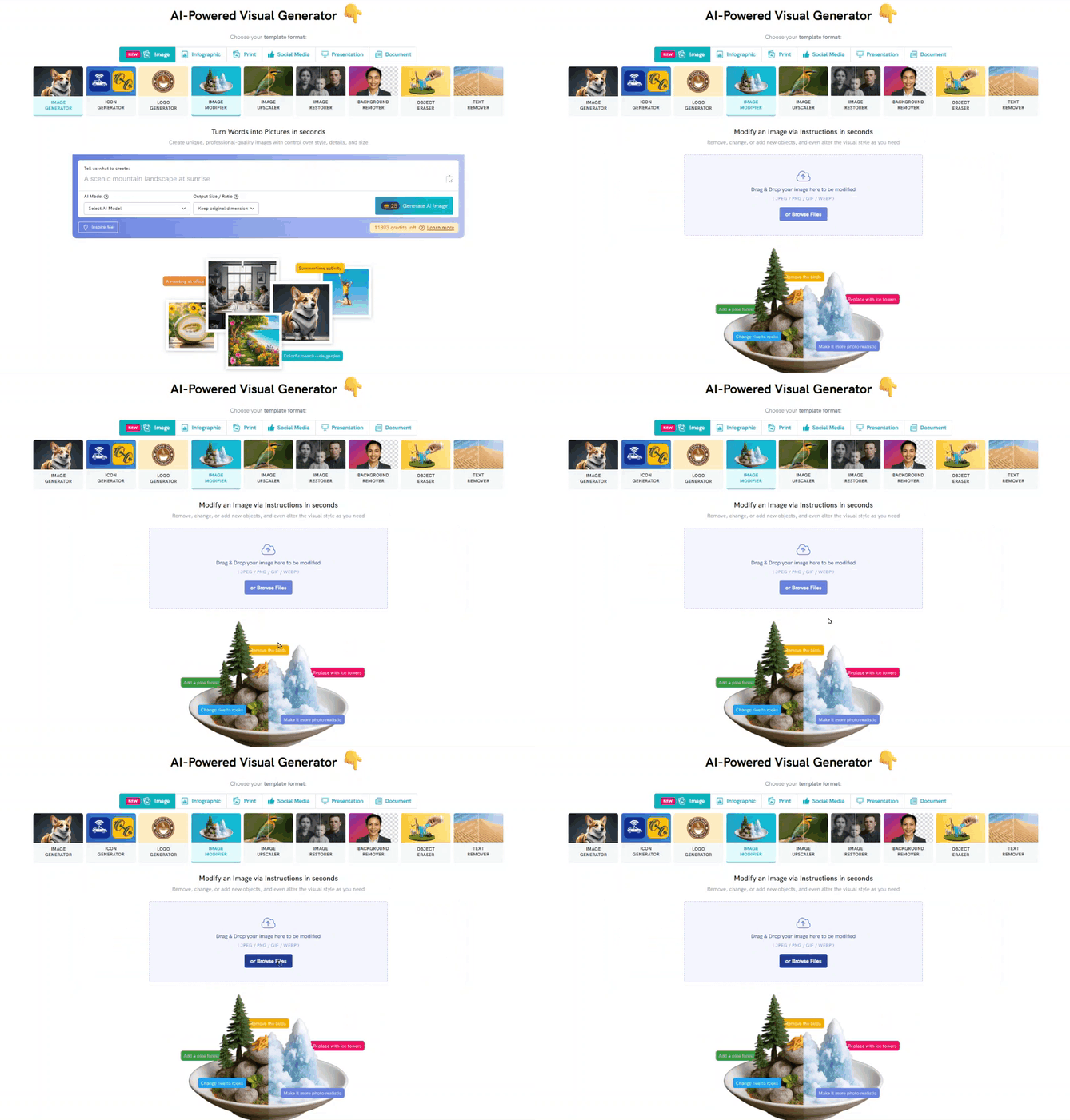
-
- Generate your content
-
For image/icon generator tool, click Generate AI Image to generate.
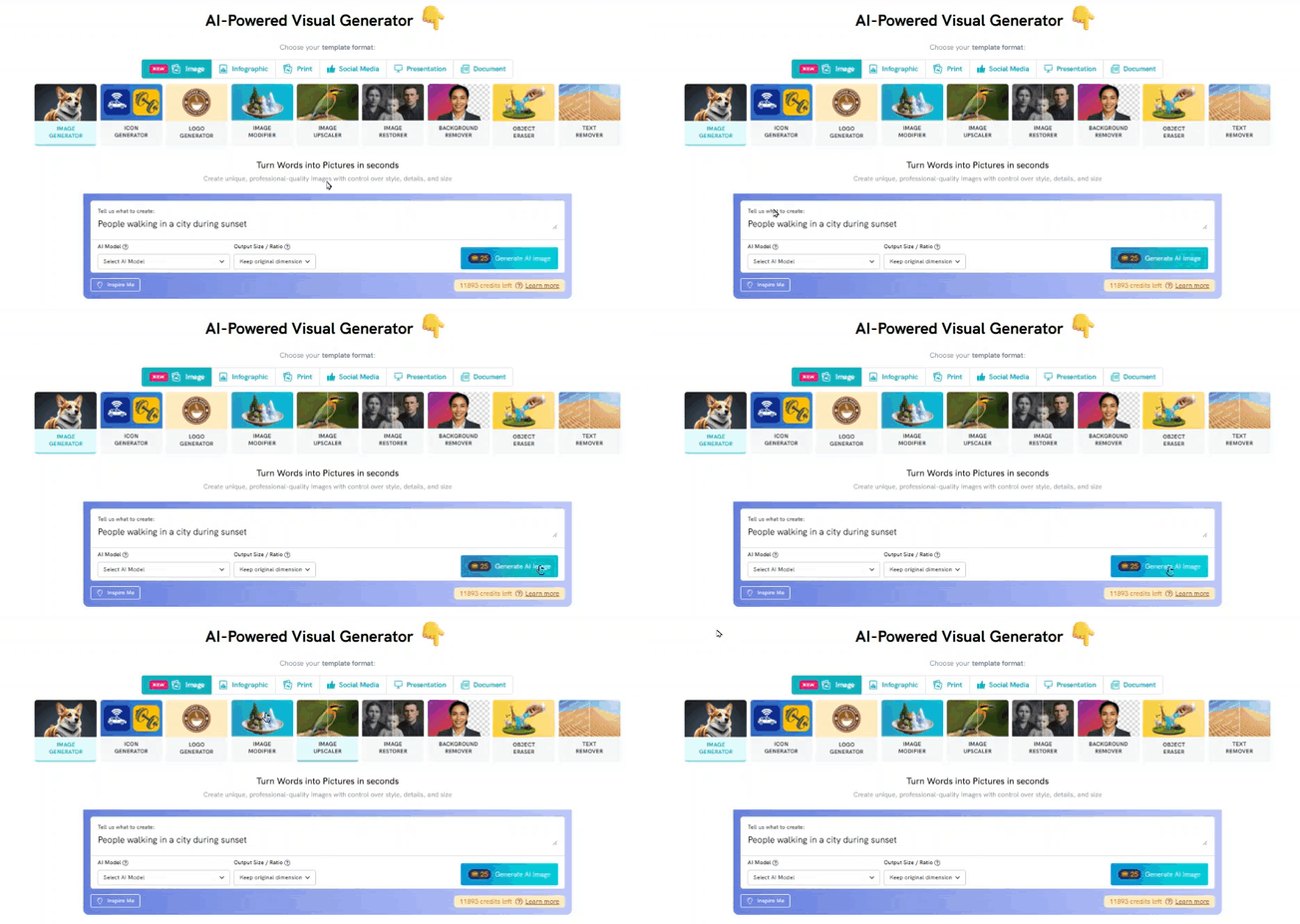
-
For other AI Image tools, upload a photo from your device:
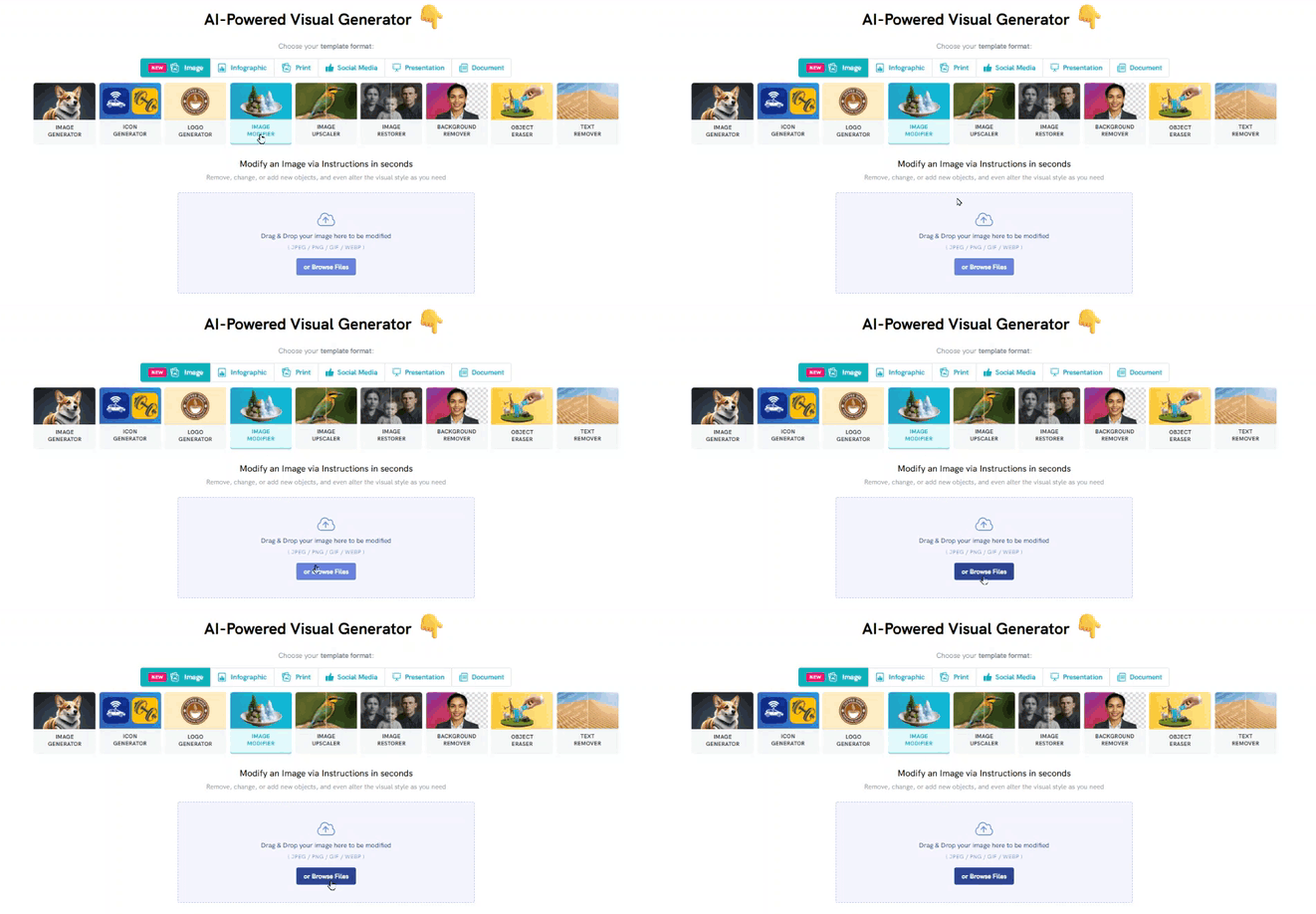
-
-
Review the generated image.
If you are satisfied with the generated image, download it to your device and/or click Edit in Canvas to add it on your visual:
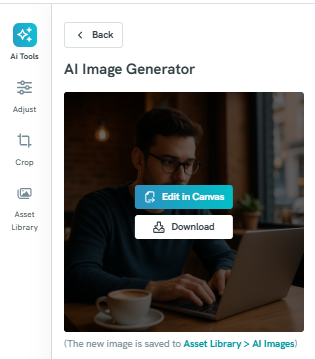
Otherwise, you can generate a new image by clicking Generate Again.

- From here, you can edit your image.
-
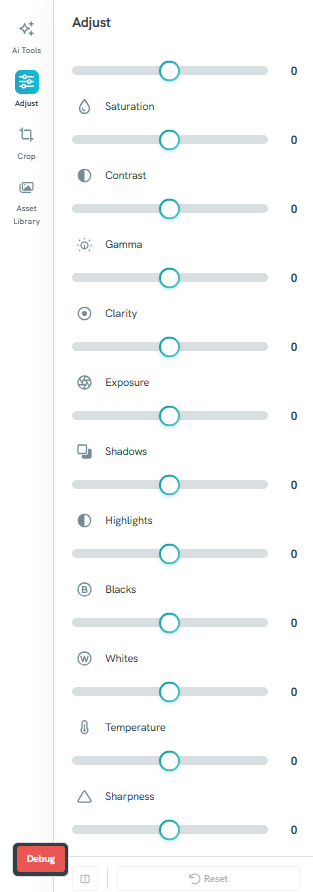
Photo adjustments: You can adjust the photo's brightness, saturation, contrast, gamma, clarity, exposure, shadows, highlights, blacks, whites, temperature and sharpness.
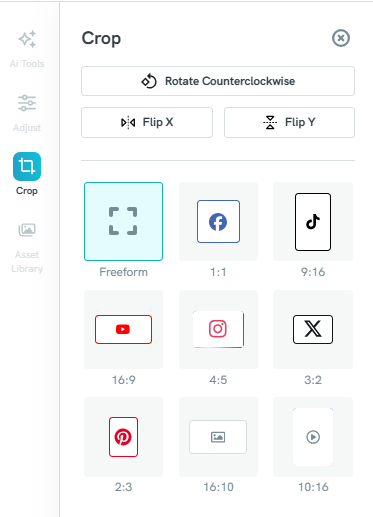
Crop your photo: Use the Crop tool to adjust the framing of your photo. You can rotate the image counterclockwise, flip it horizontally or vertically, and choose from a variety of preset aspect ratios. Select Freeform to crop freely, or pick a preset size such as 1:1, 9:16, 16:9, 4:5, 3:2, 2:3, 16:10, or 10:16—including popular formats for platforms like Facebook, TikTok, Instagram, YouTube, and Pinterest. This helps you quickly crop your image to fit the exact dimensions required for different uses or social media posts.
- Asset Library: This is where you can upload your own photo, and your generated images are being stored.
-
